


.svg)

%201%201.svg)
Design.com vs Adobe vs Canva: A Complete Logo Maker Comparison 2026
What makes a logo actually useful after you've created it?
A logo needs to look good, but that's only part of the job. It also needs to be easy to customize, available in formats you can actually use, and flexible enough to appear on everything from websites and social profiles to packaging and signage.
Design.com, Adobe Express, and Canva all offer ways to create a logo without starting from a blank canvas. But the experience changes once you move from the initial idea to a finished design.
To see how they compare in practice, we used the same fictional business and design brief across all three platforms: Backyard Burgers.
Design.com vs Adobe vs Canva: Quick Comparison
The three platforms overlap in what they can create, but each takes a different approach to logo design.
The table gives you the basic differences, but the more useful comparison comes from actually using each platform. We looked at how each one handles the process from the first business idea to the final logo.
The Test: One Business, Three Logo Makers
For a fair comparison, we used the same fictional business across all three logo maker platforms.
Business name: Backyard Burgers
Prompt: Create a modern, friendly logo for Backyard Burgers, a casual burger restaurant serving grilled burgers, fries, and classic comfort food. Use a warm, welcoming style, bold typography, a simple burger or backyard-inspired icon, and a color palette that works well on restaurant signage, menus, packaging, and social media.
We looked at five parts of the process:
- Getting started
- Generating logo concepts
- Customizing the design
- Preparing the logo for different uses
- Using the logo as part of a wider brand
Getting From a Business Idea to a Logo
The first difference appears before any logo is generated. Each platform asks for different information and provides varying levels of direction over the creative process.
Design.com
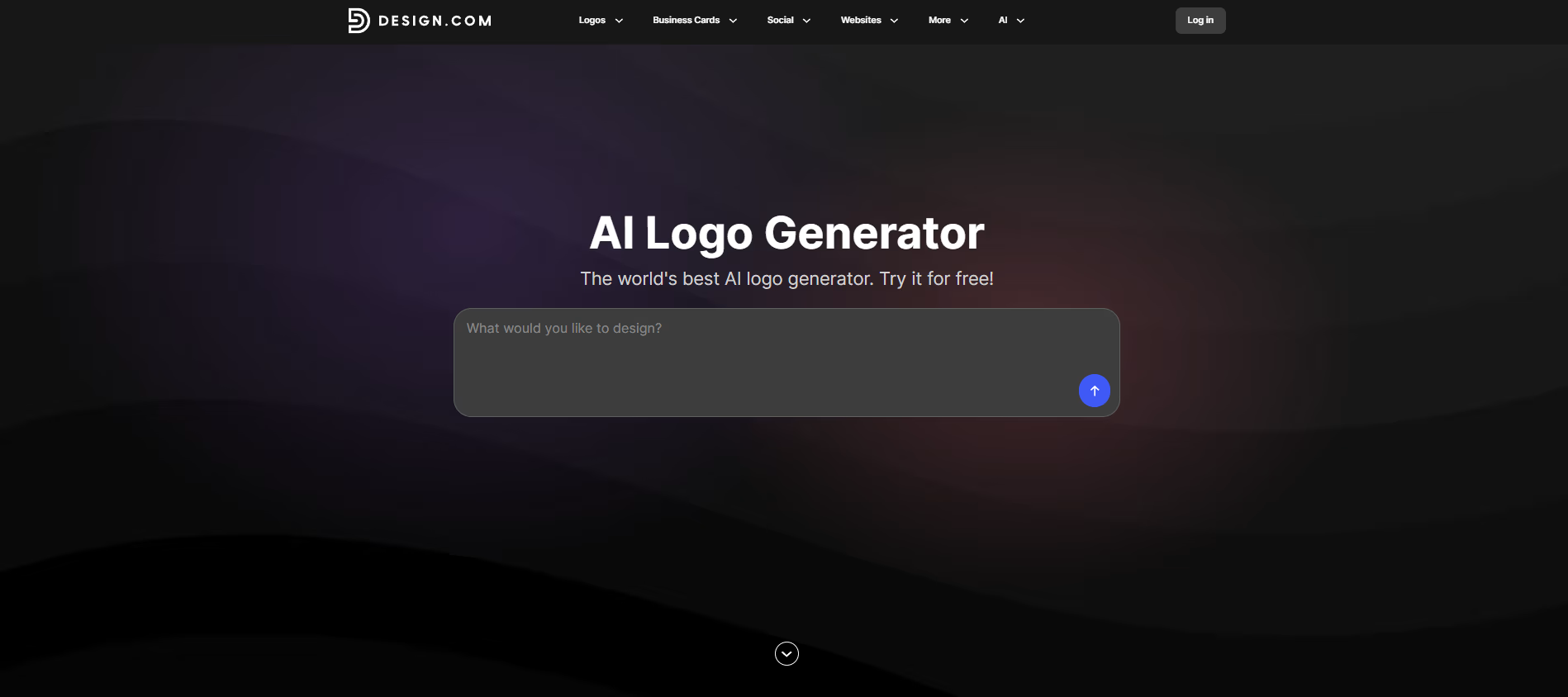
Design.com starts with the business name and lets you add additional keywords or information about the company. Its AI logo generator then uses those inputs to create logo concepts tailored to the business.
For our test, we entered Backyard Burgers along with the same restaurant brief used throughout the comparison.
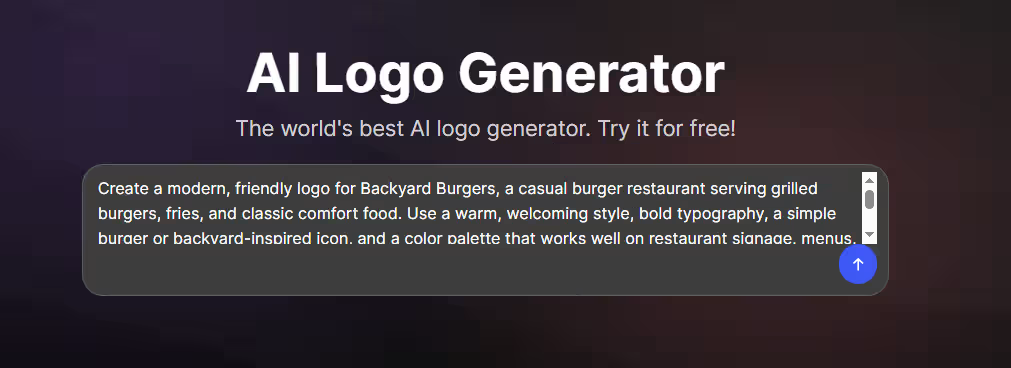
Design.com's logo creation screen for Backyard Burgers.
The process keeps the focus on the business itself. Rather than choosing a generic blank canvas first, you start with the information that should shape the logo.
Design.com also has a large library of more than 500,000 logo designs, giving you another way to explore ideas if you want to look beyond the AI-generated concepts.
Adobe Express
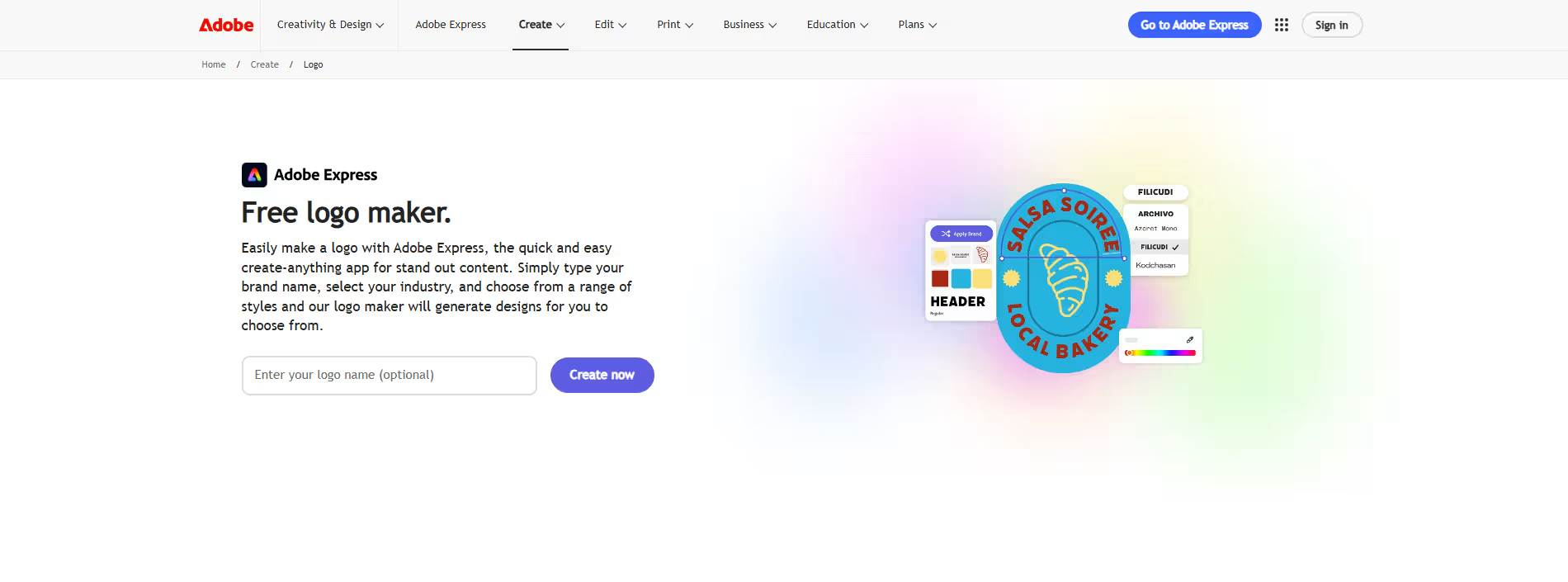
Adobe Express takes a more guided approach to logo creation. With its AI logo maker, you can start with your business name, then work through design preferences before moving on to the generated results.
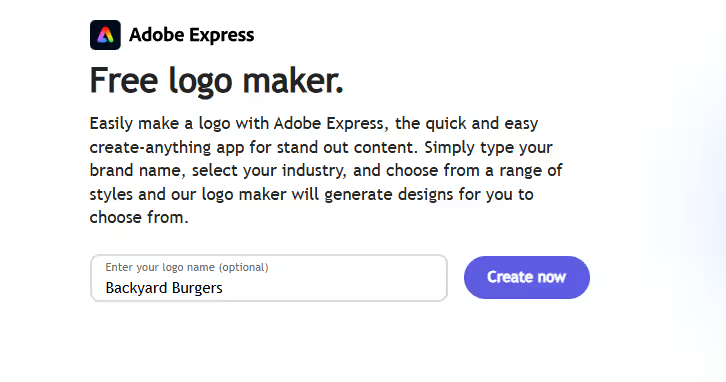
Adobe Express logo setup using the Backyard Burgers business name.
The advantage of this approach is that you can give the generator some visual direction before choosing a result. Once the initial logo is created, you can continue editing it within Adobe Express.
Adobe Express also gives users access to a much wider creative workspace, with templates, fonts, stock assets, and other editing tools available beyond logo creation. Its free plan currently includes more than 100,000 static and video templates, 4,000+ Adobe Fonts, and 1M+ Adobe Stock assets.
Canva
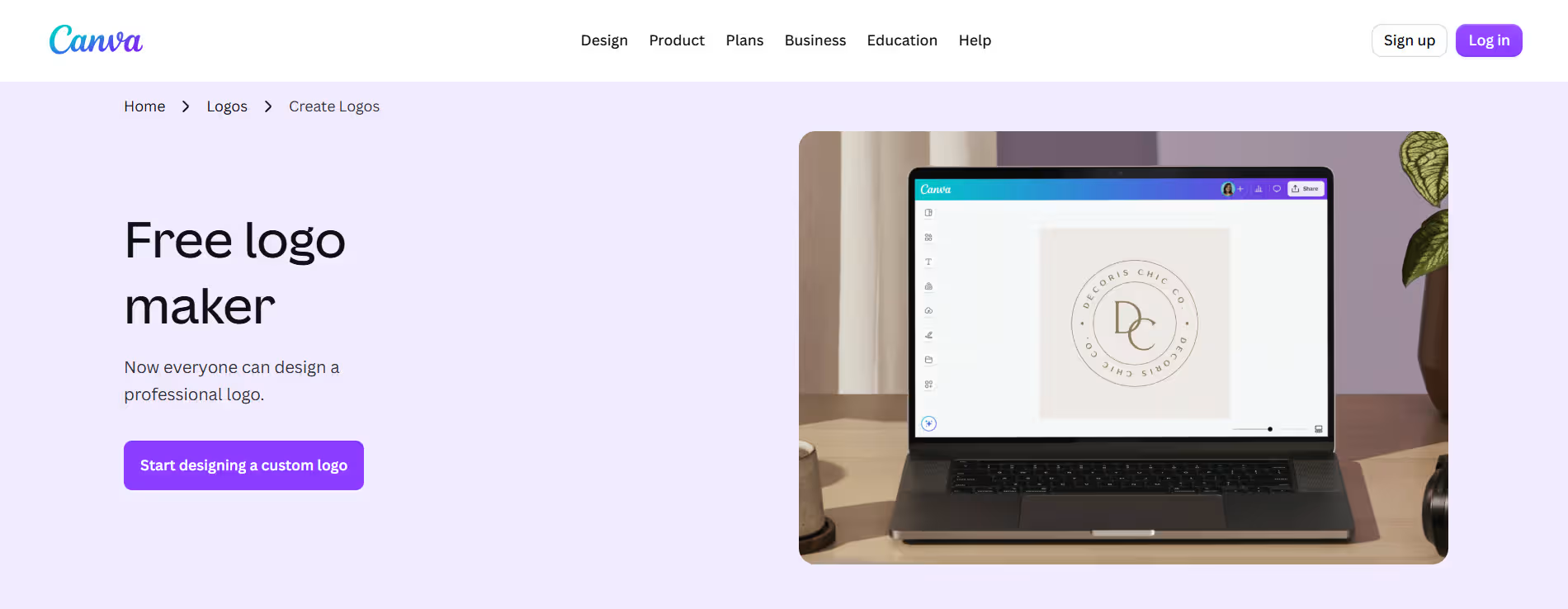
Canva offers two main ways to get started. You can use its AI Logo Generator with a text prompt, or browse its existing logo templates and customize one manually.
For this test, we used the AI approach and entered the same Backyard Burgers brief.
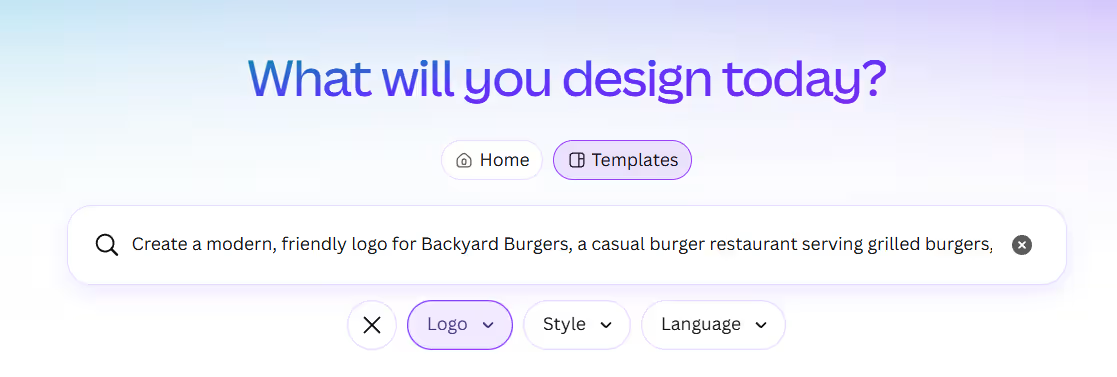
Canva's AI logo generation workflow for Backyard Burgers.
Canva's AI Logo Generator turns a written prompt into logo concepts, while the broader Canva editor lets you continue working on the design afterward.
What this stage tells us
The starting point depends on how much direction you want to provide.
Design.com puts the business and logo at the center of the process. Adobe Express guides you through a broader Adobe design environment, while Canva gives you both AI generation and traditional template-based creation.
What Kind of Logo Ideas Do You Get?
Once the business information is entered, the real test is what comes back.
A logo generator can produce plenty of options, but variety only helps if the designs give you useful directions to explore.
Design.com
After entering the Backyard Burgers brief, Design.com generated multiple logo concepts based on the business name and description.
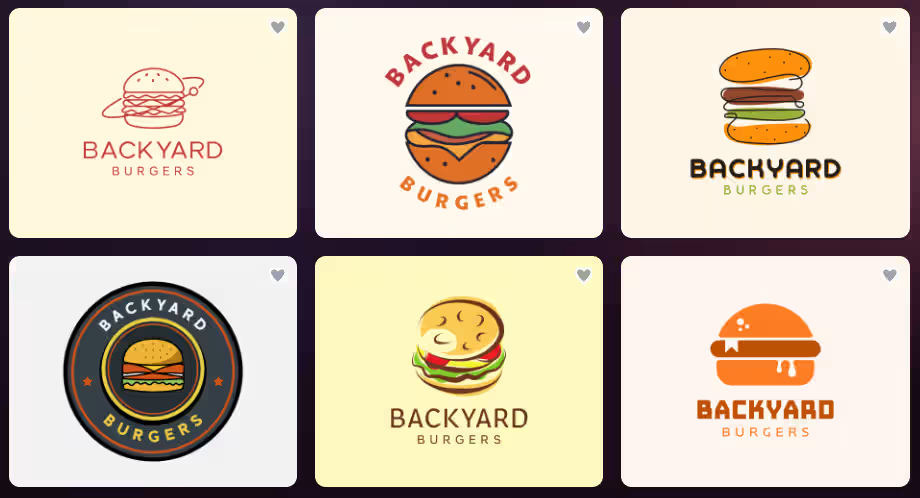
And more:
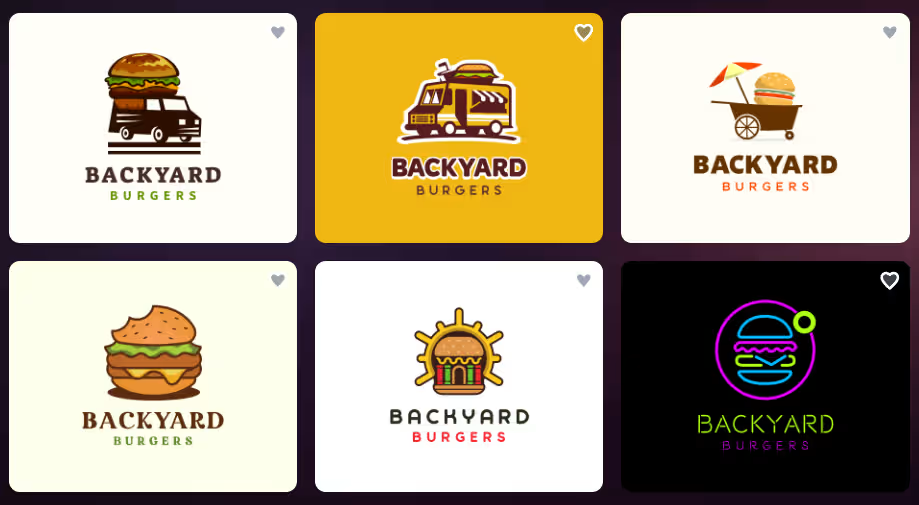
Logo concepts generated by Design.com for Backyard Burgers.
The results give you different combinations of typography, symbols, colors, and layouts to consider. This makes it possible to compare several visual directions before committing to one.
The platform's extensive logo library also lets you continue exploring beyond the initial AI concepts. Design.com currently describes its logo maker as drawing from a library of more than 500,000 designs.
Adobe Express
Adobe Express also generates multiple logo ideas based on the information you provide.
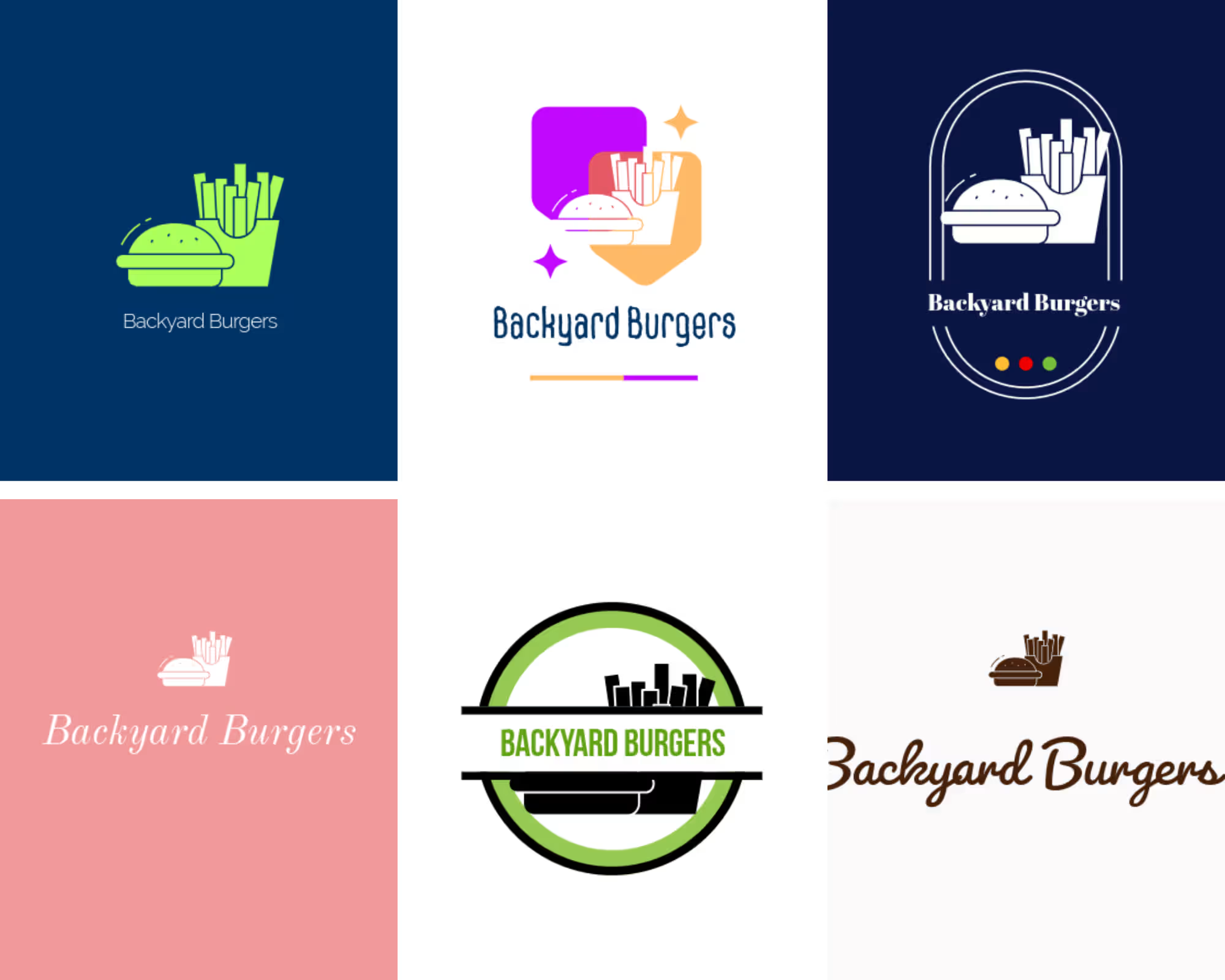
Adobe Express logo concepts generated for Backyard Burgers.
The results can then be brought into the Adobe Express editor for further customization. This is important because the first generated concept doesn't have to be the final version.
Adobe Express is particularly useful if you want to move from the logo into other types of visual content without switching platforms.
Canva
Canva's AI Logo Generator turns a text description into logo concepts.
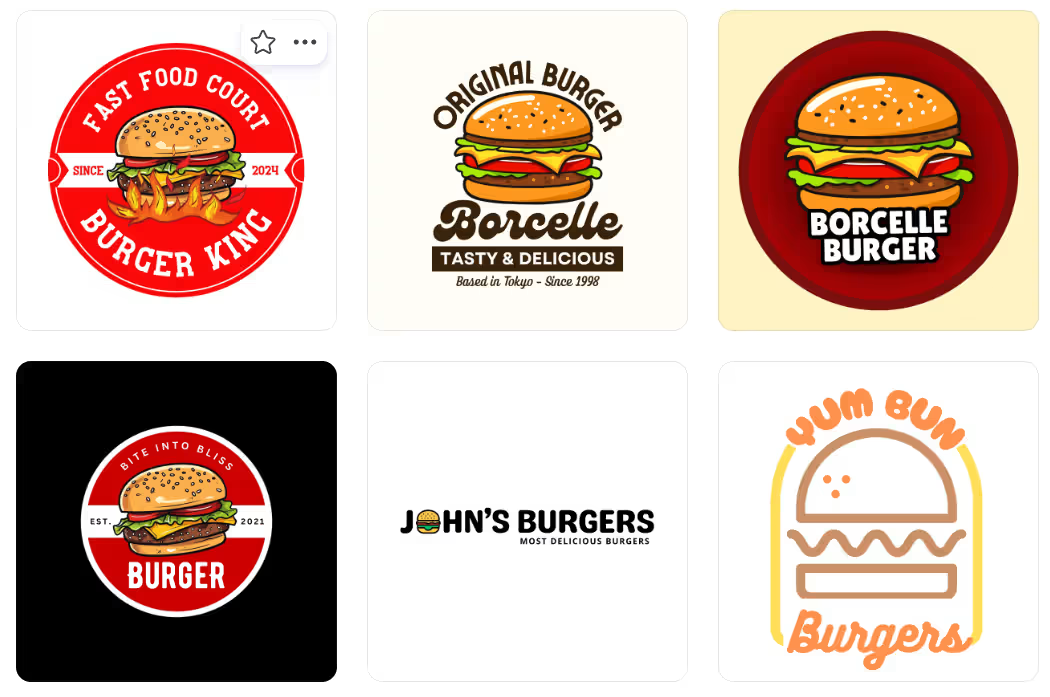
Canva logo concepts generated from the Backyard Burgers prompt.
While Canva did not apply the business name we added in the prompt, you can browse Canva's existing logo templates and customize them. Its current logo library lists thousands of customizable templates, giving users another starting point when AI-generated results aren't quite what they want.
What this stage tells us
The first generated result should be treated as a starting point rather than a finished logo. All three platforms give you ways to explore different directions, although Canva also puts more emphasis on its existing template library.
How Much Can You Actually Change?
Finding a logo concept is only the beginning. The next question is whether you can make it look like your brand rather than a generic, generated design.
Design.com
Design.com gives you direct control over elements such as:
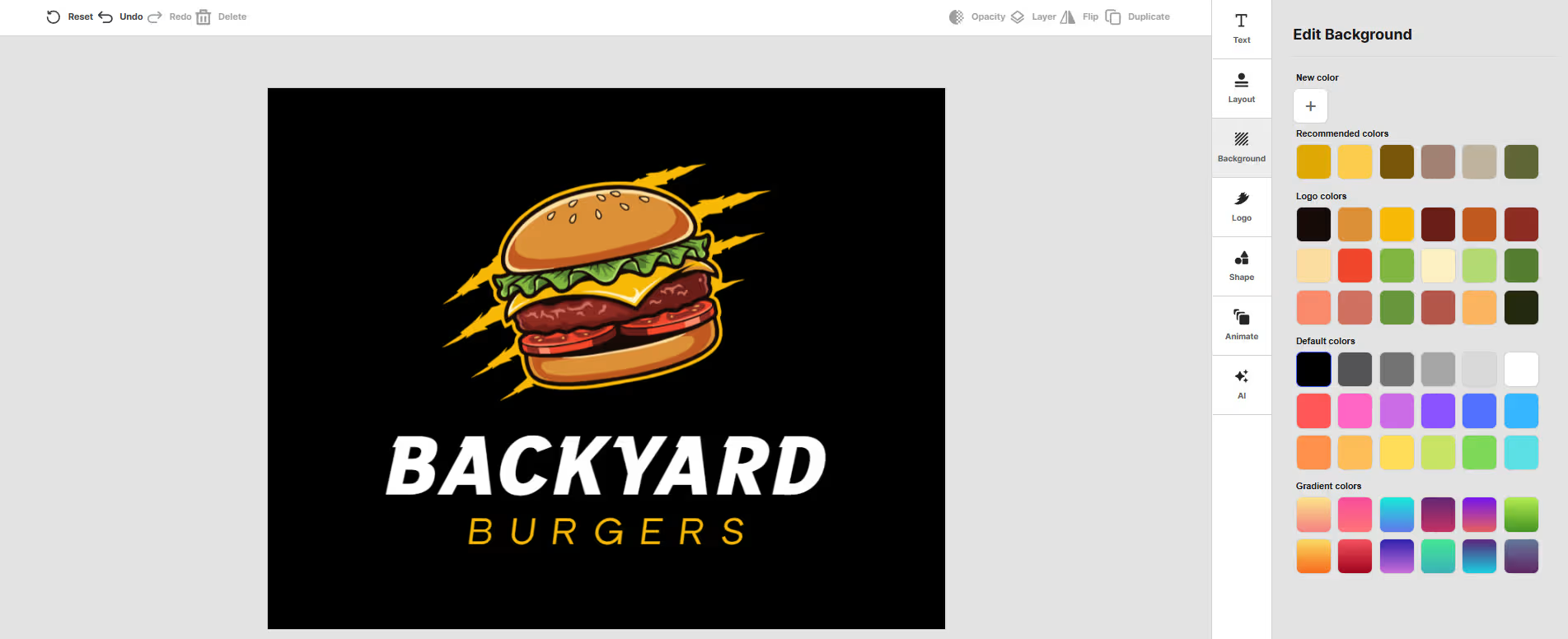
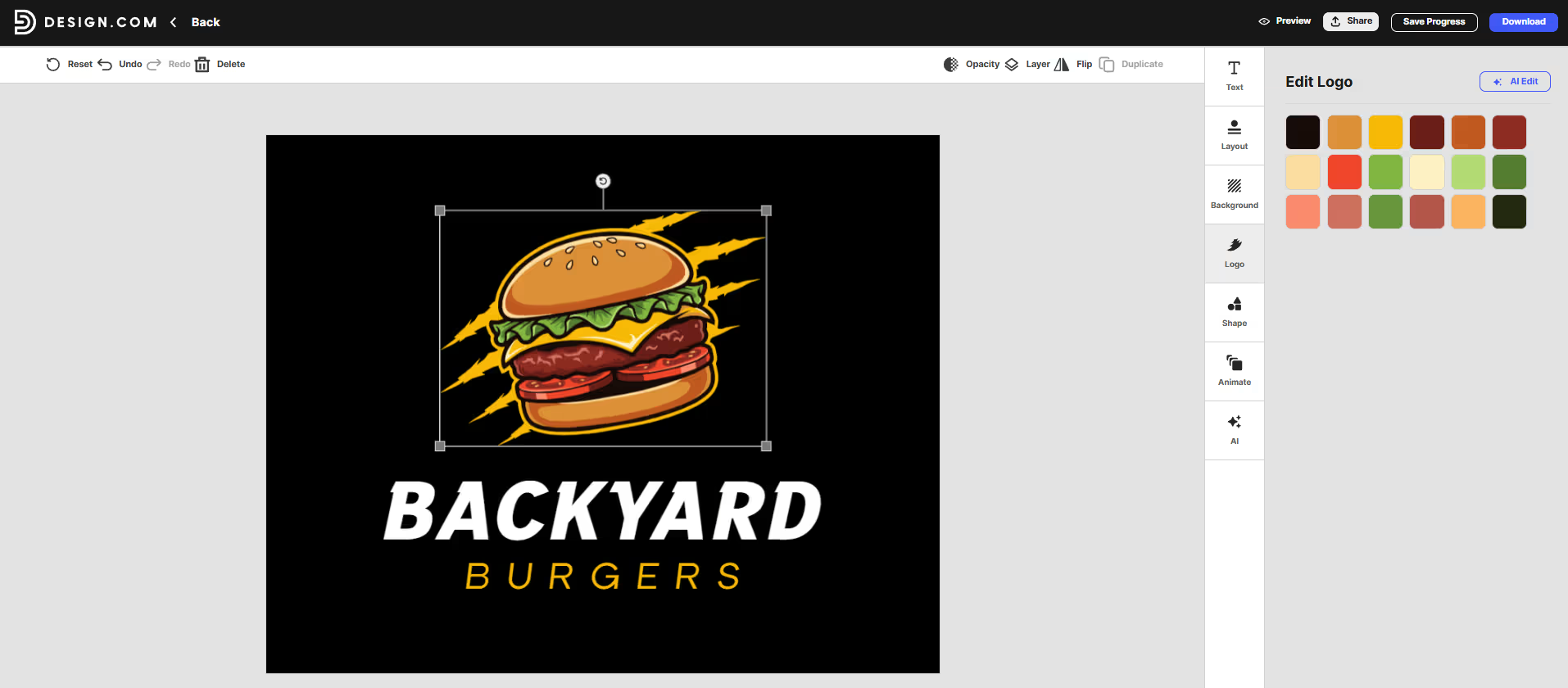
Colors
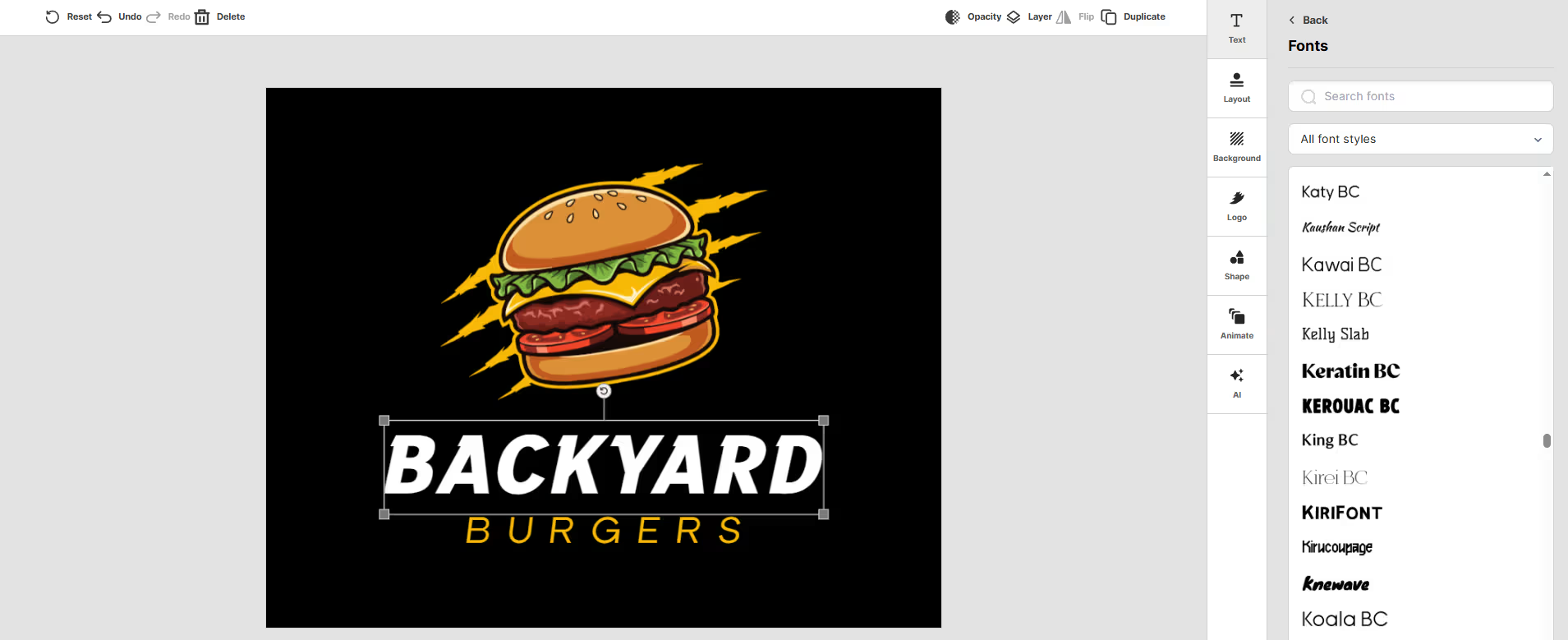
Fonts
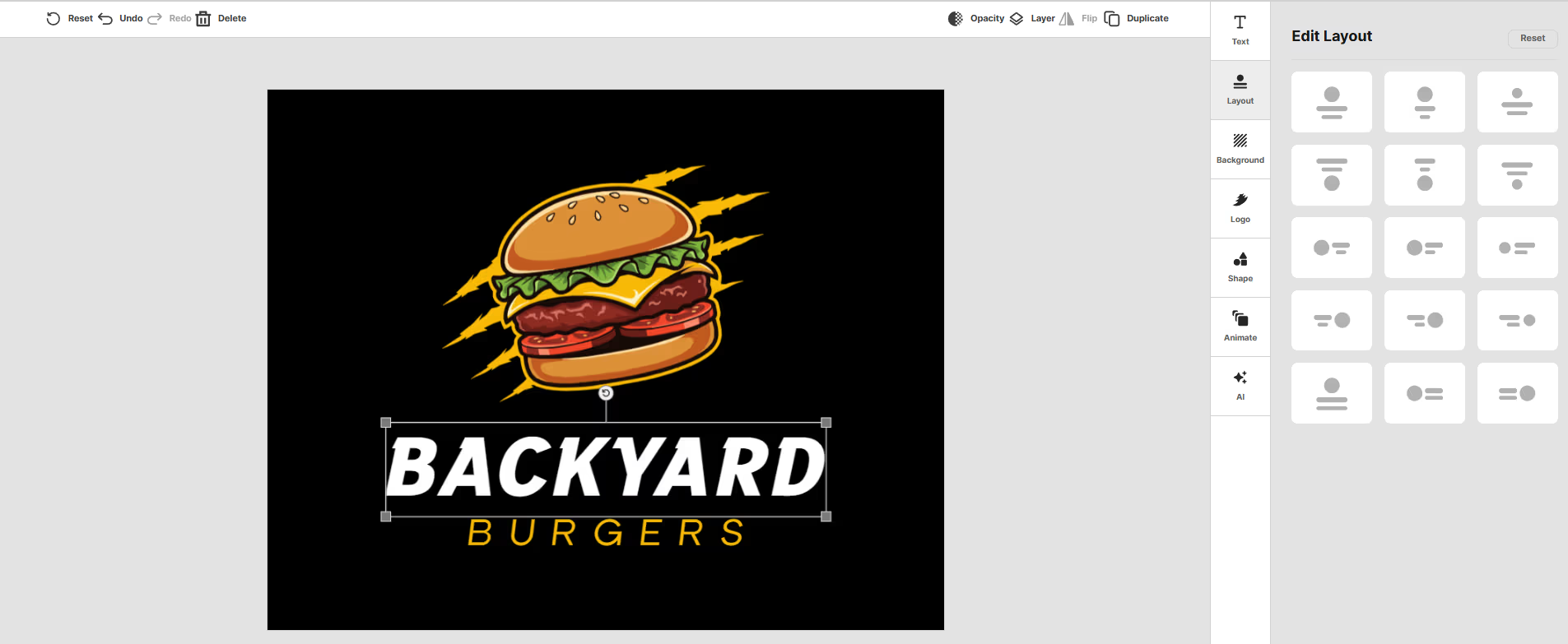
Layouts
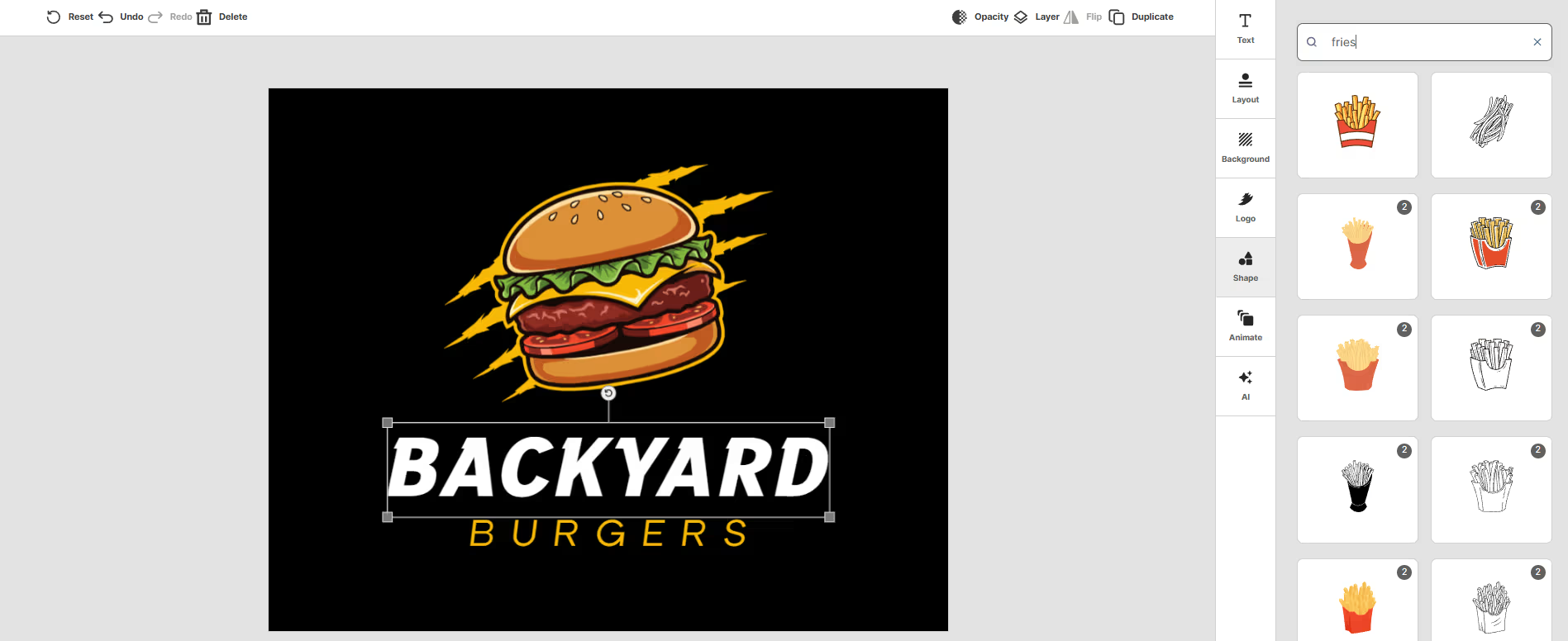
Shapes
You can make traditional changes yourself, but Design.com also offers AI-assisted editing. Its AI chat editor lets you describe the change you want rather than manually searching through every setting.
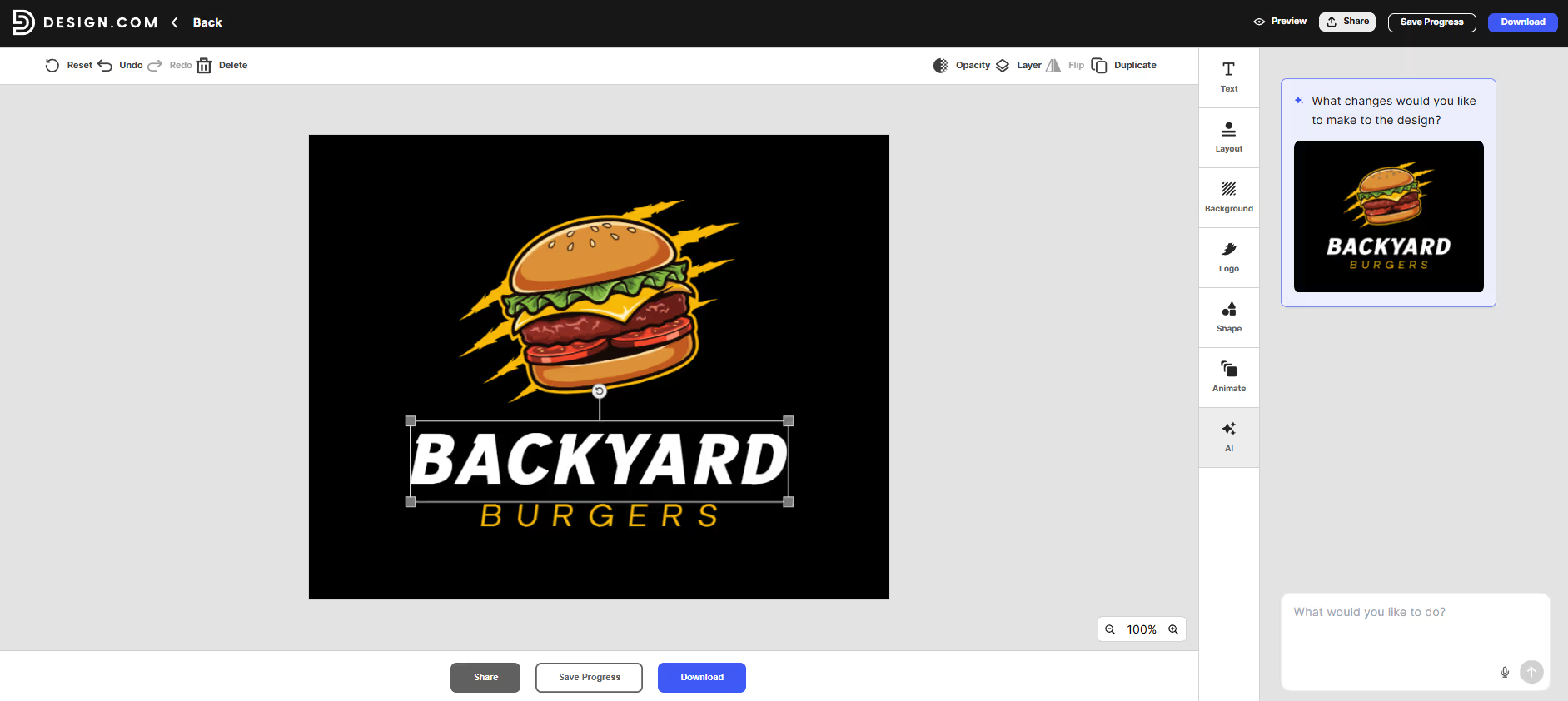
That can be useful for requests such as changing the icon, adjusting the typography, or giving the design a different visual direction. The platform's current logo workflow includes both manual customization and chat-based AI editing.
Adobe Express
Adobe Express moves the logo into its broader editor, where you can adjust various elements of the design.
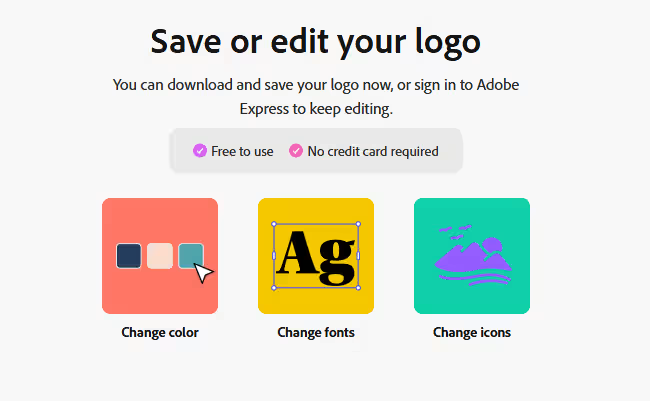
Adobe Express editing tools for customizing the Backyard Burgers logo.
Adobe Express allows you to customize the:
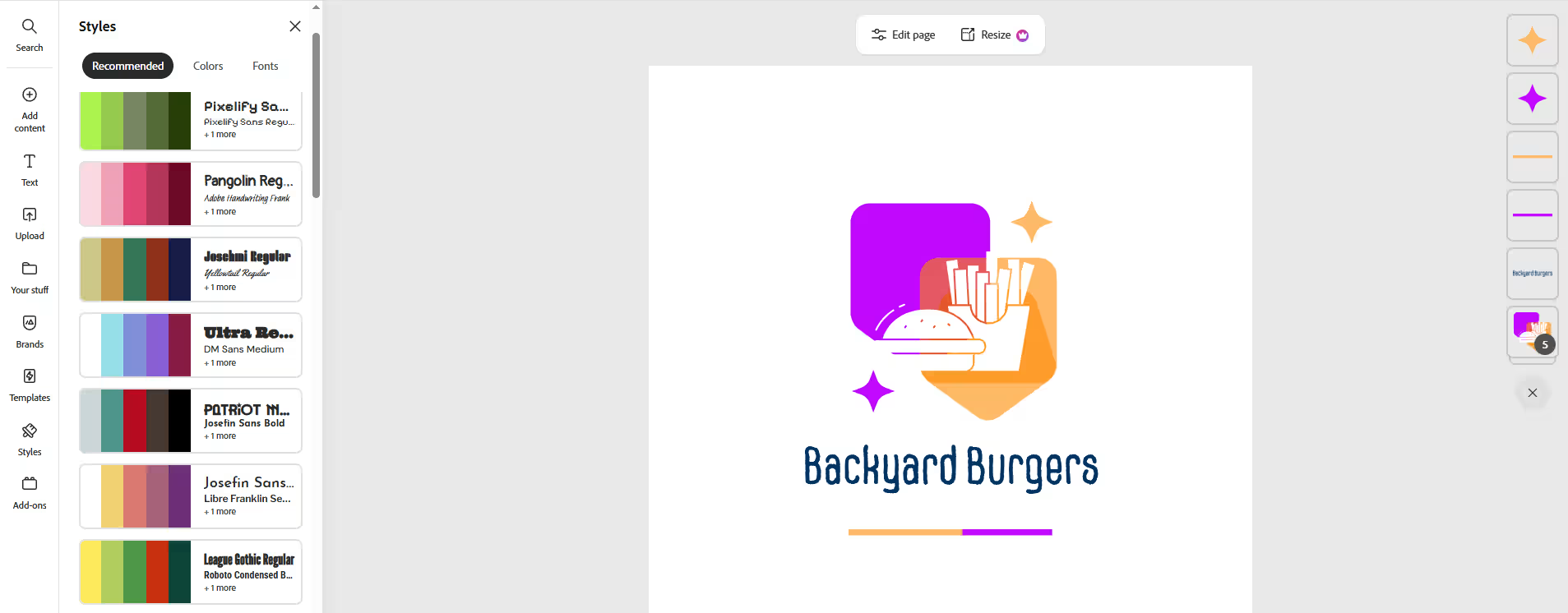
Style
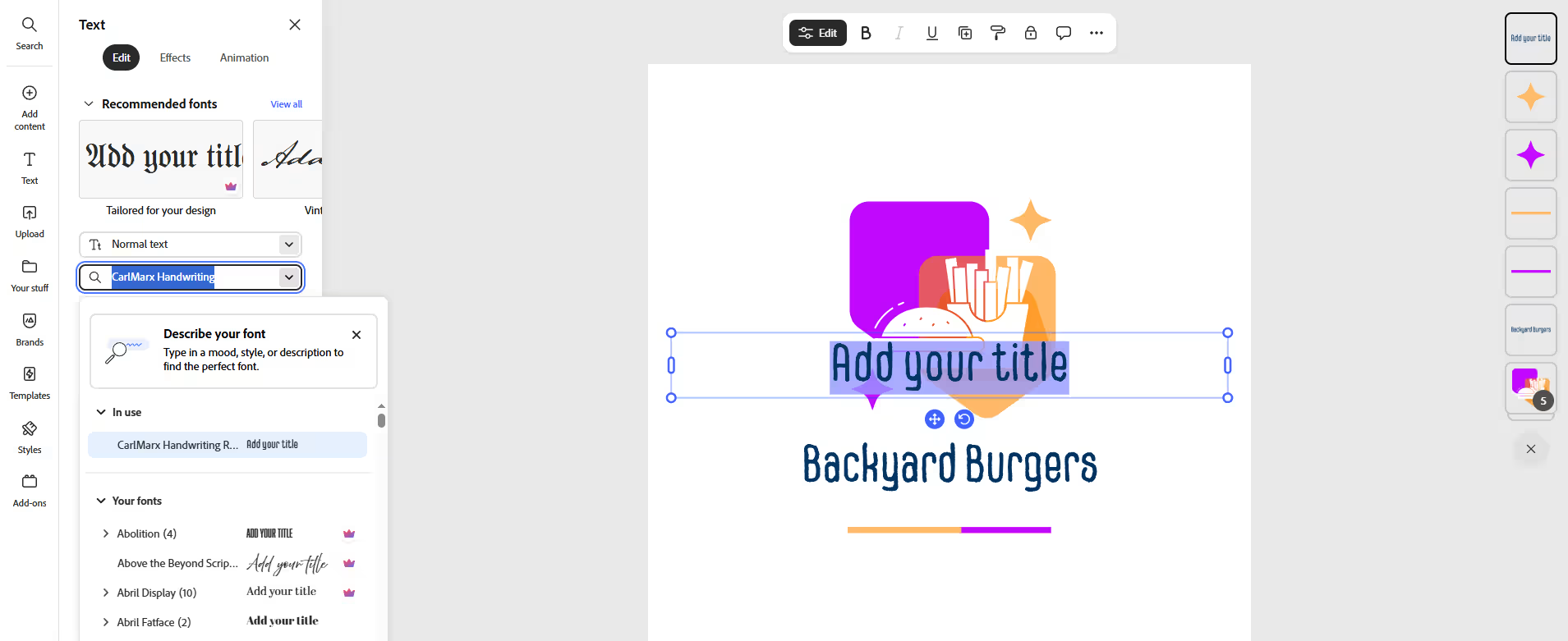
Add or change the font
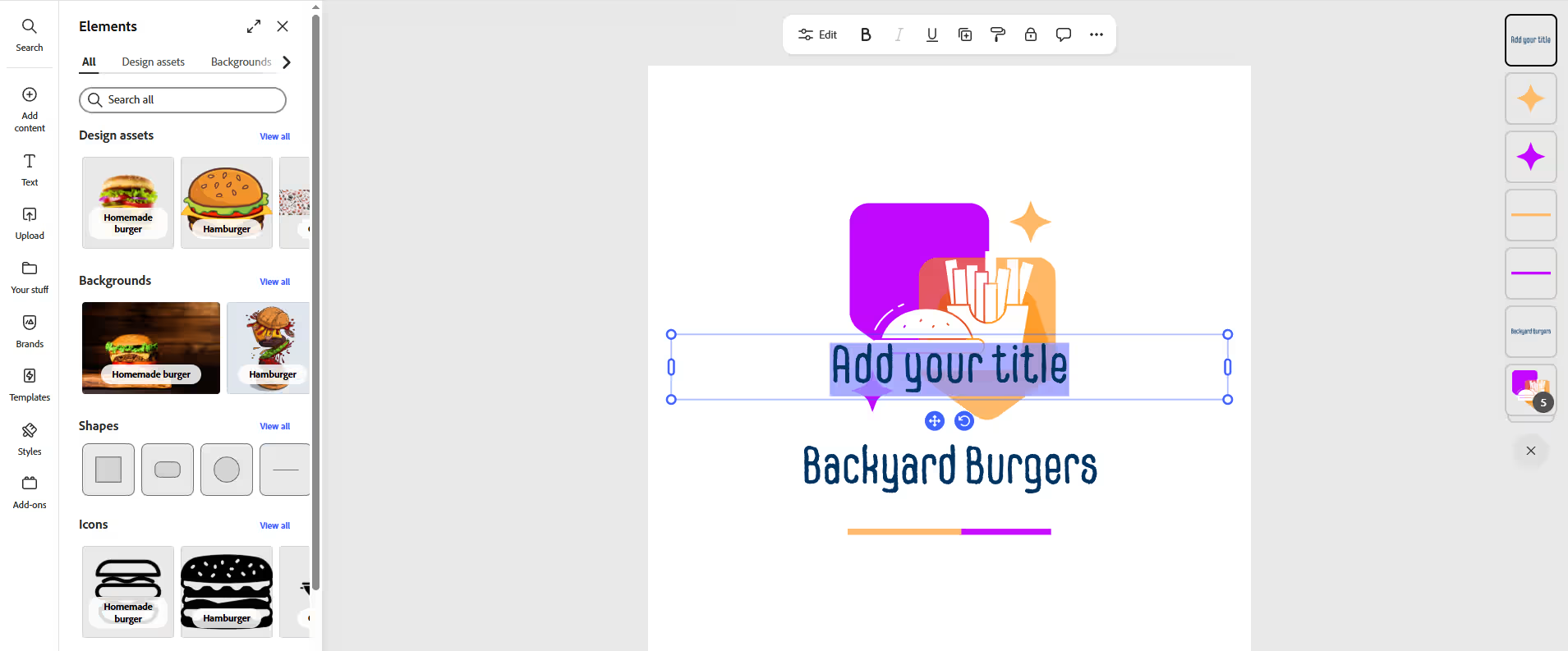
Add different design elements
The editor gives you more room to work with text, colors, graphics, shapes, and other visual elements. This is where Adobe Express starts to feel less like a dedicated logo maker and more like a general-purpose creative workspace.
That broader approach can be useful if you want to take the logo and immediately create other marketing materials around it.
Canva
Canva uses its familiar drag-and-drop editor for logo customization.
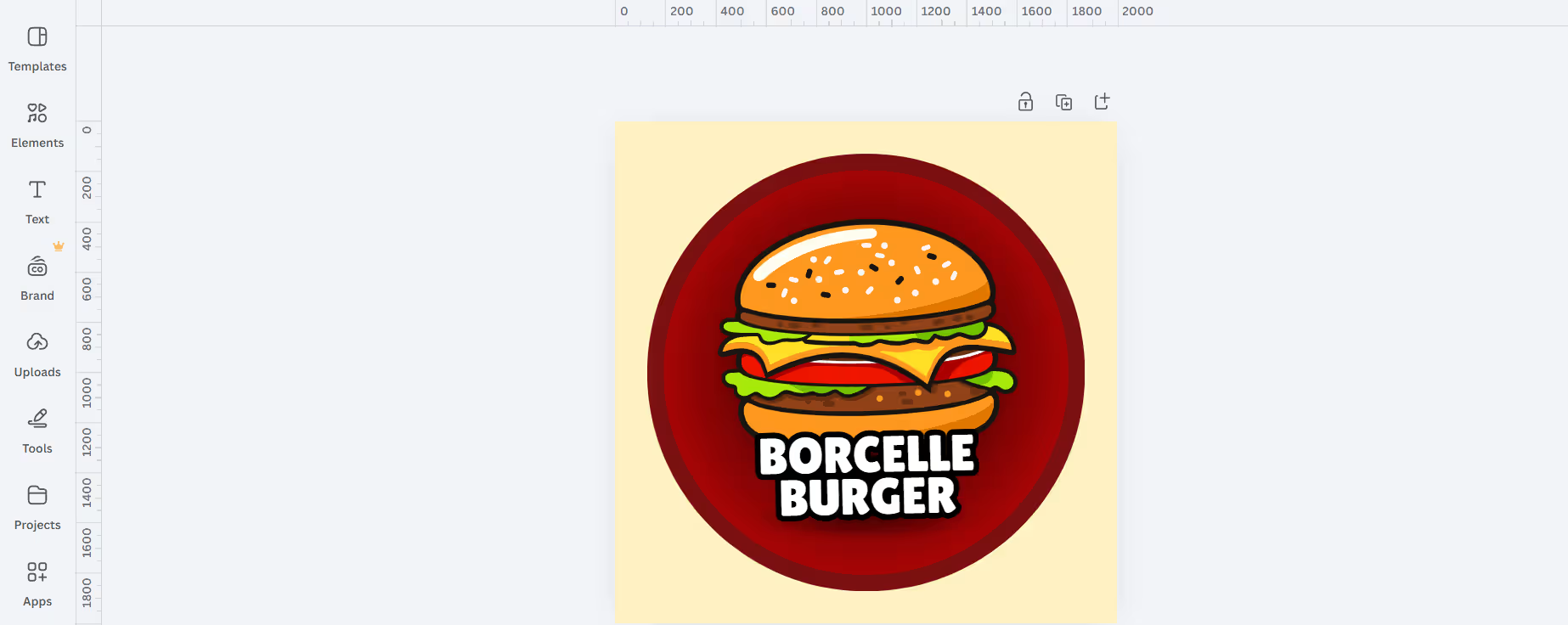
Canva's drag-and-drop editor for customizing the Backyard Burgers logo.
You can change different aspects directly on the canvas. Canva also gives you access to a large media library, allowing you to add other visual elements to a design.
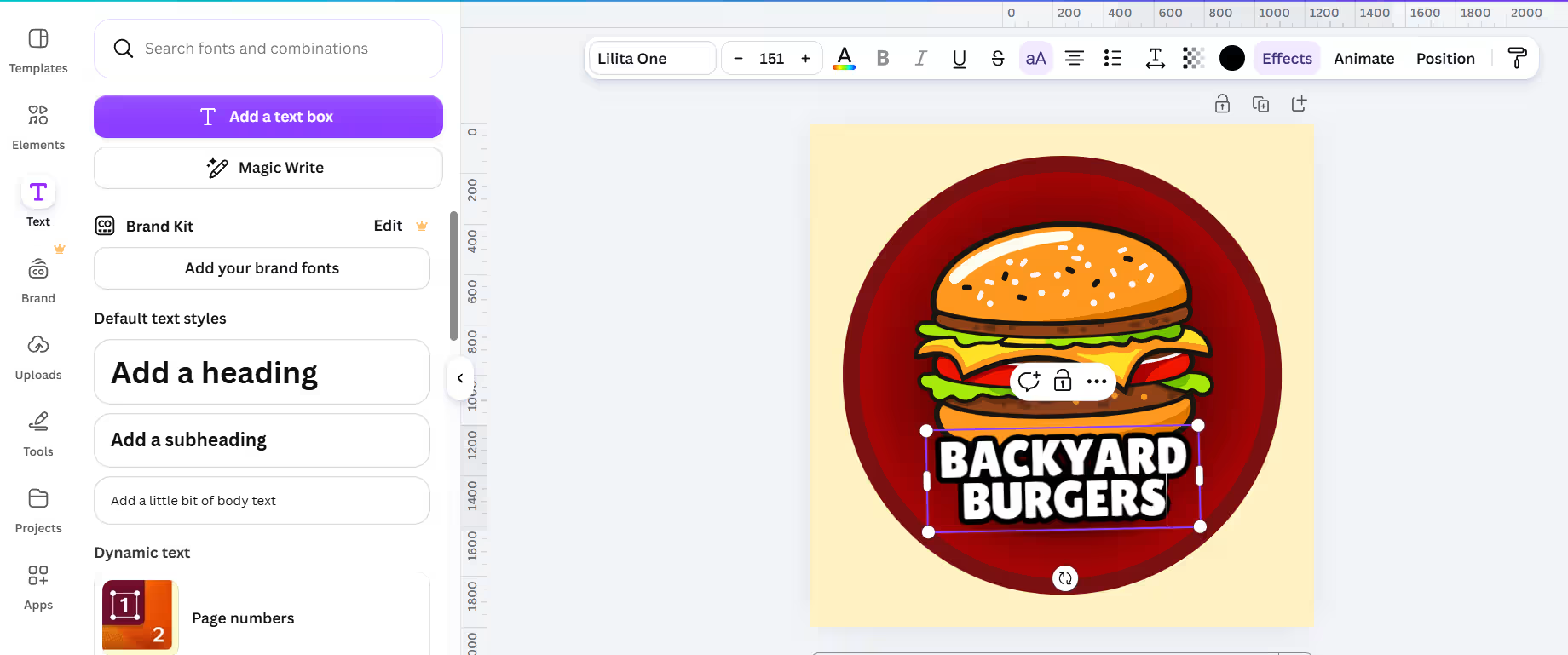
Change the business name
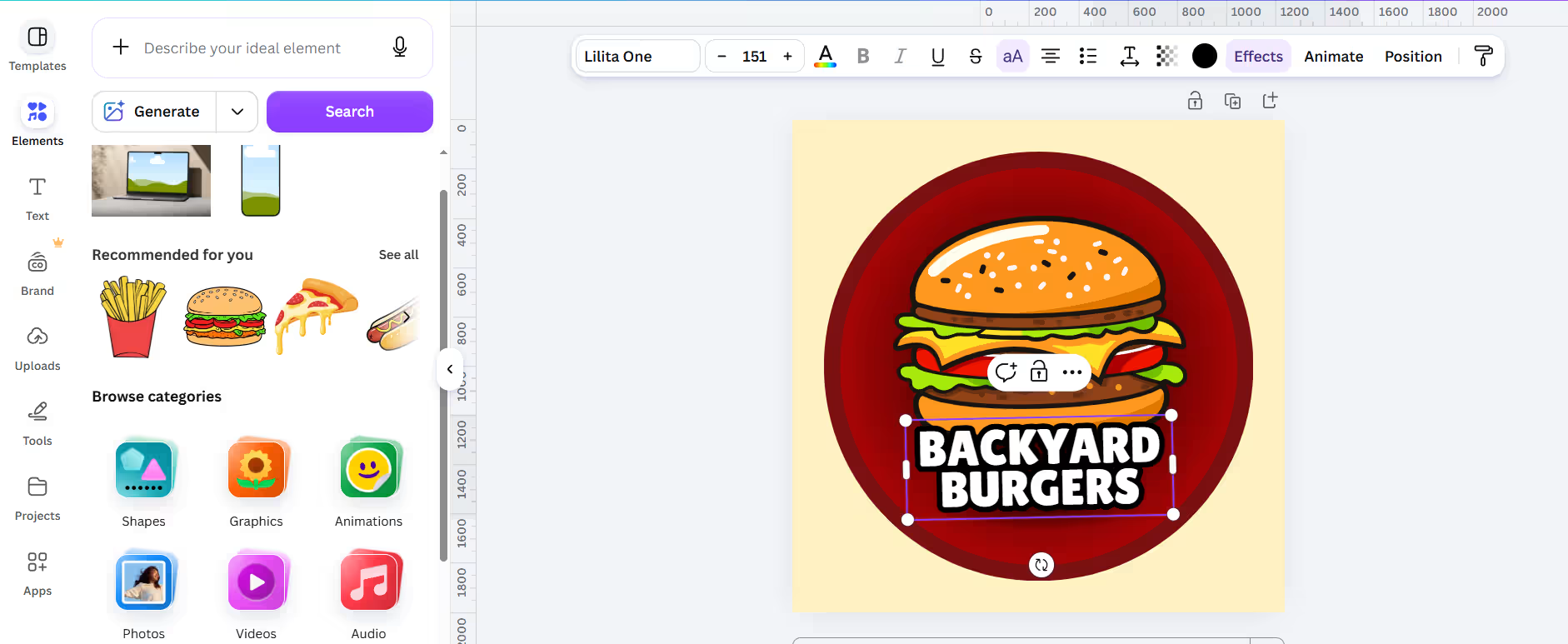
Add design elements
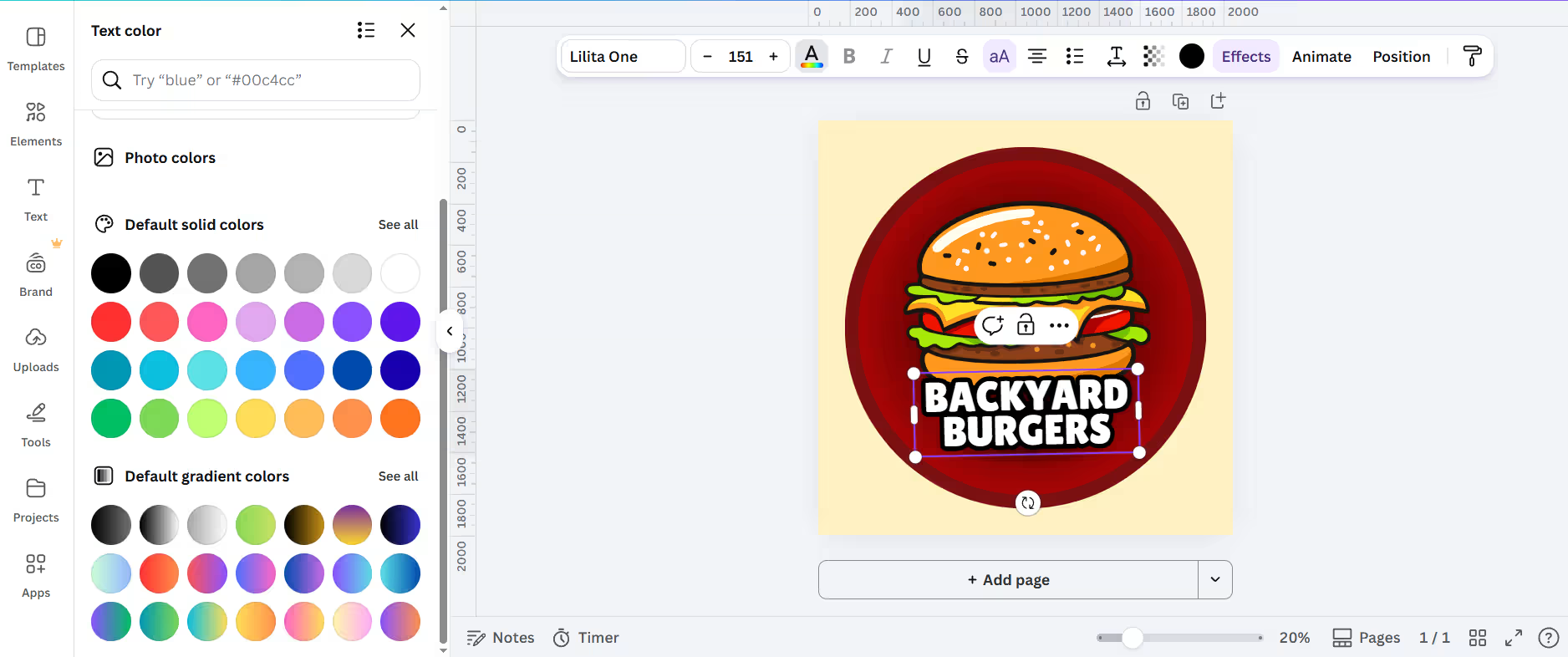
Change the colors
Its logo editor is designed for users without advanced design skills and supports collaboration, allowing others to review and edit the design with you.
What this stage tells us
The biggest difference here is the editing philosophy.
Design.com combines traditional logo editing with AI-assisted changes. Adobe Express offers a broader Adobe editing environment, while Canva focuses on a familiar drag-and-drop workflow across its platform.
Files, Downloads, and What You Actually Get
The download stage is easy to overlook until you need a logo for something specific.
Design.com's logo packages include high-resolution and vector files such as EPS, SVG, and PDF, as well as PNG and JPG.
Adobe Express supports common image and document formats, with features available depending on the plan and design type. Its free plan includes standard editing tools, while Premium adds additional capabilities and premium content.
Canva supports PNG, JPG, SVG, and other export formats. Its help center notes that SVG and transparent-background export options are available to eligible paid plans, including Pro and other qualifying plans.
Pricing: What Does Each Platform Cost?
Pricing can change, so it's worth checking the current plan before subscribing. The following prices reflect the plans available at the time this comparison was researched.
Design.com Pricing
Design.com currently offers a Free plan, along with paid options starting at $3/month when billed annually.
Its paid plans include Starter at $3/month annually or $9/month monthly, Value at $4/month annually or $14/month monthly, and Premium at $5/month annually or $19/month monthly.
The plans add features such as high-resolution and vector files, unlimited logo edits, and additional business design tools. Design.com's purchasing information also states that logo packages include industry-standard files such as EPS, SVG, PDF, PNG, and JPG.
Adobe Express Pricing
Adobe Express has a Free plan at $0 and a Premium plan currently listed at $9.99/month on Adobe's U.S. pricing page.
The Free plan includes 100,000+ templates, 4,000+ Adobe Fonts, 1M+ Adobe Stock assets, 5GB of storage, and standard editing tools. Premium adds additional assets, AI features, brand tools, and other premium capabilities.
Adobe also lists localized pricing, so the amount shown at checkout can differ by country.
Canva Pricing
Canva offers a Free plan at $0. Its current pricing page lists Canva Pro at $144/year for one person, although Canva's monthly and regional pricing can vary.
The Pro plan adds premium content, increased AI usage, additional Brand Kits, background removal tools, and other premium design features. Canva also offers a Business plan for users who need additional collaboration and brand management tools.
Which Logo Maker Should You Use?
The right choice depends on where you want the logo-making process to lead.
If you want a dedicated logo and business branding workflow
Design.com is built around this use case. You can generate the logo, refine it using manual and AI-assisted tools, download professional file formats, and continue to other business designs on the same platform.
If you already work with Adobe's creative tools
Adobe Express offers a straightforward way to create a logo while staying within Adobe's broader content creation environment.
If you plan to create lots of different visual content
Canva makes sense when the logo is just one piece of a larger content workflow. Its template library, drag-and-drop editor, Brand Kits, collaboration tools, and AI features extend well beyond logo design.
If the logo is the starting point for your brand
Design.com provides a direct path from the first logo concept into business cards, websites, social content, presentations, and other branded materials through its wider collection of design tools.
Final Verdict
A logo maker should be judged by more than how quickly it produces a first concept.
The more useful question is what happens afterward. Can you refine the design? Can you download the formats you need? Can the logo work across different sizes and backgrounds? And can you use the same visual identity in the rest of your business materials?
For businesses that want to go from first logo idea to a wider set of branded materials, Design.com offers a straightforward workflow built around that process.
Ready to create your logo? Start designing with Design.com today!




.svg)
.svg)


.svg)




.avif)



.svg)

