- Quick Comparison of the Best UI/UX Prototyping Tools
- 1. Figma – Best for Collaborative UI/UX Prototyping
- 2. ProtoPie – Best for Advanced Interactive Prototyping
- 3. Framer – Best for Interactive Website Prototyping
- 4. Axure RP – Best for Complex Application Prototyping
- 5. UXPin – Best for Code-Based UI/UX Prototyping
- 6. Sketch – Best for macOS-Based UI Design and Prototyping
- 7. Penpot – Best for Open-Source UI/UX Design and Prototyping
- 8. Justinmind – Best for Functional Web and Mobile App Prototyping
- 9. Balsamiq – Best for Low-Fidelity Wireframing and Rapid Prototyping
- 10. Marvel – Best for Quick Clickable Prototypes and User Testing
- 11. Proto.io – Best for High-Fidelity Mobile and Web Prototyping
- 12. Webflow – Best for Interactive Website Design and Prototyping
- How to Choose the Right UI/UX Prototyping Tool
- Frequently Asked Questions
- Final Thoughts


12 Best Prototyping Tools for UI/UX Design in 2026
- Figma is a strong all-around choice for UI/UX design, collaborative workflows, and interactive prototyping.
- ProtoPie and Axure RP offer advanced interaction capabilities for complex user flows and high-fidelity prototypes.
- Framer and Webflow are useful for creating interactive website prototypes and testing responsive layouts.
- Tools like Balsamiq and MockFlow help designers turn early ideas into low-fidelity wireframes quickly.
- Free tools like Penpot offer accessible prototyping options without requiring expensive subscriptions.
- Compare features, pricing, collaboration options, and learning curves before choosing a prototyping tool.
- The best prototyping tool depends on your project requirements, design complexity, team workflow, and testing needs.
Prototyping is an essential part of UI/UX design. It helps designers turn interface ideas into interactive experiences before development begins. However, choosing the right prototyping tool isn't always straightforward.
Some tools focus on quick wireframes, while others support advanced interactions, animations, and realistic user flows. With different features, pricing plans, and learning curves, finding the right option can take time. Choosing the wrong one can also limit your workflow and make collaboration more difficult.
To help you make an informed decision, we've compiled 12 of the best prototyping tools for UI/UX design in 2026. We'll compare their features, pricing, advantages, and limitations so you can find the right tool for your projects.
Quick Comparison of the Best UI/UX Prototyping Tools
Choosing a prototyping tool depends on your design requirements, project complexity, and workflow. Some tools specialize in quick wireframes, while others support advanced interactions, animations, and realistic product experiences.
1. Figma – Best for Collaborative UI/UX Prototyping
Website: https://www.figma.com/
Best for: UI/UX designers, product design teams, and agencies looking for an all-in-one platform for interface design, interactive prototyping, and collaboration.
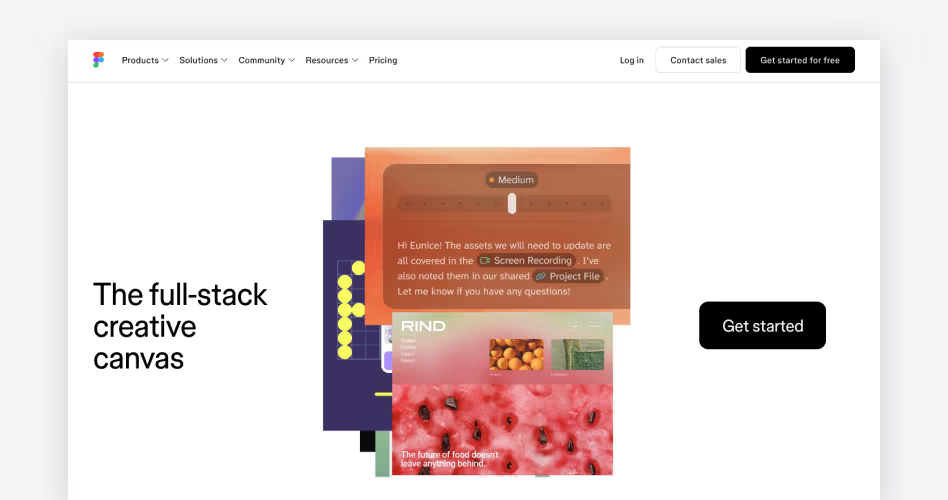
Figma is a cloud-based UI/UX design and prototyping platform that lets designers create, test, and share interactive interfaces in one workspace.
It combines interface design, reusable components, and interactive prototyping, so designers don't need to switch between separate tools to demonstrate how a product works.
Key Prototyping Features
- Interactive components: Create reusable buttons, menus, and dropdowns with multiple interactive states.
- Smart Animate: Add smooth transitions between screens and component states, such as expanding cards and dropdown menus.
- Variables and conditional logic: Build dynamic interactions using variables and if/else conditions, such as updating cart totals based on user selections.
- Interactive overlays: Add pop-ups, dialogs, dropdowns, and modals without navigating away from the current screen.
- Real-time collaboration: Share prototypes, collect feedback, and review design changes with teammates and stakeholders.
Pros and Cons
Pricing
Figma offers a free Starter plan. Its paid Professional plan starts at $16 per full seat/month (annual billing). Organization starts at $55 and Enterprise at $90 per full seat/month, both billed annually.
2. ProtoPie – Best for Advanced Interactive Prototyping
Website: https://www.protopie.io/
Best for: Interaction designers, mobile app designers, and product teams creating realistic prototypes with advanced gestures, animations, conditional logic, and device interactions.
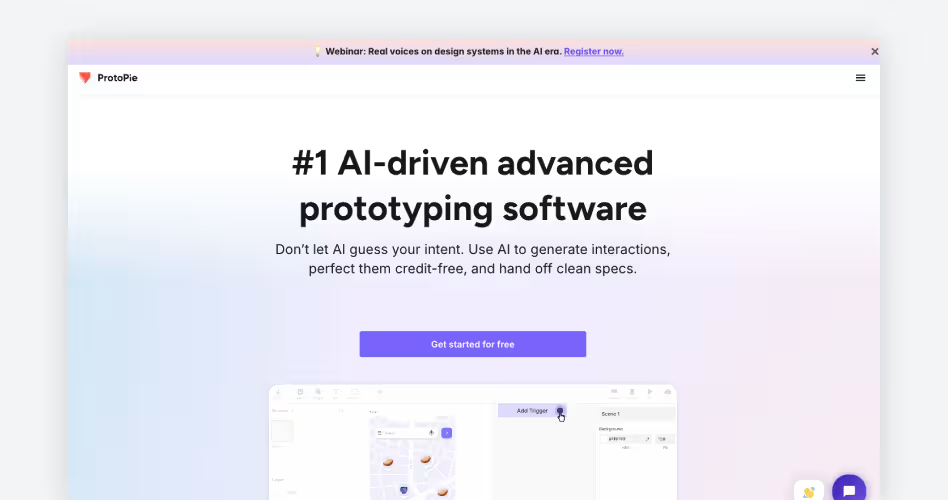
ProtoPie is an advanced prototyping tool that helps designers turn static interface designs into realistic, interactive experiences without writing code. It focuses on simulating how users interact with digital products through gestures, inputs, animations, and device sensors.
Designers can also import existing designs from tools like Figma and Sketch to add interactions without rebuilding the entire interface.
Key Prototyping Features
- Triggers and responses: Connect user actions to specific responses. For example, expand a product card when tapped, move an object when dragged, or open a menu when swiped.
- Variables and conditional logic: Create prototypes that respond to user inputs and changing values. Simulate shopping cart calculations, form validation, login flows, and conditional navigation.
- Multi-touch gestures: Simulate swipes, pinches, zooms, drags, and multi-finger movements. These are useful for prototyping map interfaces, image galleries, and gesture-based mobile apps.
- Device sensors: Use hardware features such as gyroscopes, motion sensors, microphones, and cameras to create device-responsive interactions, such as interfaces that react when users tilt their phones.
Pros and Cons
Pricing
ProtoPie offers a free plan with up to 2 cloud prototypes and 50 MB of storage. Its paid plans include:
- Free: $0/month.
- Basic: $25/month for one seat.
- Pro: $47 per editor/month.
- Enterprise: Custom pricing.
The listed paid prices are based on annual billing. Monthly billing options are also available.
3. Framer – Best for Interactive Website Prototyping
Website: https://www.framer.com/
Best for: Web designers, UI/UX designers, and product teams creating high-fidelity website prototypes with responsive layouts, animations, and interactive elements.
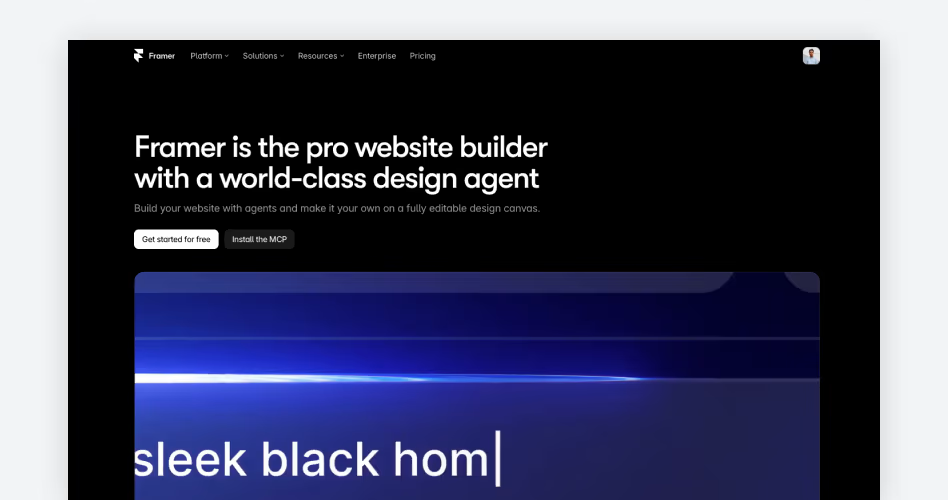
Framer is a visual website design and prototyping platform that helps designers turn interface concepts into interactive web experiences without traditional coding.
It combines a flexible design canvas, responsive layout controls, reusable components, and animation tools. Designers can also publish their work as live websites directly from the platform, making it useful for moving from prototype to production.
Key Prototyping Features in Framer
- Interactive components: Build reusable buttons, navigation menus, and dropdowns with customizable properties and click, hover, and tap interactions.
- Animations and transitions: Add entrance effects, scroll animations, hover states, and layout transitions to create animated menus, expanding cards, and scrolling product showcases.
- Responsive breakpoints: Adapt layouts for desktop, tablet, and mobile by controlling how elements resize, reposition, and respond to different screen sizes.
- Interactive states and gestures: Configure elements to respond to clicks, taps, and drags to demonstrate how users interact with website interfaces.
- Code components and overrides: Extend built-in interactions with custom React components and JavaScript behavior.
Pros and Cons of Using Framer
Framer Pricing
Framer offers a free plan for exploring its design and website-building capabilities. Its paid website plans include:
- Free: $0/month.
- Basic: $10/month (annual billing).
- Pro: $30/month (annual billing).
- Enterprise: Custom pricing.
The Basic plan suits personal websites, while Pro offers additional capabilities for growing professional websites and teams.
4. Axure RP – Best for Complex Application Prototyping
Website: https://www.axure.com/
Best for: UX designers, enterprise product teams, and business analysts building complex application prototypes, dynamic content, and data-driven interactions.
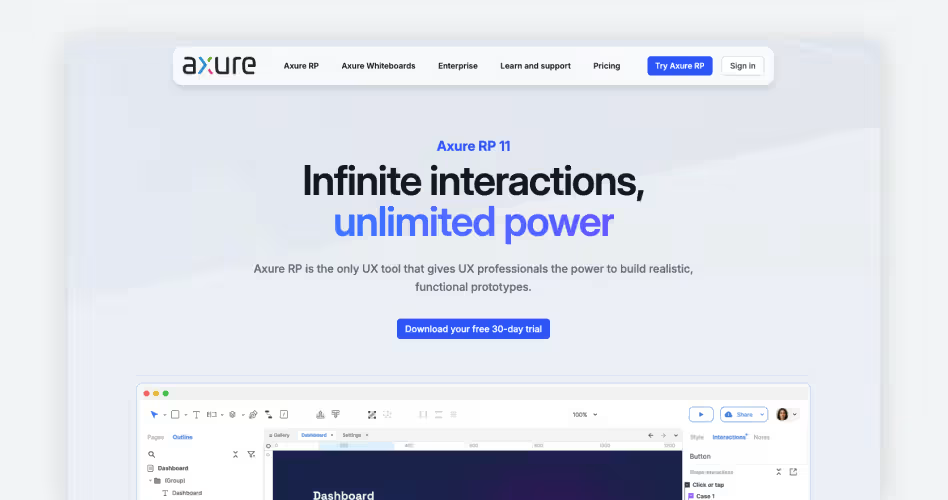
Axure RP is a professional prototyping tool designed for building functional representations of complex digital products.
Unlike tools that primarily focus on visual design and screen transitions, Axure RP lets designers define how an application behaves under different conditions. It supports everything from simple wireframes to high-fidelity prototypes with working forms, dynamic content, and interactive data.
Key Prototyping Features in Axure RP
- Conditional logic and variables: Define rules for different user actions and inputs. For example, display a login error for incorrect credentials or open the dashboard when the credentials are valid.
- Dynamic panels: Create elements with multiple states that change based on user actions. Use them for expandable menus, tabs, modals, carousels, and scrollable content.
- Repeater widgets: Build interactive lists, tables, and grids with data. Simulate sorting, filtering, adding, and removing records in dashboards.
- Interactive forms: Add functional text fields, dropdowns, and radio buttons that respond to user input and display different outcomes.
- Adaptive views: Create separate layouts for desktop, tablet, and mobile within one project. Display the appropriate layout based on screen size.
Pros and Cons
Pricing
Axure RP offers a 30-day free trial. Its paid plans include:
- Pro: $29 per user/month.
- Team: $49 per user/month.
- Enterprise: Custom pricing.
The Pro plan includes advanced prototyping and unlimited prototypes. The Team plan adds collaborative editing, revision history, and team project hosting. Eligible students and educators can also request a free Team edition license.
5. UXPin – Best for Code-Based UI/UX Prototyping
Website: https://www.uxpin.com/
Best for: Product designers, UX engineers, and development teams building high-fidelity prototypes with reusable code components and production-like interactions.
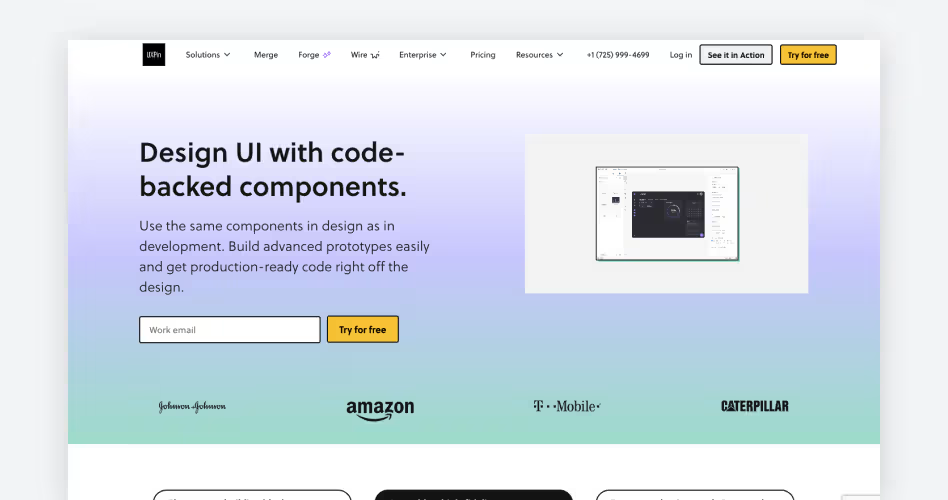
UXPin is a UI/UX design and prototyping platform that connects interface design with frontend development. It allows designers to create interactive interfaces using coded components rather than relying entirely on static design elements.
Its standout feature, UXPin Merge, lets teams import React components from their existing code repositories and use them directly in the design editor. This helps designers build prototypes that more closely match the components and behavior developers use in production.
Key Prototyping Features in UXPin
- UXPin Merge: Import React components from Git repositories and use them directly in the editor. For example, build a SaaS dashboard using the same buttons, forms, and tables as the live application.
- Interactive states: Define how components respond to user actions. Prototype selected tabs, disabled buttons, dropdowns, validation messages, and expandable elements.
- Variables and conditional logic: Create prototypes that respond to user input and changing values. For example, update checkout totals when users select delivery options or display errors when forms are incomplete.
- Built-in coded component libraries: Use libraries such as Material UI, Bootstrap, Tailwind UI, and Ant Design to build consistent interfaces without recreating components.
Pros and Cons
Pricing
UXPin offers a limited free plan and three paid options:
The Core plan includes unlimited prototypes, built-in coded libraries, variables, and conditional logic. Growth adds design systems, Storybook integration, role management, and extended version history. Paid plans also offer a 14-day free trial.
6. Sketch – Best for macOS-Based UI Design and Prototyping
Website: https://www.sketch.com/
Best for: Mac-based UI/UX designers and product teams creating interfaces, reusable design systems, and interactive website or mobile app prototypes.
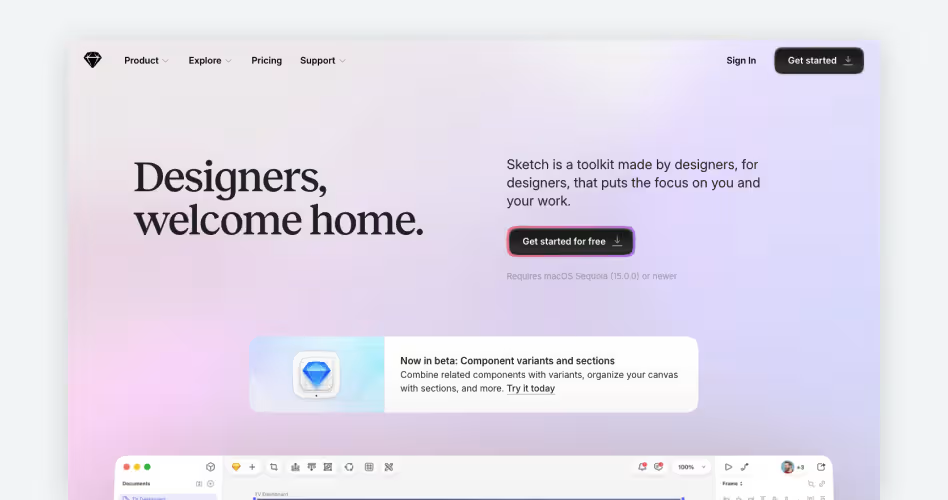
Sketch is a UI design and prototyping platform built around a native macOS application. It allows designers to create interface layouts, manage reusable components, build design systems, and turn their designs into interactive prototypes.
Unlike browser-first design platforms, Sketch offers an offline-capable Mac editor, while its web app lets developers and stakeholders inspect designs, leave comments, and review prototypes without installing the desktop application.
Key Prototyping Features in Sketch
- Smart Animate: Create smooth transitions between frames and interface states. Adjust duration and easing for effects such as expanding cards, sliding navigation panels, and changing layouts.
- Links and hotspots: Connect frames or define clickable areas to demonstrate navigation flows, such as moving from a login screen to a dashboard.
- Interactive overlays: Display menus, dropdowns, dialogs, and modals over existing screens, triggered by clicks, presses, or hovers.
- Scrolling areas: Add vertical, horizontal, or multidirectional scrolling to demonstrate long pages, image galleries, mobile feeds, and dashboards.
- Interactive triggers: Configure hover, press, and tap/click actions to show how interface elements respond to user input.
- Fixed elements and multiple start points: Keep navigation bars, toolbars, and footers visible while scrolling. Set multiple starting points to demonstrate different user journeys.
Pros and Cons
Pricing
Sketch offers a 30-day free trial, followed by several subscription options:
The subscription prices above are based on annual billing. The Mac-only license includes one year of updates but excludes online collaboration and sharing features. Sketch also offers free educational access for eligible students and teachers.
7. Penpot – Best for Open-Source UI/UX Design and Prototyping
Website: https://penpot.app/
Best for: Independent designers, development teams, and organizations looking for an open-source design platform with collaborative prototyping and flexible hosting options.
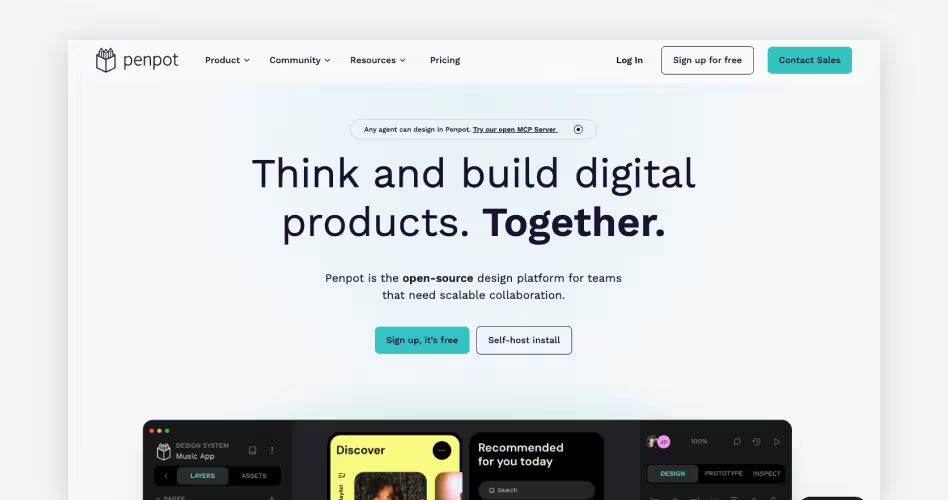
Penpot takes a different approach to interface design by building its workflow around open web standards such as CSS, HTML, and SVG. It provides a browser-based workspace where designers can create interfaces, connect screens into interactive prototypes, and collaborate with developers.
Teams can also host Penpot on their own infrastructure, giving them greater control over their design files, data, and deployment environment.
Key Prototyping Features in Penpot
- Interactive flows: Connect boards, layers, and interface elements with clickable hotspots to demonstrate onboarding, registration, checkout, and other user journeys.
- Triggers and actions: Set interactions for clicks, mouse entry, mouse exit, and timed delays. Actions include screen navigation, overlay controls, and opening external URLs.
- Animated transitions: Apply dissolve, slide, and push transitions between screens. Adjust direction, duration, and easing to control how interfaces move between states.
- Overlay interactions: Add modals, tooltips, notifications, and dropdowns over existing screens. Control their positioning and whether clicking outside closes them.
- Scroll behavior: Create scrollable areas and keep selected elements fixed during scrolling, such as navigation bars and floating buttons.
Pros and Cons
Pricing
Penpot offers a free Professional cloud plan with its core design and prototyping capabilities. Its paid options include:
The Unlimited plan adds extended storage and version history, while Enterprise includes advanced administration, permissions, and security controls.
8. Justinmind – Best for Functional Web and Mobile App Prototyping
Website: https://www.justinmind.com/
Best for: UX designers, business analysts, and product teams building detailed web and mobile prototypes with functional forms, data-driven interfaces, and complex user flows.
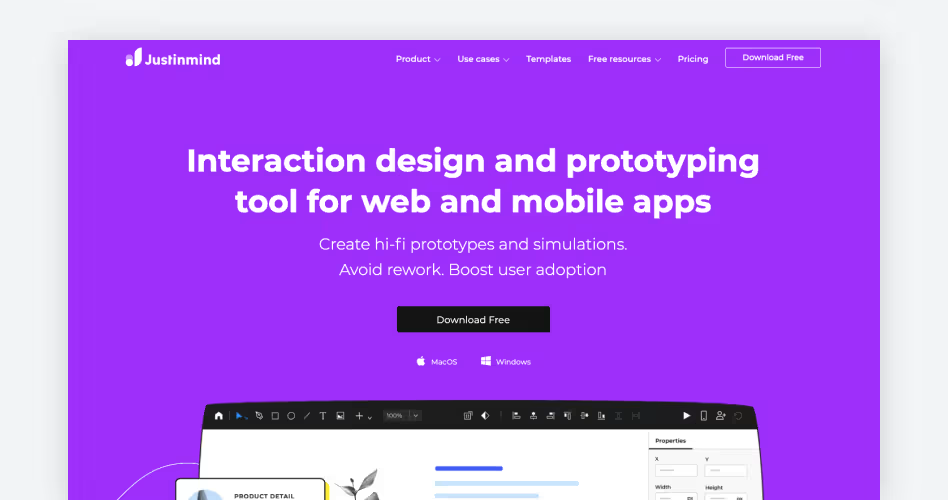
Justinmind provides several tools for simulating how complete application interfaces behave. Its strongest capabilities are particularly relevant to data-heavy products and multi-step user journeys.
- Functional forms and input fields: Build interactive registration forms, login screens, search fields, and checkout pages. Configure text fields, checkboxes, radio buttons, dropdowns, validation rules, and error messages.
- Conditional interactions and variables: Set rules that control how prototypes respond to user actions. For example, display login errors for incorrect credentials or navigate to a dashboard when the conditions are met.
- Data lists and grids: Create interactive tables and data-driven interfaces. Simulate filtering, sorting, and updating records in dashboards and administrative applications.
- Mobile gestures and transitions: Add swipes, pinches, taps, and rotations to mobile prototypes. Use them to demonstrate navigation, image galleries, and gesture-based interactions.
- Responsive design: Adapt layouts to different screen sizes using percentage-based components and positioning. Preview how interfaces behave on desktop, tablet, and mobile devices.
Pros and Cons
Pricing
Justinmind offers a free plan for basic UI design and wireframing, along with three paid subscription plans.
The Standard plan adds advanced interactions, variables, collaboration, and mobile device testing. Professional includes data simulation, user flows, HTML export, and user testing integrations.
9. Balsamiq – Best for Low-Fidelity Wireframing and Rapid Prototyping
Website: https://balsamiq.com/
Best for: UX beginners, product managers, business analysts, and product teams that need to sketch interface ideas, plan screen layouts, and validate user flows before visual design begins.
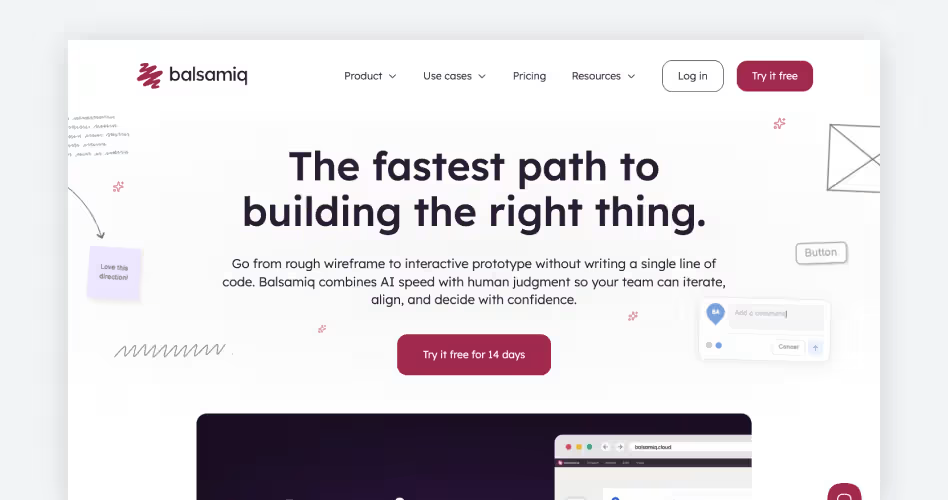
When a team is still deciding what an interface should look like, polished visuals can become a distraction. Balsamiq addresses this problem with a deliberately low-fidelity design environment.
Its interface uses sketch-like UI elements to help teams focus on screen structure, content placement, and user flows rather than colors, typography, and visual details.
Key Prototyping Features in Balsamiq
- Drag-and-drop wireframing: Arrange ready-made UI elements, including buttons, navigation bars, forms, and icons, to sketch website pages and app screens quickly.
- Clickable prototypes: Connect wireframes to demonstrate navigation between screens, such as moving from a login page to a dashboard or from a product page to checkout.
- AI-assisted wireframing: Generate editable wireframes from text descriptions, screenshots, or hand-drawn sketches. Refine the results manually or with AI prompts.
- Reusable UI components: Create custom components from frequently used elements and reuse them across wireframes to maintain consistency.
Pros and Cons
Pricing
Balsamiq offers a 14-day free trial without requiring a credit card. Its current cloud plans include:
All three plans include wireframing, AI-assisted prototyping, reusable components, and unlimited reviewers.
10. Marvel – Best for Quick Clickable Prototypes and User Testing
Website: https://marvelapp.com/
Best for: UX designers, freelancers, and product teams that want to turn static designs into clickable prototypes, collect user feedback, and share design specifications with developers.
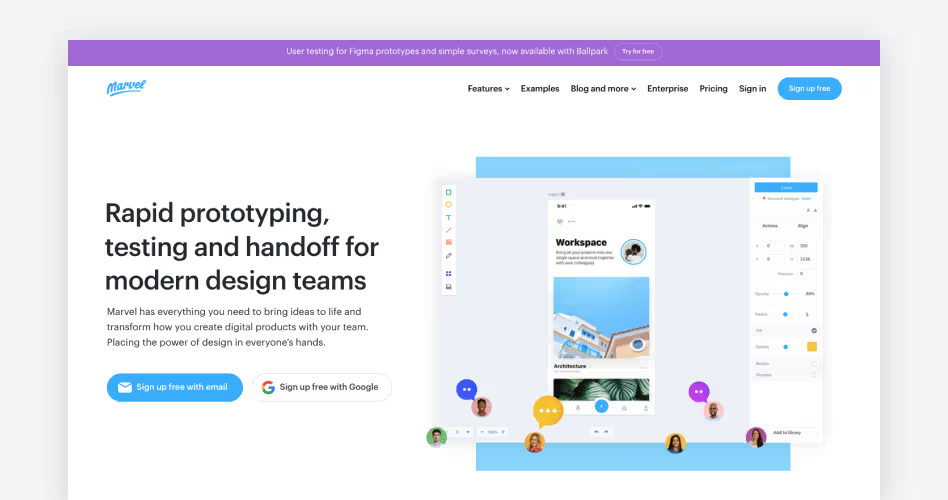
Marvel is a browser-based design and prototyping platform built around a straightforward workflow: create an interface, make it interactive, test it, and hand it off for development.
Designers can build screens directly in Marvel or import existing designs and connect them using clickable hotspots. It also combines prototype sharing, user testing, and developer handoff, making it useful for teams that want to validate interface ideas without managing several separate tools.
Key Prototyping Features in Marvel
- Clickable hotspots and screen linking: Turn static mockups, wireframes, and images into interactive prototypes. Add hotspots to buttons and menus to connect screens and demonstrate user journeys, such as product browsing and checkout.
- Transitions and gestures: Add screen transitions and touch interactions, including swiping, to simulate navigation across mobile and web interfaces.
- Built-in design and wireframing: Create layouts using pre-made UI assets, icons, and stock images. You can also import JPG, PNG, GIF, PSD, and Sketch designs to make them interactive.
- User testing and feedback: Create prototype-based test sessions and collect screen, audio, and video recordings alongside usability metrics to identify navigation issues and user difficulties.
Pros and Cons
Pricing
Marvel offers a free plan for individuals, along with paid subscriptions for designers and teams.
The Free plan includes one project. Pro offers unlimited projects, three active user tests, and offline downloads.
11. Proto.io – Best for High-Fidelity Mobile and Web Prototyping
Website: https://proto.io/
Best for: Mobile app designers, UX professionals, and product teams creating realistic prototypes with native-style UI components, touch gestures, animations, and dynamic interactions.
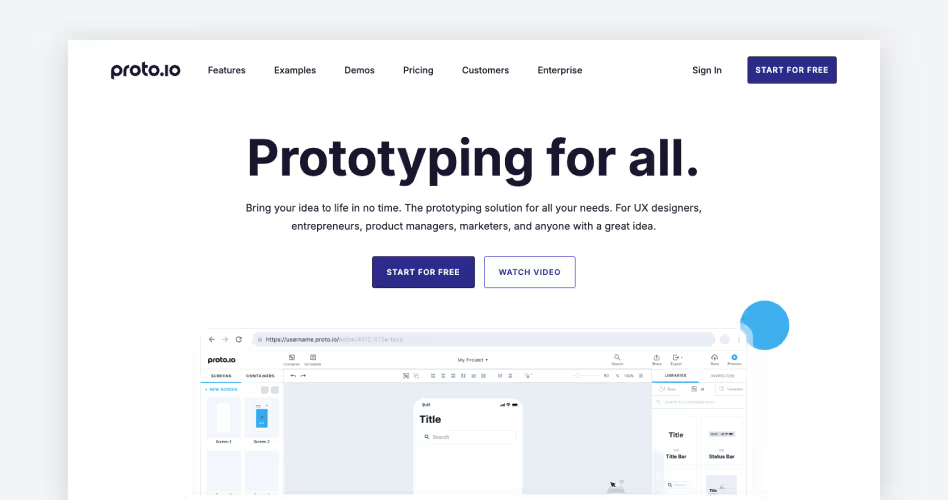
When a static mockup isn't enough to demonstrate how a product should work, Proto.io provides a way to add realistic behavior without building the actual application.
It's a browser-based prototyping platform with ready-made UI libraries, customizable templates, animation controls, and interaction settings. Designers can start with a blank canvas, use existing components, or import designs from Figma, Sketch, and Photoshop before turning them into interactive prototypes.
Key Prototyping Features in Proto.io
- Native-style UI component libraries: Use ready-made iOS, Android, and web components, including buttons, menus, sliders, input fields, and tab bars, to build realistic interfaces without creating every element manually.
- Advanced gestures and touch interactions: Configure tap, double-tap, hold, drag, swipe, pinch, and zoom events. For example, simulate swipe navigation in photo galleries or pinch-to-zoom on maps.
- Timeline-based animations: Animate element movement, size, rotation, and opacity. Control timing, easing, and sequences to create detailed microinteractions.
- Variables and dynamic interactions: Capture user input, store values, and calculate or display changing content. For example, update product quantities and order totals based on user selections.
- Scrollable and reusable components: Create nested scrolling areas, horizontal carousels, and reusable interface blocks for mobile feeds, product galleries, navigation menus, and dashboards.
Pros and Cons
Proto.io Pricing
Proto.io offers a 15-day free trial without requiring a credit card. It has four standard paid plans and a custom Enterprise option.
All standard paid plans include the platform's core prototyping features. The main differences are the number of users and active projects allowed.
12. Webflow – Best for Interactive Website Design and Prototyping
Website: https://webflow.com/
Best for: Web designers, UX professionals, and agencies creating responsive website experiences with custom animations, interactive elements, and production-ready layouts.
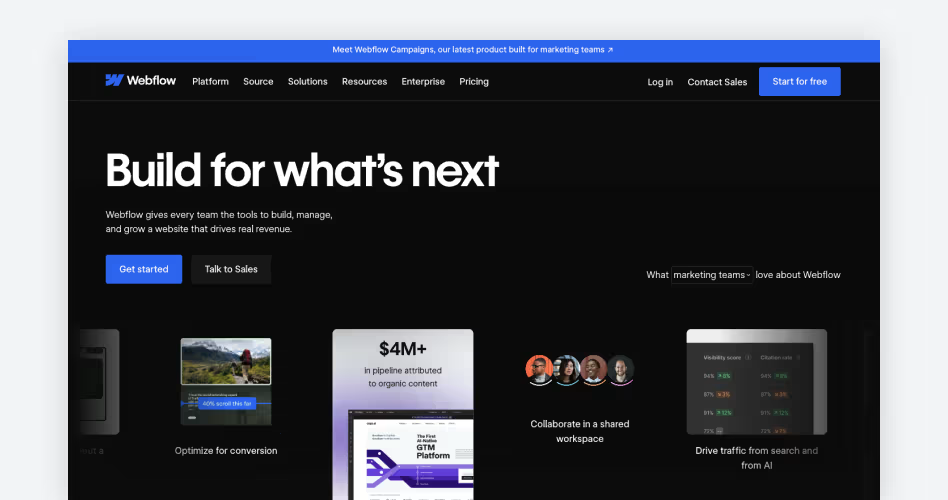
Webflow takes website prototyping a step further by letting designers build actual websites through a visual development environment.
Instead of creating a prototype that only simulates how a website works, designers can structure pages, style elements, configure responsive layouts, and add interactions using visual controls. Webflow translates these designs into HTML, CSS, and JavaScript, allowing teams to publish the resulting website without building the frontend separately.
Key Prototyping Features in Webflow
- Visual HTML and CSS development: Build layouts using visual controls for grids, flexbox, spacing, positioning, and typography. Webflow generates the underlying HTML and CSS without requiring manual coding.
- Responsive breakpoints: Adjust element positioning, spacing, visibility, and sizing for desktop, tablet, and mobile screens.
- Interactions and animations: Create scroll, click, and hover-triggered effects, such as animated navigation menus, scrolling content reveals, and interactive hero sections.
- GSAP-powered interactions: Build advanced animations using a visual timeline. Control animation sequences, timing, and reusable effects without writing animation code manually.
- Reusable components: Create shared elements such as navigation bars, footers, buttons, and content sections. Update them across multiple pages to maintain design consistency.
Pros and Cons
Pricing
Webflow offers a free Starter plan for experimenting with website design and publishing to a Webflow subdomain. Its paid Site plans include:
The Basic plan supports custom domains and static websites, while Premium adds CMS capabilities, code components, and additional publishing features.
How to Choose the Right UI/UX Prototyping Tool
The best prototyping tool isn't necessarily the one with the most features. It's the one that supports your design process, project requirements, and team's workflow.
Before choosing a tool, consider what you need to prototype, how realistic the interactions should be, and how you'll share or test your designs. These factors can help you narrow down the options.
1. Identify the Fidelity Your Project Needs
Start by deciding how detailed your prototype needs to be. Low-fidelity prototypes are useful for testing page structure and navigation. High-fidelity prototypes help evaluate visual details, animations, and realistic interactions.
Don't choose a high-fidelity tool just because it offers more features. Use the level of detail needed to answer your design questions.
2. Evaluate the Interaction Capabilities
Not every prototype needs advanced interactions. A simple website navigation flow may only require clickable buttons and screen transitions. However, a banking app or SaaS dashboard might need form validation, conditional logic, dynamic content, and interactive states.
Check whether the tool supports the interactions your project requires:
- Basic interactions: Clickable buttons, screen links, overlays, and transitions.
- Advanced interactions: Conditional logic, variables, forms, and dynamic content.
- Device interactions: Swipe gestures, pinch-to-zoom, sensors, and real-device previews.
- Animations: Scroll effects, hover states, microinteractions, and timeline-based animations.
For example, ProtoPie is worth considering for sensor-based mobile interactions, while Axure RP is better suited to complex application workflows.
3. Check Collaboration and User Testing
Prototyping often involves designers, developers, product managers, and stakeholders. Choose a tool that makes it easy to share designs, collect feedback, and test user journeys.
Consider whether it offers real-time collaboration, shareable prototype links, commenting, usability-testing integrations, and developer handoff.
If your team regularly conducts usability tests, check whether the platform supports test sessions and recordings or requires a separate testing service.
4. Consider Your Team's Workflow and Platform
A tool should fit the way your team already works. Check whether it supports your operating system, existing design tools, and development workflow.
For example, Sketch requires macOS for its full design editor, while browser-based tools such as Figma and Penpot support cross-platform collaboration. If your developers work with React components, UXPin's code-based approach may also be worth considering.
5. Compare Pricing Beyond the Monthly Subscription
Starting with a low starting price doesn't always mean a tool is affordable for your team. Check how many editors you can add, whether reviewers are free, and which features require paid plans.
Also consider project limits, storage, collaboration features, usability-testing allowances, and publishing costs. If you're choosing a tool for a team, calculate the total subscription cost rather than comparing individual starting prices.
Frequently Asked Questions
What is the best UI/UX prototyping tool?
Figma is one of the best all-around UI/UX prototyping tools. It combines interface design, interactive prototyping, reusable components, and real-time collaboration. However, the best choice depends on your project. ProtoPie suits advanced interactions, Axure RP handles complex workflows, and Balsamiq is ideal for quick wireframes.
Which prototyping tools are free to use?
Several UI/UX prototyping tools offer free plans, including Figma, Penpot, Balsamiq, Marvel, and Webflow. Their free plans have different limitations on projects, features, collaboration, and publishing. Penpot is also an open-source option for teams that want more control over their design environment.
What is the difference between wireframing and prototyping?
Wireframing focuses on a screen's structure, layout, and content placement. Prototyping adds interactions to demonstrate how users navigate and use an interface. A wireframe can be static, while a prototype can simulate buttons, navigation, forms, and other interface behaviors.
Which prototyping tool is best for beginners?
Balsamiq is a good starting point for beginners because of its simple interface and low-fidelity wireframing approach. Figma is another strong option for learning UI design and interactive prototyping in one platform. Both help beginners understand screen layouts and user flows without requiring coding skills.
Which tools are best for high-fidelity prototyping?
Figma, ProtoPie, Proto.io, Axure RP, and UXPin are strong options for high-fidelity prototyping. Figma supports interactive interface components, while ProtoPie and Proto.io offer advanced gestures and animations. Axure RP and UXPin are useful for prototypes that require complex logic or production-like components.
How do I choose the right prototyping tool for my project?
Consider your project complexity, required interaction fidelity, team size, collaboration needs, and budget. For basic wireframes, choose Balsamiq. For collaborative UI design, consider Figma. For advanced interactions, explore ProtoPie or Axure RP.
Final Thoughts
Choosing the right UI/UX prototyping tool depends on what you want to achieve. Some tools help you sketch ideas and validate layouts quickly, while others support complex interactions, realistic animations, and detailed user flows.
Before committing to a subscription, try a few tools with a real project. Compare their features, learning curves, collaboration options, and pricing. The right tool should make your design process easier, help you communicate ideas clearly, and support better user experiences.