What Is Workflow Automation? Examples, Benefits, and How to Get Started
- Workflow automation uses software to complete repetitive tasks automatically. It connects individual steps into a process that runs with little manual effort.
- Every automated workflow starts with a trigger and follows predefined actions. Conditions determine what happens next, while integrations connect the applications involved.
- You can automate everyday tasks like sorting emails, updating spreadsheets, managing leads, sending notifications, and organizing documents.
- No-code tools like Zapier, Make, and n8n let you build automated workflows without writing code. Choose one based on your needs, technical experience, and budget.
- Automation isn't suitable for every task. Processes that require human judgment, sensitive decisions, or frequent exceptions may still need manual involvement.
- Test and monitor every automated workflow. Check for errors, missing information, and unexpected results to keep processes running reliably.
How much of your workday do you spend doing the same things over and over again? Sending emails, updating spreadsheets, copying information, and notifying team members might seem like small tasks. But together, they can consume hours that could be spent on more important work.
Workflow automation helps reduce this repetitive work by allowing software to perform predefined tasks automatically. Instead of handling every step manually, you can create workflows that connect different tasks and applications.
In this guide, you'll learn what workflow automation is, how it works, what tasks you can automate, and how to build your first automated workflow.
What Is Workflow Automation?
Workflow automation is the process of using software to complete repetitive tasks automatically based on predefined rules and instructions. It connects different steps in a process so that when one task is completed or a specific event occurs, the next task happens automatically without requiring manual effort.
For example, imagine someone places an order in your online store. Instead of manually recording the order, updating inventory, sending a confirmation email, and notifying the delivery team, you can automate these steps. Once a customer places an order, the system triggers the workflow and completes the connected tasks automatically.
You can also connect different applications to make these workflows work together. For example, your online store can communicate with your inventory software, email platform, and order management system. This allows information to move between applications without manually transferring it from one place to another.
The workflow automation system allows different tasks to work together without someone having to manage every step manually. It helps you reduce repetitive work, save time, and focus on tasks that require human attention.
How Does Workflow Automation Work?
Workflow automation connects multiple tasks and applications to complete a process automatically. It uses predefined rules to determine what happens next when a specific event occurs.
Most workflows rely on four main components: triggers, actions, conditions, and integrations. Here's how they work together:
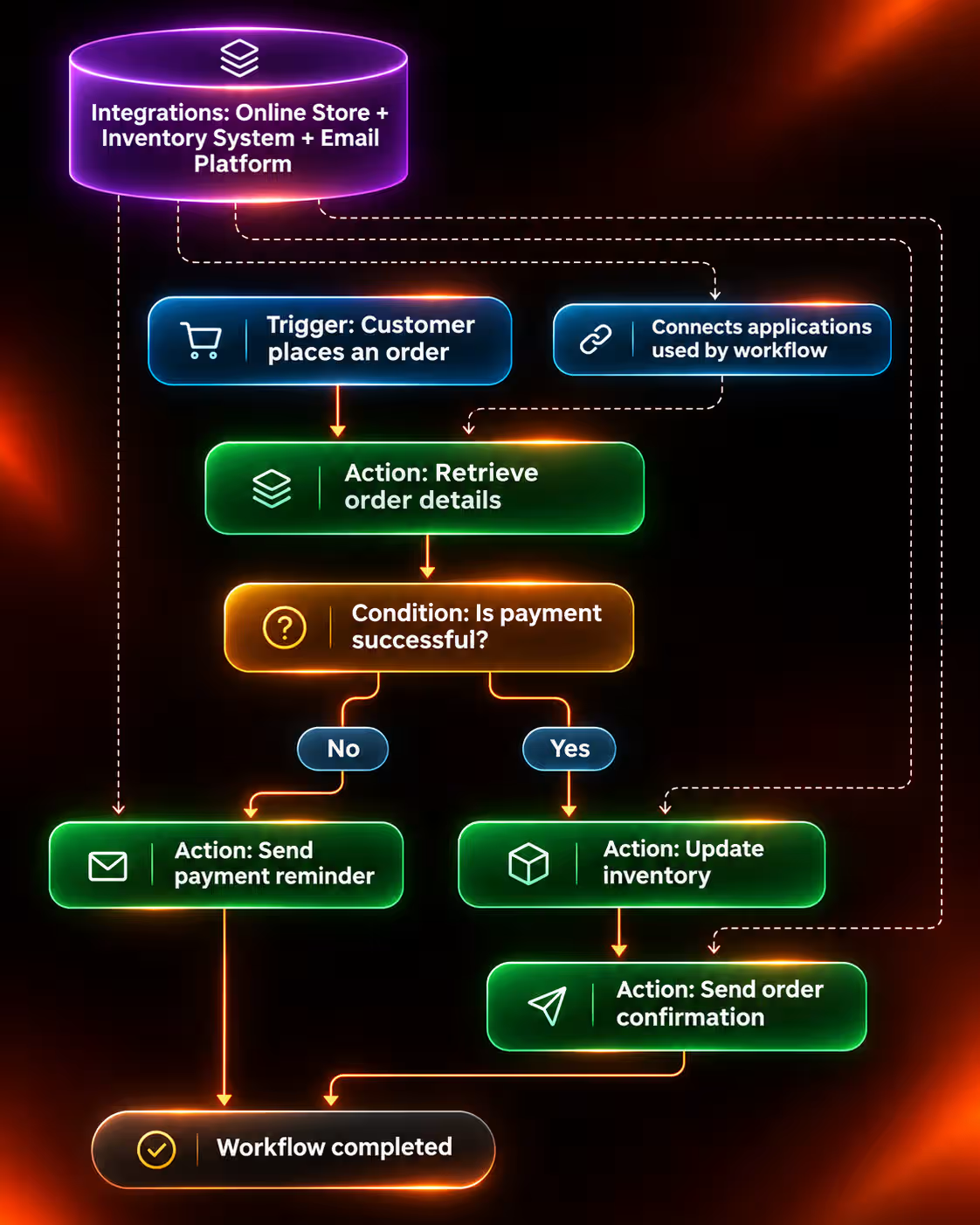
As the workflow progresses, each component plays a specific role. The trigger starts the process, actions perform the required tasks, conditions determine which steps follow, and integrations allow different applications to exchange information.
Together, these components turn individual tasks into a connected process that runs automatically, reducing the need for manual involvement. Let's look at each component more closely.
Triggers: What Starts an Automated Workflow?
A trigger is an event that starts an automated workflow. It tells the automation system when to begin performing a series of predefined tasks.
For example, imagine you run an online store. Whenever a customer places a new order, that event can trigger an automated workflow. The system detects the order and starts processing it.
Triggers can be based on different events, depending on how you configure your workflow. Some common examples include:
- Form submissions: Someone fills out a contact form on your website.
- New emails: An email arrives in your inbox.
- New orders: A customer purchases something from your online store.
- Scheduled times: An automation runs every morning at 9 AM.
- File uploads: Someone uploads a document to a shared folder.
- Status changes: A task moves from "In Progress" to "Completed."
You can also set specific requirements for a trigger. For example, you can configure an automation to start only when an incoming email contains an invoice attachment.
Actions: What Happens After a Trigger?
Once a trigger starts a workflow, the automation system performs the tasks you've configured. These tasks are called actions.
For example, when a customer places an order, the workflow can retrieve the order details, update the inventory, send a confirmation email, and notify the delivery team. Each of these steps is an action performed automatically.
A single trigger can initiate multiple actions, and those actions can use information collected during earlier steps. For example, the system can use a customer's email address from their order details to send a confirmation email without requiring anyone to enter it manually.
You can also run actions one after another or independently, depending on how you configure the workflow.
Conditions: How Does Automation Decide What Happens Next?
Not every situation requires the same action. Sometimes, an automated workflow needs to check certain information before deciding what to do next. This is where conditions come in.
Conditions are predefined rules that help an automation system decide which actions to perform based on specific requirements.
For example, when an online store receives an order, the workflow can check whether the payment was successful. If it was, the system updates the inventory and sends an order confirmation. If the payment failed, it sends a payment reminder instead.
In simple terms, conditions help workflows handle different situations by deciding which steps should happen next.
Integrations: How Do Different Applications Work Together?
Most workflows involve more than one application. For example, processing an online order might require an online store, an inventory system, and an email platform.
Integrations allow these applications to communicate and share information with one another.
When these applications are connected, information can move between them automatically. For example, when a customer places an order, the online store can send the order details to the inventory system and email platform without someone manually transferring the information.
With integrations, you can connect different applications so they can work together as part of one automated workflow.
Types of Workflow Automation
Workflow automation is usually grouped by how decisions are made and how workflows are built: rule-based, no-code and low-code, AI-assisted, and agentic. These categories overlap and vendors classify them differently, so there's no official list of "three" or "four" types.
Rule-Based and No-Code Workflow Automation
Rule-based automation follows fixed logic written in advance. The same input produces the same result every time, which makes it predictable, testable, and easy to audit. The invoice example is mostly rule-based, as are most business workflows.
No-code and low-code describe how a workflow is built, not how it decides. No-code tools use visual blocks and menus. Low-code tools add small pieces of custom code. According to IBM, most workflow automation today is built with low-code, drag-and-drop software.
AI-Assisted and Agentic Workflow Automation
AI-assisted workflow automation adds an AI model to specific steps of an otherwise fixed workflow. The AI handles what rules struggle with, like reading a messy PDF, classifying an email by intent, or drafting a reply for someone to check. People still define the path.
That's how much AI automation works today. Zapier's Q2 2026 data shows that AI made up only about 18% of the steps in its top AI adopters' AI-driven workflows; conventional automation did the rest. If you're adding AI to tools you already run, start with AI integration basics.
Agentic automation goes further: an AI agent gets a goal and tools, then decides which steps to take. That suits open-ended tasks, like researching an account before a sales call, but results vary between runs, costs are harder to predict, and the agent needs firm limits. Here's a closer look at how AI agents work.
A sensible default: use rules wherever rules are clear, add AI only where they break down, and save agents for work that can't be mapped in advance. When AI output feeds a decision, design the review step well; good AI UX patterns keep people in control. More AI doesn't automatically mean a better workflow.
Static and Dynamic Workflows
A static workflow runs the same steps every time, like an expense approval with fixed thresholds. A dynamic workflow changes its path based on data at run time, such as adding legal review only for certain contract clauses. Dynamic doesn't have to mean AI; branches and conditions often do it alone.
Workflow Automation vs. BPA, RPA, and Orchestration
Workflow automation moves tasks and data through a defined process. Business process automation (BPA) covers end-to-end processes across departments, robotic process automation (RPA) uses bots that mimic human clicks, and orchestration coordinates many workflows. The terms overlap.
Workflow Automation vs. Business Process Automation
The main difference is scope. Workflow automation usually targets one sequence, like invoice approval; BPA covers a whole process, such as procure-to-pay, which contains several workflows. MuleSoft describes workflow automation as one part of the broader BPA umbrella. In practice, many people use the terms interchangeably.
Workflow Automation vs. Robotic Process Automation
RPA bots work through an app's screens like a person would, which helps with older systems that have no API, but they can break when a layout changes. Workflow automation usually connects through APIs. The two often combine, with a workflow handing one legacy step to a bot.
Workflow Automation vs. Workflow Orchestration and BPM
Workflow orchestration coordinates many workflows and systems so they run in order, share data, and recover from failures. If a workflow is one production line, orchestration keeps every line in sync. Business process management (BPM) is a discipline, not a tool: how a company models, measures, and improves its processes. Automation is one way BPM teams act on what they find.
Benefits and Risks of Workflow Automation
The main benefits of workflow automation are faster handoffs, fewer data-entry errors, more consistent processes, and clear visibility into where work is stuck. The main risks are poor input data, unplanned exceptions, broken integrations, security gaps, and too little human oversight. The balance depends on how well the process is designed first.
Benefits for Teams and Business Operations
In the invoice example, the benefits look like this:
- Less waiting. Approval requests arrive the moment they're needed, with reminders and escalation built in.
- Fewer errors. Data moves between systems instead of being retyped, and every invoice gets a duplicate check.
- Consistency. Every invoice follows the same policy, even during month-end close.
- Visibility and an audit trail. Anyone can check status, and each approval is logged with a time and a name.
A McKinsey analysis estimated that currently demonstrated technologies could, in theory, automate activities accounting for about 57% of US work hours. McKinsey stresses this is technical potential, not a forecast of job losses, and that adoption takes time.
Risks, Failure Modes, and When Not to Automate
Automation magnifies whatever process you give it. Common failure points:
- Poor data quality. Outdated records or inconsistent fields lead to confident wrong decisions.
- Missing exception paths. Rules written only for the normal case leave edge cases stuck.
- Integration failures. Expired logins, API changes, and outages can stop a workflow unnoticed.
- Security gaps. Workflows often hold broad permissions. Give each step only the access it needs, protect credentials, and limit who can edit workflows.
- Too little oversight. Auto-approving high-value or high-risk decisions removes a check that existed for a reason.
- No owner. When the builder leaves, a workflow can run for years with nobody who understands it.
No tool makes a process compliant by itself. Regulated processes need review by people who know the rules for your industry and location.
Workflow automation may not be the right move when the process runs only a few times a year, the rules aren't agreed or keep changing, most cases need judgment or a personal touch, or building and maintaining it would cost more than it saves. If the process itself is broken, fix it first; automating it locks the problem in.
How to Automate a Workflow: Step-by-Step
To automate a workflow, choose one frequent, rule-based process, map how it works today, and define its triggers, conditions, actions, and owners. Build and test it with realistic cases, launch it as a pilot, then monitor errors and exceptions against a baseline you measured beforehand.
Choose a Process That Is Ready for Automation
This checklist is a practical editorial aid, not a validated scoring system. A process doesn't need to pass every row, but each warning sign is something to fix or plan for first.
A strong first project scores well on frequency, rule clarity, and ownership, with low risk if something goes wrong.
Design, Test, and Launch a Workflow
- Map the current process. List every step, owner, system, and waiting point, with input from the people who do the work.
- Simplify first. Remove steps that exist only out of habit.
- Define triggers, conditions, and actions, noting what data each needs and where it comes from.
- Design exception and approval paths. Decide where every failure goes and what happens if nobody responds.
- Build and test with realistic cases: normal cases, edge cases, duplicates, missing data, and a simulated integration failure. Use test data where the tool allows it.
- Launch as a pilot with one team or part of the volume, and keep a manual fallback.
- Document it: what it does, who owns it, and how to pause it.
Setup time varies widely. A two-app workflow in a no-code tool can often be built in an afternoon; a multi-system process with approvals and compliance review can take weeks.
Monitor Performance and Improve the Workflow
Track a few measures against your baseline: cycle time, manual minutes per case, error rate, exception rate, straight-through rate (cases with no manual touch), and failed runs. A recurring exception usually means a missing rule, bad source data, or a process that should change.
Some frameworks list "pillars" of automation, often triggers, rules, actions, and visibility; that's a memory aid, not a standard.
Workflow Automation Tools and Costs
Workflow automation tools range from built-in app rules to no-code platforms, enterprise suites, and custom integrations. Costs depend on subscriptions, usage volume, implementation, and ongoing monitoring and maintenance, so there's no single price.
How to Choose a Workflow Automation Tool
Tools fall into four broad groups: built-in automation in your CRM, help desk, or project software; no-code and low-code integration platforms such as Zapier, Make, Microsoft Power Automate, and n8n; enterprise iPaaS (integration platform as a service) suites for complex, high-volume processes; and custom integrations built by developers.
Whichever you consider, check for:
- Connectors for your exact apps, plus API and webhook support.
- Branching logic and approval steps with reminders and escalation.
- Retries, alerts, and readable run logs.
- Role-based access, credential management, and audit logs.
- A pricing model you understand, since many tools charge by tasks, runs, or users.
- Someone on your team who can maintain it.
Prebuilt connectors are faster and vendor-maintained but limited to what the vendor supports. Custom integrations take more skill but can reach any system with an API.
What Does Workflow Automation Cost?
A simple workflow in tools you already own may cost little beyond setup time; one touching an ERP with custom API work and security review costs far more. Judge value with the released-hours method above, including every recurring and one-time cost. For custom builds, these SaaS development costs show what drives a budget.
If a workflow needs AI connected to your existing systems, Orbix Studio offers AI integration. If the gap is a custom app or API, full-stack development is the better fit.
Frequently Asked Questions
Is Jira a workflow automation tool?
Yes, within its own scope. Jira includes automation rules built from triggers, conditions, and actions, so teams can assign issues, change statuses, or create sub-tasks automatically. It's mainly a project and issue tracker, so processes spanning many systems often pair it with an integration platform.
Is IFTTT an example of workflow automation?
Yes. IFTTT ("If This, Then That") connects apps and devices through Applets, where a trigger in one service starts an action in another. Per IFTTT's help center, Applets can now include multiple actions and conditional filters. It suits personal and lightweight automation more than complex business processes with approvals.
What are the five steps of a workflow?
There's no universal five-step model; frameworks number steps differently. A practical version is: a trigger starts the work, inputs are collected and checked, a decision or approval is made, actions are completed, and the result is recorded and reviewed. Your process may need more steps or fewer.
What are the three types of automated workflows?
It depends on the framework. One common split is sequential (fixed order), rules-driven (condition-based paths), and state-based (moving between statuses). Another is rule-based, AI-assisted, and agentic. Treat any fixed number as one way to organize ideas, not a standard.
Can you automate a workflow without coding?
Yes. Many workflow automation tools are no-code, letting you choose triggers, conditions, and actions from menus, and built-in automation in CRMs and help desks rarely needs code. You may need a developer when an app has no connector, the logic gets complicated, or the workflow needs a custom integration.
Final Thoughts
Workflow automation is less about clever software than clear processes. Once you know what starts the work, which rules apply, and who decides the hard cases, the automation is often the easy part.
Start with one frequent, well-understood process, measure it before you change it, and keep human checks where they matter. If your workflow later needs AI or custom integrations, Orbix Studio works on both, and a short conversation can help you decide whether outside help is worth it.