- What Is the Design Process?
- Step 1: Receive the Brief and Understand the Project
- Step 2: Research the Problem and Gather Evidence
- Step 3: Analyze Findings and Define the Problem
- Step 4: Plan the Experience Before Designing Screens
- Step 5: Explore Solutions and Establish the Structure
- Step 6: Design the Interface and Interactions
- Step 7: Build a Prototype and Validate the Experience
- Step 8: Prepare the Design for Handoff
- Step 9: Review the Implementation and Keep Improving
- How to Manage Work Throughout the Design Process Steps
- Frequently Asked Questions
- Final Thoughts


.svg)

%201%201.svg)
The Design Process Steps Explained: From First Brief to Final Handoff
- The design process turns a project brief into a tested, usable product. Each stage builds on the decisions and findings from the previous one.
- Start with the problem, not the interface. Understand the business goals, user needs, and project constraints before deciding what to design.
- Research should inform design decisions, not just document user behavior. Use interviews, competitor analysis, existing data, and feedback to identify real problems and opportunities.
- Define the problem and success criteria before exploring solutions. Clear requirements help you prioritize ideas and evaluate whether a design actually solves the right problem.
- Map user flows and information architecture before designing screens. A clear structure makes it easier to identify missing steps, confusing navigation, and unnecessary interactions.
- Use checklists, templates, and clear deliverables to keep projects organized. They help designers track progress, communicate decisions, and identify what needs to happen next.
If you're new to product design, knowing how to use design tools is only part of the job. You also need to know how to approach a project, understand user needs, make design decisions, and work with developers to bring your ideas to life.
That's where the design process comes in. It breaks a complex project into manageable stages, helping you understand what to do, why it matters, and what needs to happen before you move forward. A clear process also helps you avoid common mistakes, such as designing screens before defining the problem.
This guide walks you through 9 steps of the design process, with practical instructions, key deliverables, and useful resources for each stage. Whether you're working on your first project or looking for a more structured workflow, you'll have a reference you can return to as you work.
What Is the Design Process?
The design process is a step-by-step way to move from a problem to a tested solution. You start by understanding the goal and the people you are designing for, then research and define the problem, explore and test ideas, and hand the final design to developers to build.
Imagine a company wants to build a project management app. The team knows it needs a dashboard, but nobody has figured out what information users need, how they should navigate the app, or which problems the dashboard should solve.
Should the designer open Figma and start arranging charts and buttons? Not yet. First, they need to understand the problem, explore possible solutions, and figure out what will help users complete their work.
That's what the design process steps help you do. It gives you a structured way to move from an initial problem to a solution, with a clear purpose behind each decision.
Think of it as a series of connected stages. Each stage answers a different question and prepares you for the work that follows. Many teams base these stages on the Design Council's Double Diamond model, which splits the work into two halves: first discovering and defining the right problem, then developing and delivering the right solution.
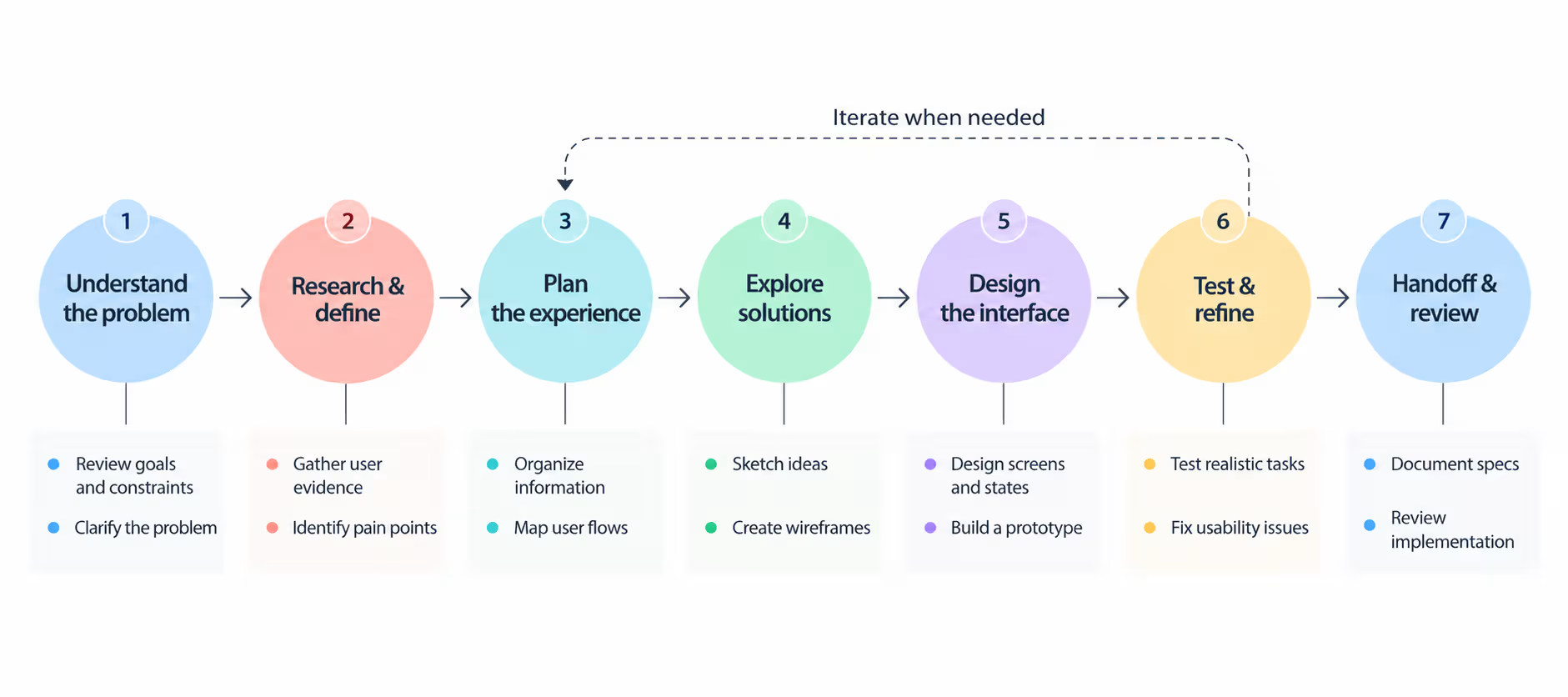
These stages give the team a shared way to organize its work. They help everyone understand what's been decided, what's still uncertain, and what needs to happen next. They also reduce the risk of spending time polishing a solution before confirming that it addresses the right problem.
Step 1: Receive the Brief and Understand the Project
Before you open Figma or start sketching ideas, make sure you understand what the team is trying to accomplish. A project brief gives you the initial context, but it may not answer every question you need to make good design decisions.
Imagine your product manager asks you to redesign a SaaS dashboard. You know the interface needs improvement, but you don't yet know why. Are users struggling to find information? Are they abandoning an important task? Does the business want to improve user activation? Each problem calls for a different design approach.
Your first job is to understand the reason behind the request, not simply accept the proposed solution.
Review the Project Brief and Existing Context
Start by reviewing the project brief, existing product documentation, previous design decisions, research findings, analytics, and relevant customer feedback. Look for information the team already has before asking questions.
If you're joining an existing project, explore the current product to understand how it works and what the team is trying to improve. This helps you build on existing knowledge instead of repeating work that has already been done.
Clarify Goals, Scope, and Constraints
As you review the materials, clarify 5 things:
- The problem: What isn't working, or what opportunity are we trying to address?
- The users: Who will use the product, and what are they trying to accomplish?
- The business goal: What should improve if the project succeeds, and how will the team measure it?
- The scope: Which features, screens, or user journeys are included, and what's outside the project?
- The constraints: What deadlines, technical limitations, dependencies, or existing design requirements could affect your work?
Don't assume the brief contains all the answers. Write down anything that's unclear and discuss it with your product manager or project lead. For example, if the request says "make the dashboard easier to use," ask which tasks users struggle with, what evidence supports that concern, and what improvement the team expects.
Step 2: Research the Problem and Gather Evidence
Once you understand the project, your next job is to investigate the problem. Before suggesting a new layout or feature, find out what users are struggling with, what the team already knows, and what evidence supports the need for change.
Imagine you're helping redesign a SaaS dashboard. The project brief says users find it difficult to manage their tasks. It's tempting to assume the dashboard needs better navigation or a cleaner layout.
But what if users can find their tasks easily and struggle because the filters don't work as expected? A visual redesign wouldn't solve that problem.
Your research should help you understand what's happening before you decide what needs to change.
Start With What You Already Know
You don't always need to begin with interviews or surveys. Existing products, customer feedback, analytics, and previous research can already tell you a lot.
Start by exploring the current product. Follow the main user journeys and try to complete the tasks related to your project. Notice where information is difficult to find, where instructions are unclear, and where the interface makes you take unnecessary steps.
Don't record something as a problem just because you personally dislike how it looks. Focus on what could prevent users from completing their tasks.
Next, review the information available to your team:
- Product analytics: Look for unusual drop-offs, low feature usage, repeated actions, or steps where users appear to struggle.
- Customer feedback: Read support tickets, app reviews, customer complaints, and sales team notes. Look for recurring problems rather than focusing on one isolated comment.
- Previous research: Check interview notes, usability test recordings, research reports, and existing personas. You may find that someone has already investigated part of the problem.
- Product documentation: Review existing requirements, feature specifications, and known technical limitations to understand how the current experience is supposed to work.
Each source answers different questions. Analytics might show that many users abandon a particular step, but it won't necessarily explain why.
Customer interviews can reveal possible reasons, while usability testing can help you observe the difficulty directly. Combining these sources gives you a stronger understanding than relying on any one of them alone.
Learn From Other Products, Too
Competitor analysis helps you understand how other products solve similar problems. It can reveal familiar interaction patterns, alternative workflows, and opportunities to make your own product easier to use.
Choose a few relevant products, including direct competitors and products that solve a similar problem in a different way. Then examine how they handle the specific task you're investigating.
For example, if you're researching task management dashboards, compare how each product helps users identify overdue tasks. Look at where overdue items appear, how they're labeled, whether users can filter them, and what happens when they open a task.
Don't stop at collecting screenshots or listing features. Try to understand why each experience works well or creates friction. Ask yourself:
- Can users find the information they need without unnecessary effort?
- Are labels, actions, and navigation easy to understand?
- What happens when users make a mistake or have incomplete information?
- Which interaction patterns could be useful for your project, and which wouldn't fit your users' needs?
Record what you observe, and include screenshots when they help explain your findings. Remember that a competitor's design is a reference, not proof that the same solution will work for your product.
Choose Research Methods Based on What You Need to Learn
Sometimes, existing information won't answer your questions. You may need to speak with users, collect feedback, or observe people using the product. The right method depends on what you still need to understand. If you're unsure where to start, Nielsen Norman Group's guide on when to use which UX research methods maps common methods to the questions they answer.
- Use user interviews when you need to understand users' goals, experiences, habits, and frustrations. Ask people to describe real situations and how they handled them. For example, "Tell me about the last time you couldn't find an overdue task."
- Use surveys when you need feedback from a broader group. They can help you understand how common an experience is or compare responses across different user groups. Keep questions neutral and avoid leading people toward a particular answer.
- Use usability research when you need to see how people interact with an existing product or prototype. Give participants realistic tasks and observe what they do, where they hesitate, and where they get stuck.
- Use analytics when you need to understand behavior at scale, such as where users drop off or which features they use most often. Investigate the reasons behind unusual patterns rather than assuming the numbers explain everything.
You don't need to use every method in every project. If existing research already answers your questions, use it. If the evidence is incomplete, discuss the gaps with your product manager or researcher before planning additional research.
Keep Evidence Separate From Assumptions
One of the most important research habits is learning to distinguish what you know from what you believe. A reasonable-sounding idea can still be wrong, even when the whole team agrees with it.
Suppose the team believes users struggle with the dashboard because it contains too much information. Write that down as an assumption, not a confirmed finding. Then look for evidence that supports or challenges it.
As you research, organize your notes into three categories:
Evidence: Something directly observed or supported by a source. For example, analytics show that many users leave during the task-filtering process.
Insight: A meaningful interpretation of the evidence. For example, users may be having trouble identifying the correct filter. This is a possible explanation that still needs validation.
Assumption or open question: Something you haven't confirmed. For example, users might find the filter labels confusing, but you haven't observed anyone using them yet.
This distinction matters because a research finding and an explanation of that finding are not the same thing. If you treat an assumption as a fact, you risk designing around a problem that doesn't exist.
Turn Your Research Into Something the Team Can Use
Research becomes useful when other team members can understand what you found, where the information came from, and what needs further investigation.
You don't need an elaborate research report for every project. A shared document or research board is often enough. Organize your findings by topic, such as navigation, task management, onboarding, or reporting. Include links to original sources, relevant screenshots, and short notes explaining why each finding matters.
For each important observation, record:
- What you found: Describe the behavior, feedback, or pattern you observed.
- Where it came from: Link to the interview note, analytics report, support ticket, or other source.
- Why it matters: Explain how it relates to the project and the user's ability to complete a task.
- What remains unknown: Note any unanswered questions or explanations that still need validation.
Share your findings with the team before moving into solution design. Your goal is to give everyone a clearer picture of the problem, not to prove that your first idea was correct.
Step 3: Analyze Findings and Define the Problem
After research, you may have interview notes, analytics reports, screenshots, customer feedback, and observations from several products. But having all this information doesn't automatically tell you what to design.
You need to connect the findings, identify the problems that matter most, and agree on what the project should achieve.
Find the Patterns Behind Your Research
Start by bringing your research findings into one place. Review your notes and group observations that relate to similar user goals, behaviors, or difficulties.
You can use sticky notes, a spreadsheet, or a collaborative whiteboard. The tool matters less than your ability to see connections between findings. This grouping method is often called affinity diagramming.
For example, several observations might point to the same issue:
- Users take extra steps to find overdue tasks.
- Interview participants say they often miss tasks with approaching deadlines.
- Support tickets mention confusion about task status.
- Analytics show that users frequently open individual tasks to check their deadlines.
Together, these observations suggest that users may struggle to recognize which tasks need attention. That is more useful than treating each observation as a separate design problem.
Define the User's Actual Problem
Once you identify the main patterns, describe the problem the team needs to solve. Focus on what users are trying to accomplish, what's preventing them from doing it, and why that difficulty matters.
A useful problem statement answers three questions:
- Who is affected? Identify the relevant user or user group.
- What do they need to accomplish? Describe the task, goal, or difficulty.
- Why does it matter? Explain the impact on the user and, where relevant, the business.
Use the problem statement to guide the next stage of design, not to describe the interface you intend to build. If your evidence doesn't explain the root cause yet, acknowledge that uncertainty rather than presenting a guess as a fact.
Connect the Problem to User Goals and Real Situations
A problem statement gives the project direction, but you also need to understand when the problem occurs and what users are trying to achieve in that situation.
Write down the relevant use cases. These describe the circumstances in which someone uses the product and the outcome they're trying to reach.
For the task management dashboard, examples might include:
- A project manager checking which tasks are overdue before a team meeting.
- A team member reviewing their priorities at the start of the day.
- A manager identifying tasks that could delay a project deadline.
These situations help you understand what the interface must support. They also give the team realistic scenarios to use later when mapping user flows and testing prototypes.
Avoid turning every possible user action into a separate use case. Focus on the situations most closely related to the problem you're addressing.
Turn Findings Into Requirements
Once the team agrees on the problem, translate it into requirements that guide design decisions. Requirements describe what the experience needs to support, rather than prescribing the exact visual solution.
For example:
These requirements give you something concrete to work toward without deciding exactly how every screen should look.
Decide Which Problems to Solve First
Research often reveals more problems than a project can reasonably address. Your job is to help the team identify which ones deserve attention now and which can wait.
Consider three factors when prioritizing:
- User impact: How seriously does the problem affect users' ability to complete important tasks?
- Business value: How closely does solving it support the project's goals?
- Feasibility: Can the team address it within the available time, resources, and technical constraints?
A simple prioritization matrix can help the team compare problems. You don't need a complicated scoring formula. Start by discussing each problem against these factors and recording the reasons behind your decisions.
Step 4: Plan the Experience Before Designing Screens
You now understand the problem and know what the design needs to achieve. Before creating screens, you need to work out how users will move through the product to reach their goals.
Start With the Tasks Users Need to Complete
Begin with the user's goal, then break it into the tasks required to achieve it. Don't start by listing screens or deciding which buttons to add. First, understand what the user needs to do and what information they need at each point.
For example, a project manager who wants to review overdue tasks might need to:
- Open the task dashboard.
- Find tasks that are overdue.
- Review each task's status, deadline, and owner.
- Open a task to understand its details.
- Decide what needs attention and take the next action.
This sequence gives you a starting point, not a final design. You still need to consider whether users can reach overdue tasks directly, whether filtering is necessary, and which details they need to see without opening each task.
Organize the Information Before Planning the Screens
Once you understand the tasks, decide how the product should organize its information and features. This is called information architecture (IA). It determines how information is grouped, labeled, and connected so users can find what they need.
Start by asking:
- Which information belongs together?
- What do users need to access most often?
- Which items should appear in the main navigation?
- What should users see first when they open the product?
- Which information belongs on a dashboard, inside a detail page, or in a separate section?
Sketch a simple structure showing the main sections and how they relate. For example:
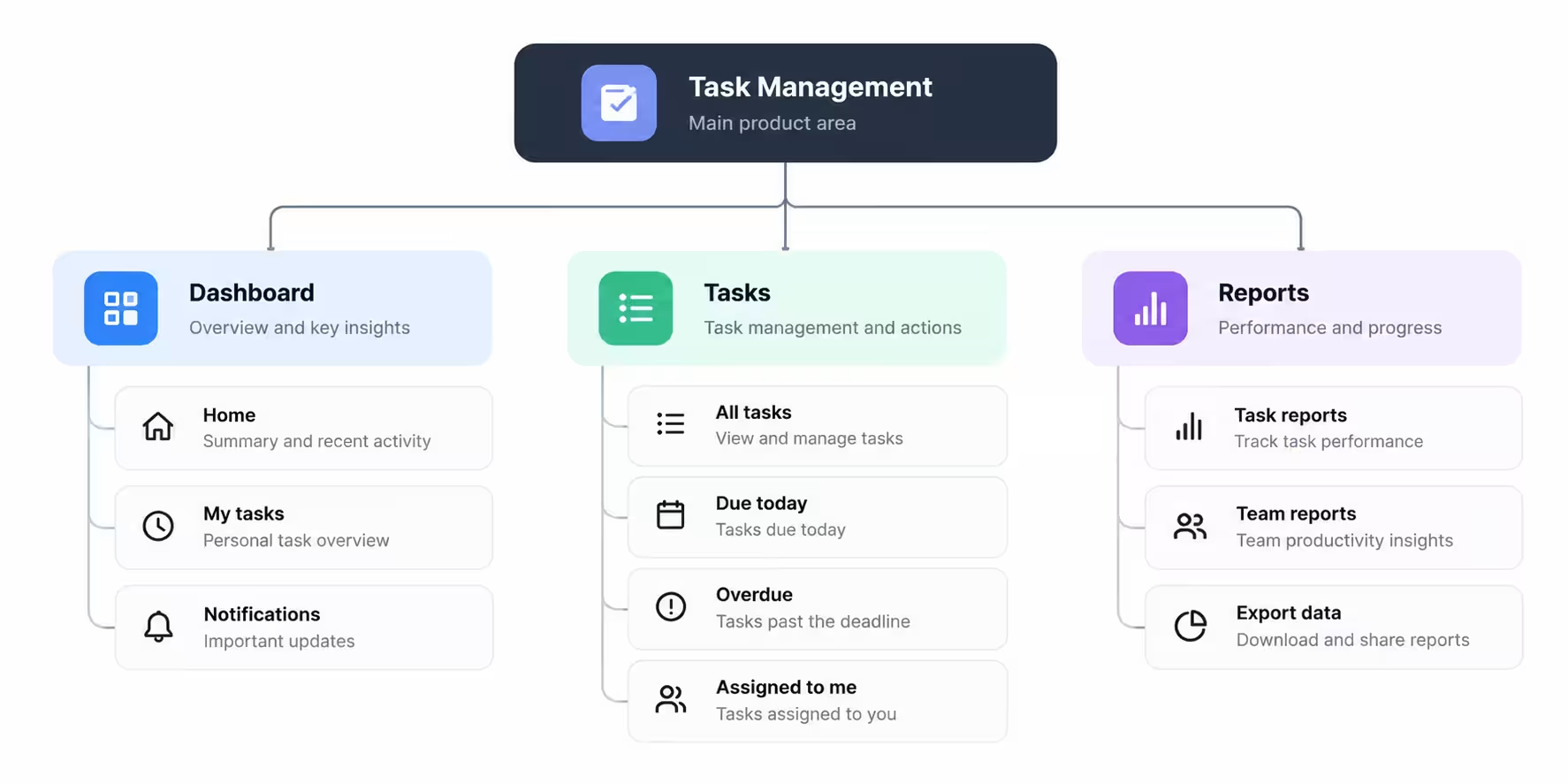
This is a simple example of how a product's sections might relate. Your actual structure should reflect the users' tasks, the available features, and the complexity of the product.
Map the User Flows, Including What Can Go Wrong
Information architecture shows how the product is organized. A user flow shows how someone moves through it to complete a particular task.
Create a separate flow for each important goal rather than trying to map every possible action in one enormous diagram. Start with the entry point, add the meaningful actions and decisions, and finish when the user achieves the intended outcome.
For example, the overdue-task flow might look like this:
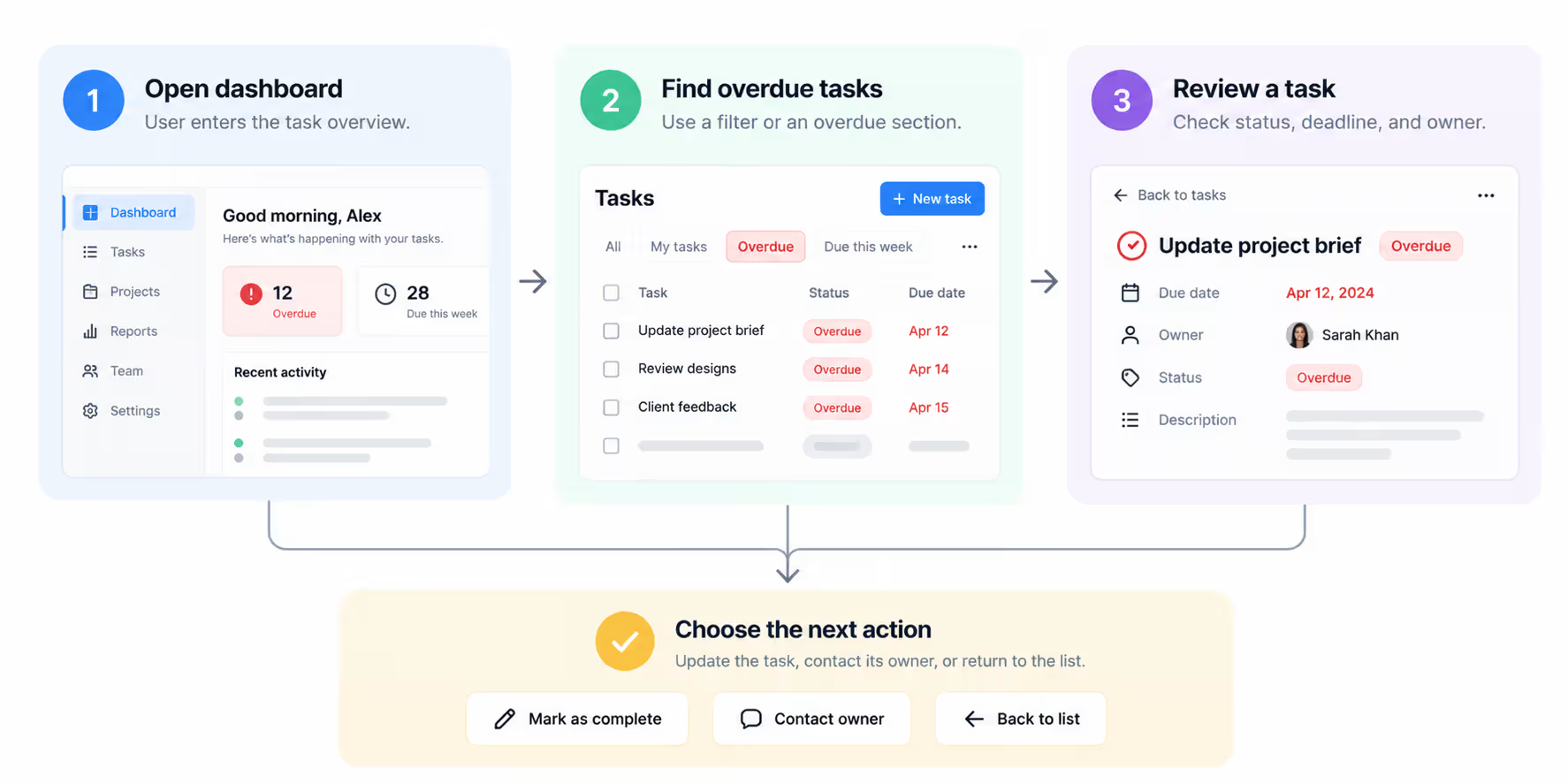
As you map the flow, don't assume every user will follow the ideal path. Consider what happens when the task list is empty, a filter returns no results, the user lacks permission to open a task, or a task has already been completed. These situations affect how the experience should work, even if they don't appear in the main flow.
Step 5: Explore Solutions and Establish the Structure
You now know what users need to accomplish and how the experience should be organized. It's time to explore how that experience could work in practice.
Explore a Few Different Approaches
Start with quick sketches rather than polished screens. You can use pen and paper, a whiteboard, or a tool such as FigJam. Focus on different ways to solve the problem, not minor variations of the same layout.
For the task dashboard, you might sketch three approaches:
- A dedicated overdue-tasks panel at the top of the dashboard.
- A task list with clear status labels and deadline information.
- A dashboard with filters that let users narrow tasks by status and deadline.
These are different approaches to organizing the experience. Sketching them side by side makes it easier to compare their strengths and weaknesses.
You don't need dozens of ideas. A few meaningfully different options are often enough to start a useful discussion.
If you're struggling to generate alternatives, try changing one major decision at a time: where important information appears, how users access it, or which actions are available directly from the overview.
Then compare your options against the requirements established earlier. Does the approach help users complete their main task? Does it address the research findings? Does it introduce unnecessary steps or depend on functionality the product doesn't have?
Choose the direction that best meets the requirements, and record why. If no option works well enough, keep exploring rather than forcing a decision.
Turn the Strongest Ideas Into Wireframes
Once you have a promising direction, develop it into low-fidelity wireframes. A wireframe is a simple representation of a screen's structure.
It shows the placement of important content, navigation, actions, and interface elements without focusing on final colors, typography, or decoration.
Think of it as a blueprint for the interface. It should help someone understand how the screen is organized and how the user can interact with it.
For each important screen, establish:
- Content hierarchy: What should users notice first, and what information supports their next decision?
- Layout: Where should key information, actions, navigation, and supporting content appear?
- Interactions: What happens when users select a filter, open a task, submit a form, or change a setting?
- Screen relationships: How does this screen connect to the next step in the user flow?
Use simple shapes, clear labels, and realistic content where it helps explain the experience. Avoid spending time choosing colors, fine-tuning shadows, or perfecting icons. Those details can distract the team from more important questions about usability and structure.
You should also create wireframes for the key screens in the agreed user flow, not just the dashboard's main screen. A good starting screen is not enough if the next screen leaves users confused about what to do.
Check the Details Before You Polish
A wireframe should communicate more than where elements sit on a page. It should also explain how important interactions behave.
Consider a few questions while refining your work:
- What happens when a user has no tasks to display?
- What happens when a search or filter returns no results?
- What does the user see when an action succeeds or fails?
- Are actions available only to certain roles or permission levels?
- What happens on a smaller screen, if mobile access is part of the project?
You don't need to solve every technical edge case independently. Identify the ones that could change the experience, then discuss unclear behavior with your product manager or developers.
For example, an overdue-task panel might work well when tasks exist but leave the dashboard looking broken when the list is empty.
Planning an appropriate empty state now is easier than discovering the gap after the visual design is complete.
Keep the wireframes simple, but make the intended behavior clear enough that the team can review it without guessing.
Review the Wireframes Before Moving Forward
Share your wireframes with the product team while they're still easy to change. Explain the problem you're solving, the alternatives you considered, and why you chose the current direction. Ask for feedback on specific questions instead of simply asking whether everyone likes the design.
For example, you might ask:
- Can users identify overdue tasks quickly with this layout?
- Is the most important information visible at the right time?
- Does the flow support the requirements we agreed on?
- Are there unnecessary steps or missing states?
- Are any proposed interactions difficult to implement or maintain?
Use the feedback to identify structural problems and revise the wireframes. If the team disagrees about a key decision, return to the requirements and research evidence instead of choosing whichever option looks better.
Once the main structure is agreed upon, record the selected direction and any unresolved questions. You don't need every minor detail approved, but the team should understand how the experience works and why it is structured this way.
Step 6: Design the Interface and Interactions
Your wireframes establish the structure of the experience. Now you need to turn them into a high-fidelity interface that users can understand, navigate, and interact with confidently.
Build on the Existing Design System
Before creating new styles or components, explore the product's existing design system and component library. These resources define the visual foundations and reusable elements that keep an interface consistent across screens.
Look for the approved color palette, typography styles, spacing rules, buttons, form fields, navigation patterns, icons, and other reusable components. Check how they are intended to be used, not just how they look.
For example, if the product already has a primary button for important actions, use that component instead of creating a slightly different version for every screen.
If task statuses use established labels and colors, follow those conventions so users don't have to relearn their meaning in different parts of the product.
If an existing component doesn't meet the requirements, discuss the issue with your design lead before creating a new one. There may be an approved variant or a reason the component needs to change.
Establish Visual Hierarchy and Refine the Layout
Once you understand the available components, apply them to the wireframes. Your goal is to make the most important information easy to notice and the next action easy to understand.
Start with the content hierarchy. Ask what users need to see first, what information helps them make a decision, and what can remain secondary. Use typography, spacing, contrast, alignment, and grouping to communicate those relationships.
Pay attention to the details that make the interface feel consistent:
- Typography: Use the established text styles and maintain readable sizes, weights, and line heights.
- Spacing: Follow the product's spacing system to group related information and separate unrelated elements.
- Color and contrast: Use color to support hierarchy and communicate meaning. Don't rely on color alone to distinguish task statuses.
- Alignment and layout: Keep related elements aligned and use consistent layout rules across screens.
- Component consistency: Make sure buttons, fields, menus, cards, and other repeated elements look and behave consistently.
Don't add visual decoration just to make the screen look more impressive. Every design choice should support comprehension, usability, or the product's established visual language.
Design the Behavior, Not Just the Appearance
A high-fidelity screen can look finished while leaving important questions unanswered. What happens when someone clicks a button? How does a dropdown open? What feedback appears after saving changes? Can users cancel an action or recover from an error?
Define the behavior of interactive components alongside their visual design. For important elements, consider which states they need and how each state should appear.
This is a starting point, not a universal checklist. The states you need depend on the component and the product's behavior.
Step 7: Build a Prototype and Validate the Experience
Your interface may look complete, but that doesn't guarantee users will understand it or know how to use it. Before handing the design to developers, you need to evaluate whether the proposed experience actually supports the tasks it was designed for.
Build a Prototype Around the Questions You Need to Answer
You don't need to make every screen fully interactive before testing. Start by identifying the most important uncertainties in your design.
If you're unsure whether users can find overdue tasks, prototype the dashboard and its task-filtering interactions. If you're testing whether users understand a new task-creation flow, connect the relevant screens, form fields, validation messages, and confirmation state.
The prototype should allow someone to complete the tasks you want to investigate. Connect the relevant screens, buttons, menus, and interactions so the experience behaves realistically enough for the test.
Figma lets you connect frames and define interactions without building a working product. You can use its prototyping guide to learn how to create flows and preview them.
Prepare Tasks That Reflect Real User Goals
Once the prototype is ready, decide what you want participants to attempt. Good usability tasks describe a realistic goal without telling people which buttons to click or where to look.
For example, suppose you want to test the task dashboard.
A leading task: "Click the Overdue filter and open the first task."
A better task: "You have a project review this afternoon. Find the tasks that are already past their deadlines and identify which one needs attention first."
The second task gives the participant a reason to use the product without revealing the intended path. You can then observe whether the interface helps them find the right information.
Prepare a small set of tasks that cover the most important parts of the experience. For each task, decide what you're trying to learn, what successful completion looks like, and what behaviors you need to observe.
You might want to learn whether participants can:
- Find overdue tasks without assistance.
- Understand the difference between task statuses.
- Open a task and locate its deadline and owner.
- Identify an appropriate next action.
Don't test everything at once. Focus on the highest-risk interactions and the questions that could change your design decisions.
Test With Relevant Participants and Observe What Happens
Whenever possible, test with people who represent the intended users. For qualitative testing, you don't need a big group. Nielsen Norman Group's long-standing guidance is that testing with around five users per round uncovers most common usability problems, so several small rounds teach you more than one large one.
If the product is designed for project managers, feedback from people who regularly manage projects will usually be more relevant than feedback from someone unfamiliar with that work.
Work with your product manager or researcher to identify suitable participants. If recruiting actual users isn't possible, you can conduct an early review with internal team members to identify obvious problems.
However, treat internal feedback as an initial check, not a substitute for testing with representative users.
Before the session, explain that you're evaluating the design, not the participant. Ask for permission before recording, and make sure participants understand how their information will be used.
Give them one task at a time and let them work through it. Encourage them to describe what they're thinking, but avoid explaining the interface or pointing them toward the correct action.
For example, if someone pauses while searching for overdue tasks, don't immediately say, "Did you notice the filter on the left?" Instead, let them continue where possible.
If you need to understand their thinking, ask a neutral question such as, "What are you looking for right now?"
Pay attention to what people do, not just what they say. Someone might describe a screen as easy to use but still struggle to complete a task.
Likewise, a participant might dislike a color without having any difficulty using the interface. These are different kinds of feedback and shouldn't carry the same weight.
The GOV.UK guide to moderated usability testing provides practical guidance on preparing sessions, writing tasks, and observing participants without leading them.
Know When the Design Is Ready to Move Forward
Your deliverables for this step are a tested prototype, documented usability findings, and revised designs that address the most important problems. A usability testing plan, task script, observation sheet, and issue prioritization template can help you organize the work.
Before moving to the next stage, confirm that the main tasks have been evaluated, important usability problems have been addressed or documented, and the team understands any remaining risks or unanswered questions.
You don't need proof that every user will find the design perfect. You need enough evidence to explain what works, what has changed because of testing, and what still needs attention.
The most valuable outcome isn't a prototype that receives positive feedback. It's a better-informed design, supported by evidence of how people actually use it.
Step 8: Prepare the Design for Handoff
A tested design only helps users once it's built the way you intended. Handoff is where you give developers everything they need to build the experience without guessing how screens look or behave.
Imagine a developer picks up the task dashboard and finds three versions of the same screen, no empty state, and no note on how overdue tasks are sorted. They will either stop and ask, or make their own decision. Good handoff prevents both.
Share Files Developers Can Actually Use
Clean up your design file before sharing it. Remove old explorations, name pages and frames clearly, and mark which screens are ready to build. Developers shouldn't have to work out which version is final.
If your team works in Figma, Dev Mode lets developers inspect spacing, typography, colors, and assets, and see which frames you have marked as ready for development.
Document Behavior, Not Just Screens
Static screens rarely explain everything. For the key screens and components in the flow, include:
- User flows: Link the flows from Step 4 so developers understand how screens connect.
- States: Show the loading, empty, error, and success states you designed in Step 6.
- Interaction notes: Explain what happens on click, hover, or submit, plus any validation rules or transitions.
- Responsive behavior: Show how layouts adapt on smaller screens, if that's part of the scope.
- Content rules: Note character limits, truncation, and what happens with long names or missing data.
For the task dashboard, a developer should be able to tell how overdue tasks are sorted, what the overdue label looks like, and what appears when nothing is overdue, without needing to ask you.
Walk the Team Through the Design
Don't just send a link and move on. Hold a short handoff session with developers and your product manager. Walk through the main flows, explain the decisions behind them, and point out edge cases and open questions.
Ask developers what's unclear or difficult to build. It's much easier to adjust a detail now than after the feature has been coded.
Note: Handoff isn't a single moment. Stay available while the feature is built, because questions will come up that your documentation didn't cover.
Step 9: Review the Implementation and Keep Improving
Your work isn't finished when developers start building. Small differences between the design and the build, such as missing states, inconsistent spacing, or unclear labels, can make the experience harder to use. Reviewing the implementation helps you catch them before users do.
Check the Build Against the Design
Once a feature is ready in a test environment, use it the way a user would. Complete the main tasks, then compare what you see with the approved designs and specifications.
As you review, check that:
- Layout, spacing, and typography follow the design system.
- Empty, loading, error, and success states appear correctly.
- Interactions behave the way you documented them.
- Text is readable and the interface meets basic accessibility requirements, such as color contrast and keyboard focus.
- The layout works on the screen sizes included in the project.
Record each issue with a screenshot and a short description, and agree with the team on which ones must be fixed before release.
Learn From Real Usage After Launch
Launch is a chance to learn whether the design solved the problem you defined in Step 3. Use analytics, support tickets, and user feedback to check what changed.
For the task dashboard, you might track whether users open fewer individual tasks just to check deadlines, or whether support tickets about task status go down.
If the results fall short, go back to the relevant step and revise your approach. That's what makes the design process steps a cycle rather than a straight line.
How to Manage Work Throughout the Design Process Steps
Good design work isn't just about creating usable interfaces. You also need to communicate clearly, manage feedback, document decisions, and keep the team aligned throughout the project.
Keep these habits in mind as you move through each stage:
- Communicate progress regularly: Share what you've completed, what you're working on next, and any blockers. If you're waiting for information or approval, let the team know early.
- Ask for specific feedback: When sharing designs, explain the problem you're solving and the decisions you've made. Ask reviewers to focus on particular questions instead of simply asking whether they like the design.
- Handle conflicting feedback with evidence: Compare suggestions against user research, project requirements, business goals, and technical constraints. If the team can't agree, explain the trade-offs and ask the appropriate decision-maker for direction.
- Document important decisions: Record what was agreed, why it was chosen, and what changes later. This helps prevent repeated discussions and makes it easier to understand the reasoning behind the design.
- Keep design files organized: Use clear page and frame names, separate approved designs from work in progress, and make sure the team knows which version is current.
- Collaborate with product managers and developers: Clarify requirements, discuss technical limitations early, explain interaction behavior, and review the implementation when needed.
- Know when to move forward or revisit earlier work: Move to the next stage when you have enough information to proceed. If testing or new evidence reveals a problem, return to the relevant stage and revise your approach.
Frequently Asked Questions
Is the design process always linear?
No. Designers often revisit earlier stages when testing, feedback, or new information reveals a problem. This iterative approach helps teams refine their decisions and improve the final experience.
Why is research important in the design process steps?
Research helps designers understand user needs and identify real problems before choosing a solution. It replaces assumptions with evidence, helping teams make better decisions and avoid building features that don't address users' actual needs.
What is the difference between the design process and design thinking?
The design process provides a workflow for moving from a problem to a finished solution. Design thinking is a human-centered approach that emphasizes understanding users, exploring ideas, and testing solutions. It can guide decisions throughout the design process.
Who is involved in the design process?
Product designers, product managers, developers, researchers, stakeholders, and users may all contribute. Each brings a different perspective, from understanding user needs and business goals to assessing technical feasibility and validating the final experience.
How long does the design process take?
It depends on the scope. A small feature might move through every step in a couple of weeks, while a new product or a full redesign can take several months. The amount of research needed, the number of screens, how many testing rounds you run, and how quickly stakeholders give feedback all affect the timeline.
What tools are used in the design process?
Most teams use a mix of tools. Figma is common for wireframes, interface design, prototypes, and developer handoff, while FigJam or Miro work well for research synthesis and user flows. Tools such as Maze or UserTesting support usability testing, and Jira or Linear are often used to track design and development work.
Final Thoughts
The design process steps help you move from understanding a problem to creating and testing a solution. Each stage builds on the previous one, keeping your decisions focused on user needs and business goals.
Use this process to guide your projects, but don't treat it as a rigid checklist. Document your decisions, collaborate with your team, and revisit earlier steps when new evidence reveals a problem. The goal is to create products that work well for the people who use them.
If you're starting a project now, use the nine steps in the Quick Answer above as a checklist, and note which ones you have already covered before you open Figma.





.svg)
.svg)


.svg)







.avif)



.svg)

