Best UI/UX Design Tools in 2026: 10 Tools Compared
- Figma remains a strong all-in-one choice for UI/UX design, but it isn't the only tool worth considering.
- Wireframing tools like Balsamiq help designers map layouts and user flows before investing time in detailed interfaces.
- Tools like Figma, Sketch, and Penpot support interface design through reusable components, design systems, and collaboration features.
- Prototyping tools like Framer and ProtoPie help designers test interactions and demonstrate how products behave before development.
- UX research platforms like Maze and Dovetail help teams collect user feedback, analyze research findings, and identify usability problems.
- AI-powered tools like Google Stitch speed up early design exploration by generating interface concepts from text prompts and visual references.
- The best UI/UX design tool depends on your project requirements, team workflow, budget, and the stage of product design you're working on.
Every digital product starts with an idea, but turning that idea into a usable experience takes several steps. Designers research user needs, sketch layouts, create interfaces, build prototypes, and test their designs before development begins.
Different UI/UX design tools support different parts of this workflow. Platforms like Figma and Sketch help create interfaces, while tools like Balsamiq, Maze, and ProtoPie address wireframing, usability testing, and interaction design.
We've put together a list of 10 UI/UX design tools for 2026, covering everything from early-stage research to interactive prototyping. Let's look at what each tool offers and where it fits best.
What Are UI/UX Design Tools?
UI/UX design tools are software applications that help designers plan, create, test, and improve digital product experiences. They support the design of websites, mobile applications, SaaS platforms, and other digital products.
From early research to final developer handoff, these tools help teams manage different parts of the product design process.
Different tools serve different purposes. Some focus on understanding user needs, while others help create interfaces, build prototypes, or test usability. Here's how they support the main stages of product design:
- User Research and Discovery: Collect user feedback, conduct interviews, analyze user behavior, and identify problems your product needs to solve.
- Wireframing and Information Architecture: Sketch page layouts, organize content, plan navigation menus, and map how users move between screens.
- Interface and Visual Design: Design website and app screens, choose typography and colors, create UI components, and build reusable design systems.
- Prototyping and Interaction Design: Connect screens, add clickable elements, create transitions, and simulate how users interact with the product.
- Usability Testing and Validation: Test prototypes with real users, observe their interactions, collect feedback, and identify confusing or difficult interface elements.
- Developer Handoff and Collaboration: Share design files, provide spacing and typography specifications, export assets, and give developers the details needed to build the interface.
10 Best UI/UX Design Tools in 2026
UI/UX design tools help teams turn product ideas into usable digital experiences. Some focus on creating interface layouts and design systems, while others support wireframing, prototyping, user research, and usability testing.
The tools below cover different stages of the product design process. We'll look at what each one offers, its standout features, pricing, and where it fits best.
1. Figma – Best All-in-One UI/UX Design Tool
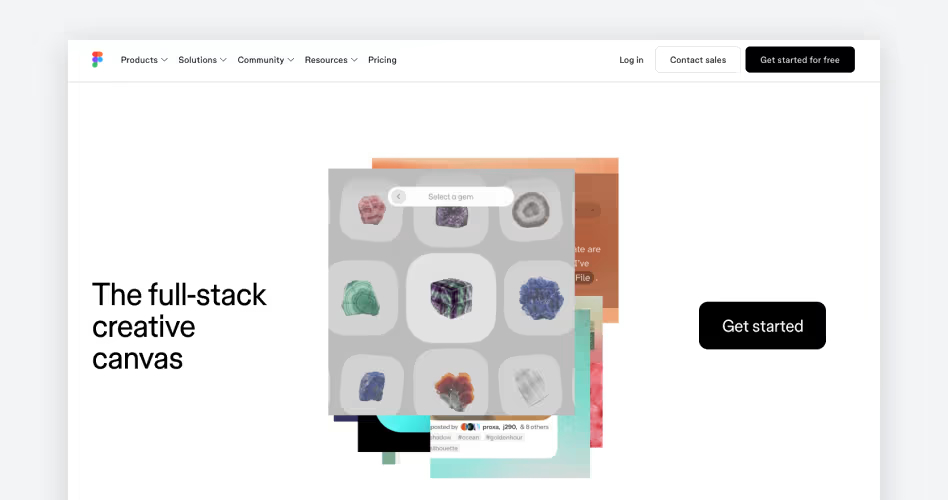
Best for: UI/UX designers, product teams, startups, and agencies that need a collaborative workspace for interface design, prototyping, and developer handoff.
Overview
Figma is a collaborative UI/UX design platform for creating website interfaces, mobile app screens, SaaS dashboards, and other digital products. Designers can use its canvas to build layouts, edit vector elements, organize components, and develop detailed interface designs.
Since multiple people can work on the same file, product teams can review designs, leave comments, and make changes without passing files back and forth.
What makes Figma particularly useful is how it connects different parts of the design workflow. Designers can build reusable components and design systems, create interactive prototypes, and share their work with developers through Dev Mode.
Features like Auto Layout also make it easier to create flexible interfaces that adjust when content or screen dimensions change.
Key Features
- Interface Design: Create website layouts, mobile screens, dashboards, and vector-based interface elements.
- Auto Layout: Build flexible layouts that adjust automatically when content or element sizes change.
- Components and Design Systems: Create reusable components, variants, styles, and variables for consistent interfaces.
- Interactive Prototyping: Connect screens, add transitions, create overlays, and simulate user interactions.
- Real-Time Collaboration: Work with teammates on shared files, exchange feedback, and review design changes.
- Developer Handoff: Use Dev Mode to inspect spacing, dimensions, typography, code properties, and exportable assets.
- AI-Powered Design: Use Figma AI tools and Figma Make to generate, edit, and turn design ideas into functional prototypes.
Figma+2
Pricing
Figma offers free and paid plans with different features and seat options.
Prices are in USD. Organization and Enterprise plans are billed annually. Professional pricing and seat costs depend on the billing option and seat type.
You can check the latest options on Figma's official pricing page.
Why Choose Figma?
Figma is a strong choice for teams that want to manage interface design, prototyping, and developer collaboration in one place. Its reusable components and shared design libraries are particularly useful for maintaining consistency across large websites and SaaS products.
However, its free plan has limitations on team files, and advanced collaboration and handoff features require paid seats. Teams focused on specialized usability research or advanced device interactions may also need additional tools.
2. Sketch – Best for Mac-Based Interface Design
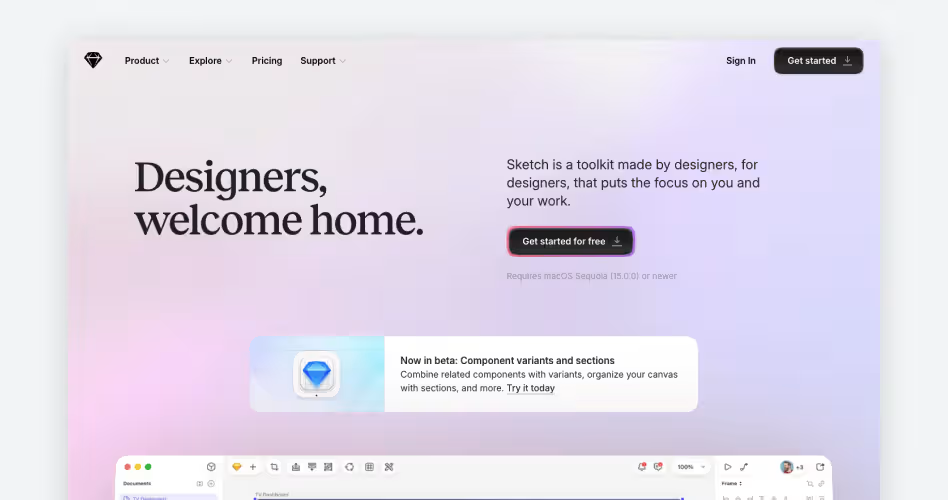
Best for: Mac-based UI/UX designers and product teams that need a dedicated desktop application for interface design, reusable components, and prototyping.
Overview
Sketch is a professional UI/UX design application built specifically for macOS. Designers use it to create website layouts, mobile app interfaces, icons, and vector graphics. Its native desktop editor provides a focused workspace for detailed design work, with support for local files that can be accessed and edited without an internet connection.
Sketch also provides tools for building and maintaining consistent design systems. Designers can create reusable components with Symbols, organize shared styles through Libraries, and build interactive prototypes without switching applications.
Its browser-based workspace extends collaboration to developers and stakeholders, who can inspect designs, leave comments, and download assets without installing the Mac application.
Key Features
- Native macOS Design App: Create website interfaces, mobile screens, illustrations, and vector graphics using a dedicated desktop editor.
- Symbols and Components: Build reusable interface elements and component variants for consistent designs.
- Shared Libraries: Maintain colors, typography, styles, and reusable components across multiple design files.
- Flexible Layouts: Use Frames and Stacks to organize elements and create adaptable interface layouts.
- Interactive Prototyping: Connect screens, add overlays, configure scrolling areas, and simulate user interactions.
- Developer Handoff: Let developers inspect design properties, copy CSS values, and export assets through the browser-based workspace.
Pricing
Sketch offers subscription plans and a one-time Mac-only license.
Subscription prices are based on annual billing. Sketch also offers a 30-day free trial.
You can check the latest plans on Sketch's official pricing page.
Why Choose Sketch?
Sketch is a strong choice for designers who prefer working in a dedicated Mac application. Its offline editing, reusable components, shared Libraries, and built-in prototyping tools make it suitable for creating and maintaining detailed design systems.
Developers and stakeholders can still review designs through the browser, even when using Windows or Linux. However, the actual design editor requires macOS, making it less suitable for teams that need a fully cross-platform design environment.
3. Penpot – Best Open-Source UI/UX Design Tool
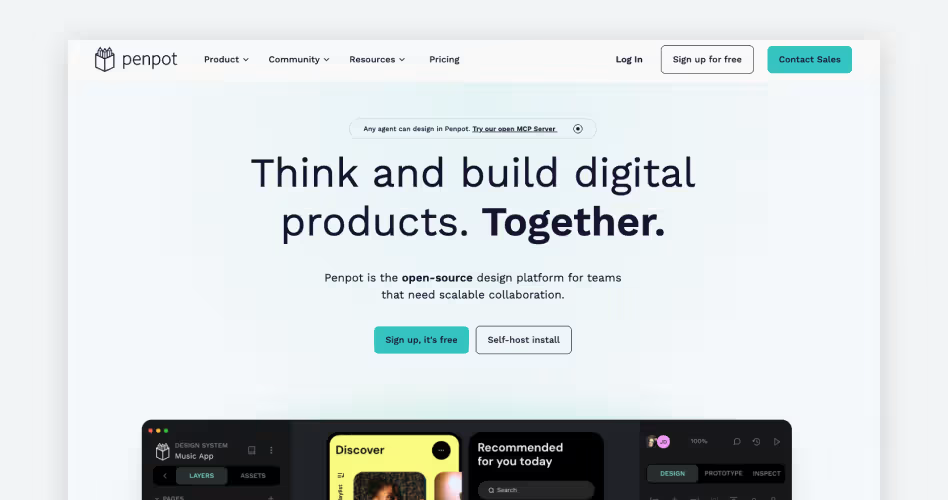
Best for: UI/UX designers, developers, and product teams looking for an open-source design platform with responsive layouts, reusable components, and self-hosting options.
Overview
Penpot is an open-source UI/UX design platform for creating website layouts, mobile interfaces, wireframes, and interactive prototypes. It provides a browser-based workspace where designers can build vector-based interfaces, organize design elements, and collaborate with other team members.
Unlike proprietary design platforms, Penpot also allows organizations to access its source code and host the application on their own infrastructure.
What makes Penpot particularly interesting is its approach to connecting design with frontend development. Its CSS Flex Layout and Grid Layout features let designers create responsive interfaces using familiar web layout principles.
Teams can also build reusable components, manage design tokens, and create interactive prototypes. Developers can inspect designs and access CSS, HTML, and SVG code, making it easier to translate interface designs into working products.
Penpot+2
Key Features
- Open-Source Platform: Access the source code, customize the platform, and deploy your own Penpot instance.
- CSS Flex and Grid Layouts: Create responsive interfaces using layout systems based on actual CSS behavior.
- Components and Design Systems: Build reusable components, variants, shared libraries, and design tokens.
- Interactive Prototyping: Connect screens, configure transitions, add overlays, and create interactive user flows.
- Real-Time Collaboration: Work with teammates on shared designs, exchange comments, and review changes.
- Developer Handoff and Code Inspection: Inspect design properties, measure spacing, and access CSS, HTML, and SVG code.
Penpot+2
Pricing
Penpot offers a free cloud plan alongside paid options for teams and organizations.
Prices are in USD. The Unlimited plan has a monthly cap of $175. Self-hosted Professional is also available for free, while Enterprise adds advanced administration and security features.
From Professional to Enterprise Plans+1
You can explore the latest options on Penpot's official pricing page.
Why Choose Penpot?
Penpot is worth considering if you want an open-source design platform with greater control over your design environment. Its CSS-based layouts, reusable components, and code inspection features make it particularly useful for teams where designers and frontend developers work closely together.
Self-hosting also gives organizations more control over their infrastructure and design data. However, teams switching from Figma may need time to adjust to its workflow and plugin ecosystem.
4. Balsamiq – Best for Wireframing
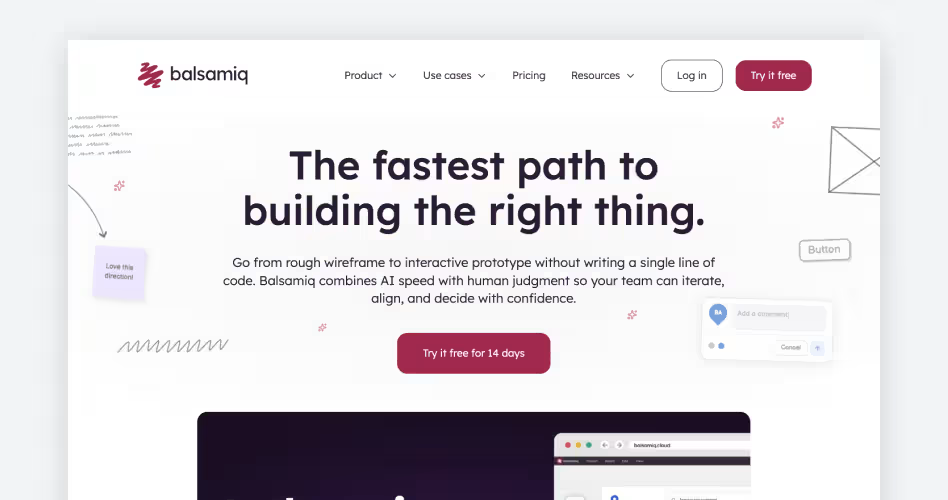
Best for: Product managers, UX designers, founders, and teams that need to sketch interface layouts and validate product ideas before development.
Overview
Balsamiq is a low-fidelity wireframing tool designed to help teams plan website pages, mobile app screens, and application layouts. Its drag-and-drop editor includes ready-made interface elements such as buttons, forms, navigation menus, and input fields.
Instead of focusing on colors, typography, and visual details, Balsamiq uses a sketch-like appearance to keep attention on screen structure, content placement, and functionality.
Teams can connect individual wireframes to create clickable prototypes and demonstrate how users might navigate a product. Stakeholders can review these layouts, leave comments, and suggest changes before developers start building the interface.
Balsamiq also includes AI-assisted wireframe generation, allowing users to turn text descriptions, screenshots, and hand-drawn sketches into editable wireframes.
Key Features
- Drag-and-Drop Wireframing: Build screen layouts using ready-made buttons, forms, menus, icons, and other UI elements.
- Low-Fidelity Design: Create sketch-style wireframes that keep attention on structure, content, and functionality.
- AI Wireframe Generation: Generate editable wireframes from text descriptions, screenshots, and hand-drawn sketches.
- Clickable Prototyping: Connect wireframes to create interactive flows and demonstrate product navigation.
- Team Collaboration: Share projects, collect comments, and invite stakeholders to review designs.
- Export and Integrations: Export wireframes as PDFs or images and connect projects with tools like Jira, Slack, and Confluence.
Pricing
Balsamiq offers a 14-day free trial, followed by paid subscription plans.
Prices are in USD and based on annual billing. Monthly billing costs more. All plans include unlimited reviewers.
Check the latest options on Balsamiq's official pricing page.
Why Choose Balsamiq?
Balsamiq is a useful choice when you need to plan interface layouts before investing time in detailed visual design. Its simple editor makes wireframing accessible to designers, developers, product managers, and non-technical stakeholders.
However, it's primarily built for low-fidelity wireframes rather than polished interface design or advanced interactive prototypes. Teams will likely need another tool, such as Figma, for the later stages of UI design.
5. Miro – Best for Brainstorming and User Flows
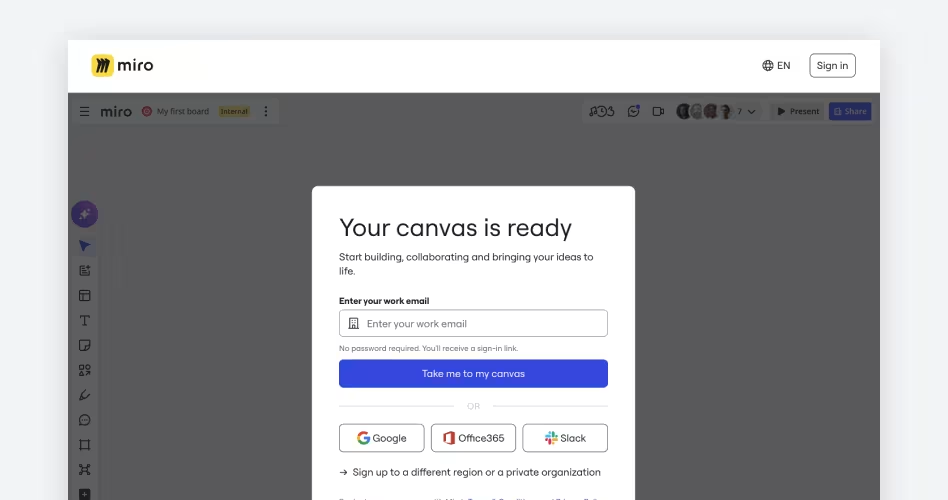
Best for: UX designers, product managers, and distributed teams that need to brainstorm ideas, map user journeys, and plan product workflows collaboratively.
Overview
Miro is an online collaborative whiteboard that helps product teams organize ideas and plan digital experiences. Its infinite canvas lets users add sticky notes, create mind maps, build diagrams, and arrange research findings in one shared workspace.
UX designers can use it to explore product concepts, identify user needs, and discuss design decisions with teammates before moving into interface design.
Miro also provides templates and visual tools for mapping customer journeys, creating user flows, and planning application structures. For example, a team can map the steps a user takes from signing up to completing a purchase, including decision points and possible navigation paths.
Its AI features can also help organize brainstorming sessions, group related ideas, generate diagrams, and summarize information.
Miro+2
Key Features
- Infinite Collaborative Canvas: Organize sticky notes, images, diagrams, documents, and ideas in one shared workspace.
- Brainstorming and Mind Mapping: Generate ideas, group related concepts, and build visual mind maps with your team.
- User Journey Mapping: Visualize customer experiences, user needs, touchpoints, and potential problems.
- User Flow and Diagramming: Map navigation paths, decision points, and interactions between different screens.
- Wireframing Library: Use ready-made UI components to sketch early screen layouts and product structures.
- AI-Powered Collaboration: Generate diagrams, group brainstorming ideas, and summarize information using Miro AI.
Pricing
Miro offers a free plan alongside paid subscriptions for individuals and teams.
Prices are in USD and based on annual billing. The Free plan includes three editable boards.
You can explore the latest options on Miro's official pricing page.
Why Choose Miro?
Miro is a useful choice for teams that need to organize product ideas and understand user journeys before designing interfaces. Its collaborative canvas, journey mapping templates, and diagramming tools make it easier to plan workflows and discuss design decisions.
However, Miro isn't a replacement for dedicated UI design software. Its wireframing capabilities are mainly suited to early planning, so teams will still need tools like Figma or Sketch to create detailed interfaces and interactive prototypes.
6. Framer – Best for Interactive Website Design
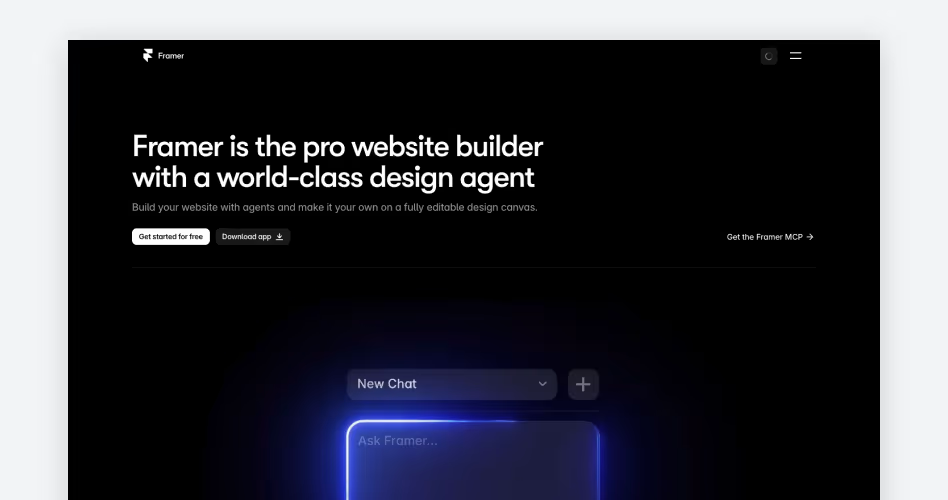
Best for: Web designers, freelancers, startups, and marketing teams that want to design, build, and publish responsive websites without a traditional development workflow.
Overview
Framer combines visual website design with development and publishing capabilities. Its canvas-based editor lets designers create landing pages, business websites, portfolios, and marketing pages using flexible layouts, typography, images, and reusable components. Rather than treating a design as a static mockup, the platform turns it into a functional website that can be published directly to a custom domain.
Beyond the visual editor, it provides tools for managing responsive layouts, animations, and website content. Designers can configure breakpoints for different screen sizes, add scroll effects and interactive elements, and manage dynamic pages through its built-in CMS.
Hosting, publishing, and SEO controls are also included, making it practical for teams that regularly launch and update websites.
Key Features
- Visual Website Design: Create website pages, sections, and layouts using a flexible visual editor.
- Responsive Design: Adjust layouts, breakpoints, and elements for desktop, tablet, and mobile screens.
- Animations and Interactions: Add scroll effects, hover states, transitions, and interactive elements.
- Built-In CMS: Manage content collections and create dynamic pages for blogs, directories, and resource libraries.
- SEO Management: Configure page titles, meta descriptions, redirects, and other search optimization settings.
- Website Hosting and Publishing: Connect custom domains, manage staging environments, and publish websites directly through the platform.
Pricing
Framer offers a free plan and paid subscriptions for websites.
Prices are in USD and based on annual billing. Additional editor seats and certain website features may cost extra.
Check the latest options on Framer's official pricing page.
Why Choose Framer?
Framer is a strong choice for designers and marketing teams that want to take website projects from visual design to publication without managing a separate development and hosting workflow. Its responsive layouts, animations, built-in CMS, and SEO controls make it particularly useful for landing pages, business websites, and content-driven projects.
However, complex SaaS interfaces and application workflows may require a dedicated UI/UX design platform, while advanced backend functionality often needs additional development.
7. ProtoPie – Best for Advanced Prototyping
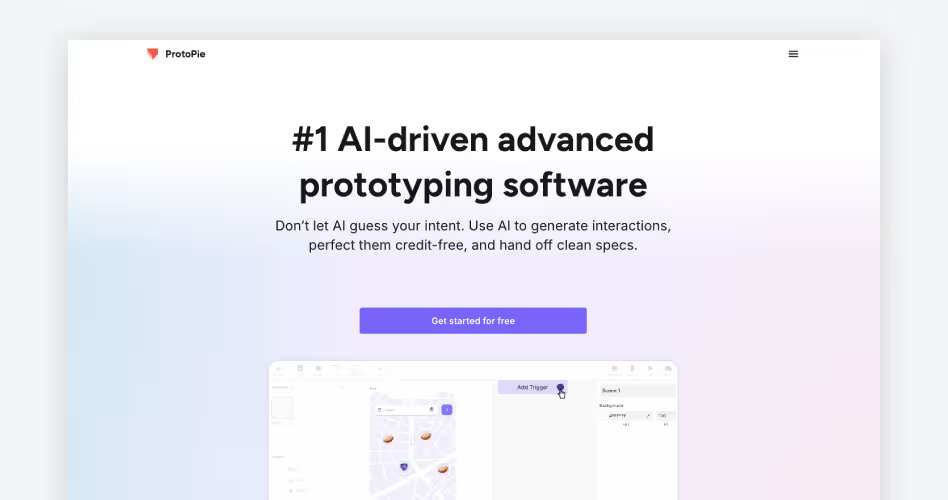
Best for: UX designers and product teams that need realistic prototypes with complex interactions, device sensors, and multi-device experiences.
Overview
ProtoPie is a high-fidelity prototyping tool that helps designers simulate how digital products respond to user interactions. It supports prototypes for mobile applications, websites, desktop interfaces, and connected devices. Its interaction engine combines triggers, responses, variables, and formulas, allowing designers to create complex behaviors without writing code. For example, they can simulate form validation, dynamic menus, conditional actions, and interactive animations.
What makes it particularly useful is its ability to go beyond basic screen transitions. Designers can incorporate touch gestures, voice commands, and device sensors to test how interfaces respond to real-world inputs. ProtoPie Connect also allows multiple devices to communicate during prototype testing. Existing designs can be imported from Figma, making it easier to add advanced interactions without recreating every screen.
Key Features
- Advanced Interaction Design: Build complex behaviors using triggers, responses, variables, and formulas.
- Multi-Touch Gestures: Simulate swipes, pinches, taps, drags, and other touch-based interactions.
- Device Sensor Integration: Use hardware inputs such as gyroscopes, compasses, and microphones in prototypes.
- Voice Prototyping: Create voice-controlled experiences using speech recognition and text-to-speech.
- Multi-Device Prototyping: Connect phones, tablets, and other devices to simulate synchronized interactions.
- Design Tool Integrations: Import designs from Figma and other design tools to build interactive prototypes.
Pricing
ProtoPie offers a free plan alongside paid subscriptions for individual designers and teams.
Prices are in USD and based on annual billing. Plan limits and included features vary.
You can explore the latest options on ProtoPie's official pricing page.
Why Choose ProtoPie?
ProtoPie is a strong choice when the behavior of an interface matters as much as its visual appearance. Its support for complex interactions, device sensors, voice inputs, and multi-device testing helps designers evaluate experiences that basic clickable prototypes cannot fully demonstrate.
However, it's primarily a specialized prototyping tool rather than a complete UI design platform. Teams will generally need another application, such as Figma, to create and maintain their interface designs.
8. Maze – Best for Usability Testing
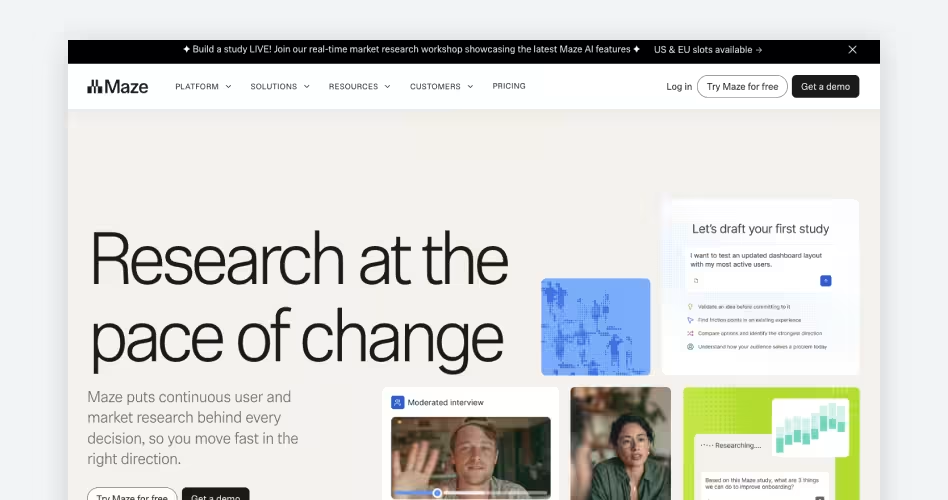
Best for: UX designers, product managers, and research teams that want to test prototypes, collect user feedback, and identify usability problems before development.
Overview
Maze is a user research and usability testing platform that helps teams evaluate how people interact with digital products. Designers can test interactive prototypes, websites, and mobile experiences by giving participants specific tasks to complete.
For example, an e-commerce team might ask users to find a product, add it to their cart, and complete the checkout process. This helps researchers identify confusing navigation, unclear interface elements, and unnecessary steps before development begins.
The platform also turns participant behavior into measurable research findings. Teams can review task completion rates, click heatmaps, misclicks, and task durations to understand where users struggle.
Surveys and follow-up questions provide additional feedback about the experience. Its Figma integration also allows designers to test existing prototypes without rebuilding their interfaces.
Key Features
- Prototype Testing: Test interactive Figma prototypes with participants before development.
- Task-Based Usability Testing: Give users specific tasks and measure whether they complete them successfully.
- Click Heatmaps: Visualize where participants click and identify confusing interface elements.
- Usability Metrics: Track completion rates, misclicks, drop-offs, and average task duration.
- Surveys and Feedback: Collect participant opinions through questions, ratings, and open-ended responses.
- Research Reports: Organize test results, analyze user behavior, and share findings with product teams.
Pricing
Maze offers a free plan and paid options for teams with more extensive research requirements.
Prices are in USD. The Starter plan is listed at $99/month. Enterprise pricing depends on team requirements and research needs.
Check the latest options on Maze's official pricing page.
Why Choose Maze?
Maze is useful for teams that want to validate design decisions using actual user behavior rather than assumptions. Its prototype testing, heatmaps, task metrics, and feedback collection help identify usability problems before they become expensive development changes.
However, it isn't an interface design tool, and the quality of its findings depends on the participants and test scenarios. Teams conducting frequent or large-scale research may also need a higher-tier subscription.
9. Dovetail – Best for UX Research
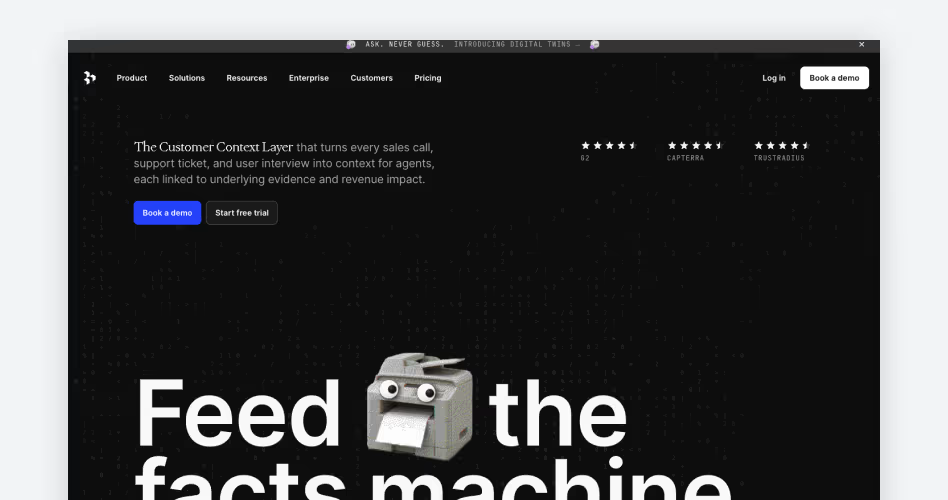
Best for: UX researchers, product managers, and research teams that need to organize interviews, analyze qualitative feedback, and share research findings.
Overview
Dovetail is a customer research platform that helps teams collect, organize, and analyze qualitative research data. Researchers can bring interview recordings, transcripts, documents, surveys, and customer feedback into one workspace.
Instead of searching through separate files to find useful information, teams can organize research by project, topic, or study and keep their findings accessible.
Its analysis tools help researchers identify recurring themes across interviews and customer feedback. They can highlight important statements, add tags, and group related observations to uncover common user problems.
AI-powered features can also summarize interviews, identify patterns, and help teams search existing research. This makes it easier to turn raw customer feedback into findings that inform product and design decisions.
Dovetail+2
Key Features
- Research Repository: Store interviews, transcripts, recordings, documents, and customer feedback in one searchable workspace.
- Automatic Transcription: Convert recorded interviews and conversations into searchable transcripts with speaker identification.
- Highlighting and Tagging: Mark important statements, categorize feedback, and identify recurring research themes.
- AI-Powered Analysis: Summarize interviews, identify patterns, and group related feedback across research projects.
- AI Chat and Search: Ask questions about existing research and find relevant insights with supporting evidence.
- Research Sharing: Create insight documents, share interview highlights, and communicate findings with stakeholders.
Pricing
Dovetail offers a free plan for smaller research projects, with custom pricing for Enterprise users.
The Free plan includes one channel and one project. Enterprise offers additional research management, collaboration, and organizational features.
Check the latest options on Dovetail's official pricing page.
Why Choose Dovetail?
Dovetail is a useful choice for teams that regularly conduct user interviews and need a structured way to analyze their findings. Its searchable research repository, transcription, tagging, and AI-powered analysis help researchers identify recurring user problems without manually reviewing every piece of feedback.
However, it's primarily a research analysis and management platform, not a tool for designing interfaces or testing interactive prototypes. Teams will need separate tools for those activities.
10. Google Stitch – Best for AI-Powered UI Design
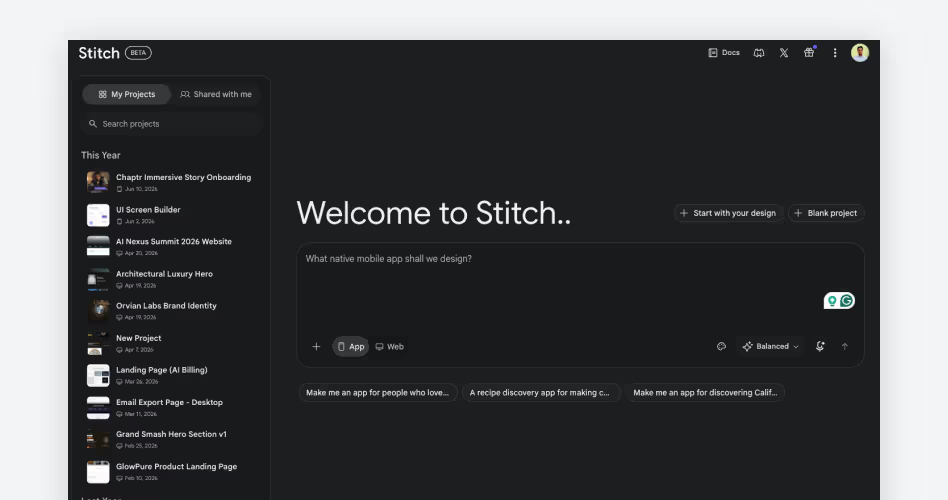
Best for: UI/UX designers, developers, founders, and product teams that want to generate interface concepts, explore design variations, and create prototypes using AI.
Overview
Google Stitch is an experimental AI-powered design tool from Google Labs that helps turn product ideas into visual interfaces. Instead of manually creating every screen, users can describe an application or website in natural language and generate high-fidelity UI designs. It also accepts screenshots, sketches, images, and code as references, making it easier to explore different layouts and visual directions.
What makes it particularly interesting is its AI-native design canvas. Users can bring different design references into one workspace, refine generated screens through an AI design agent, and even use voice instructions to request changes.
Static screens can also be connected into interactive prototypes to explore user journeys. For development, Stitch supports design handoff through its MCP server, SDK, and exports to tools such as Google AI Studio and Antigravity.
Key Features
- Text-to-UI Generation: Turn natural language descriptions into website and mobile interface designs.
- Image-to-UI Generation: Convert screenshots, sketches, and wireframes into editable interface concepts.
- AI Design Agent: Refine layouts, explore alternatives, and make design changes using text or voice instructions.
- Interactive Prototyping: Connect generated screens and preview user journeys without manually building every interaction.
- Design System Support: Extract design rules from websites and use DESIGN.md to maintain consistent colors, typography, and layouts.
- Design-to-Code Handoff: Export designs and connect projects to development tools through code exports, MCP, and integrations.
blog.google+1
Pricing
Google Stitch is currently available through Google Labs without a separate paid subscription.
Usage limits apply and may change. Connected development, cloud, and hosting services may have separate costs.
The Rundown AI+1
You can try it at Google Stitch.
Why Choose Google Stitch?
Google Stitch is worth considering when you want to explore interface ideas without spending hours creating initial layouts manually. Its prompt-based generation, visual references, and AI design agent make it easier to experiment with different screens and user experiences.
However, generated interfaces still need human refinement, particularly around accessibility, responsive behavior, and design consistency. It's best suited to early-stage design exploration and rapid prototyping rather than replacing a complete professional UI/UX design workflow.
UI/UX Design Tools Compared
Each UI/UX design tool offers different capabilities depending on the stage of product design. Some focus on creating interfaces and prototypes, while others specialize in wireframing, user research, brainstorming, or usability testing.
The following table compares all 10 tools based on their primary use cases, features, supported platforms, free access, and starting prices. Use it to quickly identify which options match your design requirements and budget.
Note: Prices are in USD and reflect publicly listed starting rates checked in October 2026. Annual billing, seat requirements, usage limits, and additional features may affect the final cost. Sketch also offers a $120 one-time Mac-only license.
How to Choose the Right UI/UX Design Tool
Choosing a UI/UX design tool depends on what you're designing, how your team works, and which parts of the design process you need to manage. A tool built for wireframing may not offer the prototyping capabilities required for a complex SaaS application. Before committing to a platform, consider these factors:
Identify Your Design Requirements: Start by defining what you need the tool to accomplish. If you're creating website and mobile interfaces, look for strong layout, component, and design system features. For early product planning, consider wireframing and user flow tools. If you need to evaluate existing designs, prioritize usability testing capabilities.
Consider Your Team's Workflow: Think about how designers, developers, product managers, and stakeholders work together. Distributed teams may benefit from browser-based tools with real-time editing, shared workspaces, and accessible feedback features. If your designers prefer working offline, a dedicated desktop application may be more suitable.
Evaluate Prototyping Capabilities: Consider the complexity of the interactions you need to demonstrate. Basic clickable prototypes may be enough for simple websites, but complex applications can require conditional logic, variables, animations, and device interactions. Choose a tool that supports the level of prototyping your projects demand.
Check Collaboration and Developer Handoff Features: Look for shared component libraries, version history, comments, design inspection, and asset exports. Developers should be able to access measurements, typography, spacing, and other implementation details without repeatedly asking designers for clarification.
Compare Pricing and Scalability: Review free plan restrictions, subscription costs, editor seats, storage limits, and collaboration features. Consider how pricing will change as your team grows. A tool that fits a small team today should also support your future projects without creating unnecessary software expenses.
Frequently Asked Questions
Is Figma free?
Yes, Figma offers a permanent free Starter plan. It includes up to 3 active Figma design files and 3 FigJam whiteboards, unlimited personal drafts, and basic real-time collaboration features. For product teams requiring unlimited project files, advanced team libraries, and dev mode seats, Figma provides paid Professional ($12–$15/editor/month) and Organization plans. It remains one of the most capable free online UI design tools, free ui ux design tools, and accessible ui ux design tools online available for beginners and solo product designers.
Figma vs Sketch: which is better?
When comparing figma vs sketch, the best choice depends on your operating system and collaboration requirements. Figma is a modern figma ui ux design software and collaborative ui ux design software that excels in cross-platform real-time collaboration, interactive prototype testing, and shared component library systems across Mac, Windows, and Linux. Sketch is a dedicated sketch ux design software offering high-speed offline workflows, native macOS performance, and a one-time Mac license. While Sketch remains one of the best ux design software options for Mac-exclusive designers, distributed teams largely choose Figma as their primary ux design software and top ux design tools choice for collaborative workflows.
Is Adobe XD discontinued?
Yes, Adobe XD has been effectively discontinued. Following Adobe's shifting product strategy around collaborative tools, Adobe discontinued Adobe XD as a standalone offering, removed it from new Creative Cloud purchases, and moved existing installations to maintenance mode with no active feature development. Designers evaluating the best ux design tools have primarily migrated to Figma for cloud collaboration or Penpot for an open-source, web-based alternative that supports native CSS Grid and Flexbox standards.
What is the best free UI design tool?
The best free UI design tools in 2026 are Penpot and Figma's Starter tier. Penpot is completely free and open-source, offering unlimited projects, components, and self-hosting options with zero paywalls, making it the leading choice for ui design tools open source and free ux design software. For wireframing and layout exploration, free ux design tools like Miro and Balsamiq also provide generous starter boards, whether looking for open-source software or ui design tools free of charge. For teams seeking ux design tools free of licensing fees or the best ui design tools without subscription limits, Penpot stands out as the premier free ux tools solution.
What are the best AI tools for UX design?
The top ai powered ui design tools, ai ux design tools, and ai ui design tools include Google Stitch, Framer AI, Dovetail AI, and Figma AI. Google Stitch utilizes Gemini models to turn natural language prompts and reference screenshots into editable interface components, making it one of the best ai ui design tools available today. Framer AI automatically generates responsive website layouts and production-ready copy from short text prompts. Dovetail AI analyzes qualitative user research by automatically transcribing, tagging, and clustering customer interview themes. Integrating these best ai ux design tools and ai ux tools helps product teams speed up discovery, wireframing, and usability testing analysis.
Which UI/UX tool is best for mobile app design?
For ui design tools for mobile applications (iOS and Android) and website ui design tools, Figma combined with ProtoPie is the industry-standard stack. Figma provides pre-built Apple Human Interface and Google Material Design component library templates, responsive auto-layout, and instant previewing on actual devices using the Figma Mirror mobile app. Among dedicated prototyping ux tools for high-fidelity prototyping with native mobile sensors—such as device camera input, voice commands, compass orientation, and micro-gestures—ProtoPie provides the most realistic interactive prototype environment without writing production code.
What is the difference between UI and UX design tools?
While commonly grouped together under ui and ux design tools and general ui ux tools, UX tools and UI design tools address different phases of product development. UX design tools (such as Miro, Dovetail, Balsamiq, and Maze) serve as specialized wireframe ux tools, user research repositories, and usability testing platforms. UI design tools (such as Figma, Sketch, and Framer) focus on visual hierarchy, typography, color palettes, responsive layouts, design-to-code publishing, and component library maintenance. Comprehensive digital product design requires combining both UX research platforms and visual UI software from this complete ux tools list.
Should I buy design tools or hire a design team?
Investing in modern ux and ui design tools, the best ui ux design tools, and dedicated design handoff tools gives your team the necessary infrastructure to build digital products, but software alone cannot replace strategic user research, conversion optimization, and design system governance. If you already have dedicated in-house designers, investing in the best ui ux tools and best ui ux software is essential. However, if your team lacks experienced design leadership, partnering with a specialized product design agency like Orbix Studio delivers end-to-end UX research, custom interface design, and seamless developer handoff without the overhead and trial-and-error of managing an in-house design stack.
Final Thoughts
The best UI/UX design tool depends on what you're trying to create and how you approach product design. Figma, Sketch, and Penpot offer strong environments for interface design, while Balsamiq and Miro help teams plan layouts and user journeys. Tools like ProtoPie, Maze, and Dovetail support more specialized tasks, from advanced prototyping to usability testing and research analysis.
You don't necessarily need one tool to handle everything. A combination of tools may work better, depending on your project requirements and team workflow. Start with the tasks you need to accomplish, compare the available features, and choose software that makes your design process more effective.